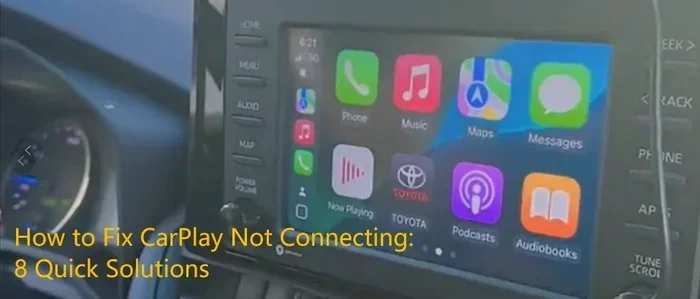
Why Is My CarPlay Not Working Try These Quick Fixes
CarPlay not working can be frustrating, but most issues have simple solutions. Whether your Apple CarPlay won’t connect, keeps freezing, or shows a black screen, this guide walks you through every fix step by step. You’ll learn the most common causes, quick troubleshooting tricks, and prevention tips to keep CarPlay running smoothly on every drive.
You’re about to hit the road, you tap your iPhone to the car screen, and nothing happens. That moment of panic is something almost every CarPlay user has experienced. Why is my CarPlay not working is one of the most searched car tech questions online, and for good reason. Your CarPlay connection matters because it controls your navigation, music, calls, and messages while you drive.
The good news is that most CarPlay problems are easy to fix. You don’t need to be a tech expert. You don’t even need to visit a mechanic. In this guide, we’ll walk through every reason your Apple CarPlay might not be working and show you the exact steps to get it back up and running. We’ll cover wired and wireless connections, common error messages, and simple prevention tips that keep things smooth for the long haul.
Grab your iPhone and your car keys. By the end of this article, you’ll know exactly what to do when CarPlay not working throws a wrench in your morning commute or road trip plans.
Key Takeaways
- Restart and Reconnect: A simple restart of your iPhone and car infotainment system solves most CarPlay issues.
- Check Your Cable and Ports: A damaged USB cable or dirty port is the number one cause of CarPlay not working.
- Keep Software Updated: Outdated iOS or car firmware often causes connection problems.
- Wireless CarPlay Has Its Own Quirks: Wi-Fi and Bluetooth settings need to be just right for wireless pairing.
- Reset Settings Before Reaching for a Mechanic: Most CarPlay problems are software-related and fixable at home.
📑 Table of Contents
- Why Is My CarPlay Not Working? Common Causes
- Quick Fixes to Get CarPlay Working Again
- CarPlay Not Connecting? Try These Steps
- Wireless CarPlay Problems and Solutions
- When to Seek Professional Help
- How to Prevent CarPlay Issues in the Future
- Comparison: Wired vs. Wireless CarPlay Reliability
- Expert Insights on CarPlay Troubleshooting
- Key Takeaways
- Conclusion
Why Is My CarPlay Not Working? Common Causes
Before you start pulling cables out and pressing buttons, it helps to understand what might be causing the problem. Why is my CarPlay not working usually comes down to a handful of common culprits. Let’s break them down so you can narrow things fast.
Faulty or Damaged USB Cables
The USB cable is the lifeline of wired CarPlay. If the cable is frayed, bent, or worn out, your CarPlay connection will suffer. Many people don’t realize that not all USB cables are created equal. CarPlay needs a high-quality cable that supports data transfer, not just charging. A cheap cable that only charges your phone will not trigger CarPlay at all.
Over time, cables wear out from bending, heat exposure, and regular use. If your CarPlay not connecting problem started suddenly, a bad cable is the first thing to check. Try a different cable and see if that fixes the issue right away.
Dirty or Damaged Lightning or USB Ports
Dust, lint, and debris can build up inside your iPhone’s Lightning port or your car’s USB port. Even a tiny bit of lint can block the connection and stop CarPlay mirroring from working. This is a surprisingly common cause that many people overlook.
Take a close look at both ports. Use a toothpick or compressed air to gently clean them out. If the port is physically damaged, you may need a repair before CarPlay will work again.
Software Glitches and Outdated iOS
Apple releases iOS updates regularly, and these updates often include fixes for CarPlay troubleshooting issues. If your iPhone is running an older version of iOS, it might not communicate properly with your car’s infotainment system. Similarly, your car’s software might need an update too.
Sometimes a simple software glitch causes CarPlay frozen or unresponsive screens. These glitches happen more often than you’d think, especially after major iOS updates. The good news is that most software-related issues are easy to resolve with a few simple steps.
Bluetooth and Wi-Fi Interference
If you use wireless CarPlay, your connection depends on both Bluetooth and Wi-Fi. Other devices, Wi-Fi networks, and even physical obstacles can interfere with the signal. A crowded Bluetooth environment, like a parking lot full of cars, can sometimes cause connection drops or pairing failures.
Car Infotainment System Freezes
Your car’s infotainment system is essentially a small computer. Like any computer, it can freeze, hang, or crash. When the infotainment system freezes, CarPlay not responding is a common symptom. A simple reboot of the car system often clears this up.
Quick Fixes to Get CarPlay Working Again
Now that you know the common causes, let’s get into the fixes. These CarPlay troubleshooting steps are ordered from simplest to most involved. Start at the top and work your way down. Most people find their fix within the first few steps.
Fix 1: Restart Your iPhone
This is the oldest trick in the book, and it works for a reason. Restarting your iPhone clears temporary bugs, refreshes connections, and resets network settings. To restart, hold down the power button and the volume button together until the slider appears. Slide to power off, wait 30 seconds, and turn it back on.
After your iPhone restarts, plug it in or try connecting wirelessly again. This single step fixes CarPlay not working issues more often than people realize.
Fix 2: Restart Your Car’s Infotainment System
Your car’s screen needs a fresh start too. The method varies by car brand, but most systems let you restart by holding the power button for 10 to 15 seconds. Some cars let you turn the ignition off and back on. Check your car’s manual if you’re unsure.
Once the system reboots, wait for it to fully load before reconnecting your iPhone. This often resolves CarPlay black screen and unresponsive issues instantly.
Fix 3: Try a Different USB Cable and Port
If restarting didn’t work, swap out your cable. Use a high-quality, Apple-certified USB cable that supports data transfer. Avoid cables that came with cheap accessories or chargers. Plug the cable into a different USB port in your car if available.
This is one of the fastest ways to diagnose whether the problem is with your cable or your car’s system. Many people discover that a new cable completely solves their CarPlay connection problems.
Fix 4: Clean the Charging Ports
Grab a flashlight and look inside both the iPhone port and the car USB port. If you see lint or debris, gently remove it. A wooden toothpick works great for this. Be gentle and avoid metal objects that could cause damage.
After cleaning, plug the cable back in firmly. A clean connection makes a huge difference for CarPlay not showing on your car display.
Fix 5: Update Your iPhone and Car Software
Go to Settings > General > Software Update on your iPhone. Install any available iOS updates. Then check your car manufacturer’s website or manual for infotainment software updates. Some cars support over-the-air updates, while others require a visit to a dealership.
Keeping both devices updated ensures CarPlay compatibility and squashes known bugs that cause connection failures.
Fix 6: Reset CarPlay Settings on Your iPhone
Go to Settings > General > CarPlay > Your Car > Forget This Car. Then reconnect your iPhone. This resets the CarPlay pairing and often fixes stubborn connection issues. It’s like giving your CarPlay setup a fresh start.
This step is especially helpful when your CarPlay not responding issue persists after other fixes.
Fix 7: Toggle Wi-Fi and Bluetooth
For wireless CarPlay, turn Bluetooth and Wi-Fi off and back on. You can do this from your iPhone’s Control Center or Settings. Sometimes the wireless connection gets stuck, and toggling these settings forces a fresh handshake between your phone and car.
This simple trick resolves many wireless CarPlay issues without requiring a full restart.
CarPlay Not Connecting? Try These Steps
If you’ve tried the quick fixes above and CarPlay still not connecting, don’t worry. There are deeper troubleshooting steps that address more specific problems. These steps target the root causes that quick restarts can’t fix.
Check CarPlay Settings on Your iPhone
Go to Settings > General > CarPlay > Your Car. Make sure CarPlay is enabled and your car is listed. If your car doesn’t appear, try plugging in the cable again and see if it shows up. If it still doesn’t appear, there may be a deeper compatibility issue.
Also, check that your car’s infotainment system is set to CarPlay mode. Some cars have a dedicated CarPlay button or a source selector that needs to be switched to CarPlay input.
Check for Screen Mirroring Issues
Sometimes CarPlay connects but the screen doesn’t display properly. This can happen when CarPlay mirroring fails due to resolution mismatches or software conflicts. Unplugging and replugging the cable often fixes this. If you’re using wireless CarPlay, toggling Airplane Mode on and off can reset the mirroring connection.
CarPlay Audio Not Working
If your CarPlay screen works but audio doesn’t play through your car speakers, check your car’s audio source. Make sure the car is set to Bluetooth Audio or USB Audio, depending on your connection type. Also check that your iPhone’s media volume isn’t muted or turned all the way down.
Sometimes the audio routing gets confused after a phone call or navigation turn-by-turn direction. Restarting both devices usually clears this up.
CarPlay Shows But Is Unresponsive
If the CarPlay interface appears but taps and swipes don’t register, the touch connection may be disrupted. Unplug the cable, wait a few seconds, and plug it back in. If the problem persists, try a different cable. A loose or intermittent connection often causes this exact symptom.
Also check that your iPhone screen is clean and dry. A wet or covered screen can interfere with touch input to CarPlay.
CarPlay Works Sometimes But Not Always
Intermittent CarPlay issues are often caused by inconsistent cable connections or software conflicts. If CarPlay works in one car but not another, the problem is likely with the car’s system or cable. If it works in the same car sometimes but not others, check your cable and port for damage.
Intermittent issues can also stem from low battery on your iPhone. A low-power iPhone may not maintain a stable CarPlay connection. Keep your phone charged above 20% for reliable CarPlay connection stability.
Wireless CarPlay Problems and Solutions
Wireless CarPlay is incredibly convenient, but it comes with its own set of challenges. Without a physical cable, your connection depends entirely on Wi-Fi and Bluetooth. When those signals falter, your CarPlay experience suffers.
Why Wireless CarPlay Keeps Disconnecting
Wireless CarPlay disconnects for a few reasons. Distance matters more than you think. If your phone is too far from the car’s antenna, the signal drops. Also, other Bluetooth devices in your car, like headphones or speakers, can compete for the connection and cause drops.
Your car’s Wi-Fi band can also interfere. Many cars use the 5GHz Wi-Fi band for CarPlay, and if your phone is tuned to a different band, the connection becomes unstable. Make sure your phone and car are on compatible Wi-Fi settings.
How to Set Up Wireless CarPlay Properly
First, make sure Bluetooth and Wi-Fi are both turned on. Then, plug your iPhone into the car with a cable for the initial pairing. The car should prompt you to enable wireless CarPlay. Accept the prompt and check the box that says “Always Allow.” After that, you can unplug the cable and CarPlay should connect automatically.
If wireless CarPlay still won’t work, forget the car in your CarPlay settings and pair it again from scratch. This fresh pairing often resolves persistent wireless issues.
Does Your Car Support Wireless CarPlay?
Not all cars support wireless CarPlay. Some manufacturers only offer wired CarPlay, even on higher trim levels. Check your car’s manual or the manufacturer’s website to confirm. If your car only supports wired CarPlay, no amount of troubleshooting will make wireless work. In that case, investing in a quality cable is your best bet.
When to Seek Professional Help
Most CarPlay troubleshooting is something you can handle yourself. But there are times when professional help is the right call. Knowing when to stop troubleshooting and seek help saves you time and frustration.
Signs You Need a Mechanic or Dealer Visit
If you’ve tried every fix in this guide and CarPlay still not working, there may be a hardware issue. Signs that point to a hardware problem include a USB port that is physically damaged, a car screen that stays frozen even after a full reboot, or CarPlay issues that only happen in one specific car and never in any other car.
Also, if your car is still under warranty, a dealer visit is usually free. They can run diagnostic tests on the infotainment system and determine if a hardware component needs replacement.
iPhone Hardware Issues That Affect CarPlay
Rarely, the problem is on the iPhone side. A damaged Lightning port, water damage, or a faulty internal component can all prevent CarPlay from working. If your iPhone has other issues like charging problems or frequent reboots, the hardware may be the root cause.
In these cases, visiting an Apple Store or authorized service provider is the best next step. They can diagnose and repair iPhone hardware issues that affect CarPlay not working.
How to Prevent CarPlay Issues in the Future
Prevention is always better than troubleshooting. A few simple habits can keep your Apple CarPlay running smoothly for years. Here are the best prevention tips based on real-world experience.
- Use Apple-Certified Cables: Always use MFi-certified USB cables. These cables meet Apple’s quality standards and ensure reliable data transfer for CarPlay.
- Keep Your iOS Updated: Install iOS updates as soon as they’re available. These updates include CarPlay bug fixes and compatibility improvements.
- Clean Your Ports Regularly: Make it a habit to check and clean your iPhone and car USB ports every few weeks. Prevention is better than cure.
- Avoid Cheap Accessories: Cheap cables and adapters may seem like a bargain, but they often cause CarPlay problems. Invest in quality accessories.
- Restart Your Car System Occasionally: Just like your phone, your car’s infotainment system benefits from occasional restarts. A monthly reboot keeps things running smoothly.
- Don’t Use Your Phone While Plugged In for Charging Only: If you only want to charge your phone, use a different cable. Using the CarPlay cable for charging alone can cause wear and connection issues over time.
Following these simple tips dramatically reduces the chances of running into CarPlay not working issues. A little prevention goes a long way toward a seamless driving experience.
Comparison: Wired vs. Wireless CarPlay Reliability
Understanding the differences between wired and wireless CarPlay helps you troubleshoot more effectively. Here’s a quick comparison of reliability factors.
| Factor | Wired CarPlay | Wireless CarPlay |
|---|---|---|
| Connection Stability | Very stable, rarely drops | Can be affected by Wi-Fi interference |
| Setup Required | Plug in cable | Initial pairing needed, then automatic |
| Common Issues | Cable damage, dirty ports | Signal drops, Wi-Fi conflicts |
| Car Compatibility | Nearly universal | Not available in all cars |
| Fixes Needed | Replace cable, clean port | Toggle Bluetooth/Wi-Fi, re-pair |
Both wired and wireless CarPlay have their strengths. Wired connections are more reliable and work in more cars. Wireless connections offer convenience but require a bit more maintenance. Knowing which type you have helps you troubleshoot why is my CarPlay not working more effectively.
Expert Insights on CarPlay Troubleshooting
Automotive tech experts agree that the majority of CarPlay issues are software or cable related, not hardware failures. According to industry professionals, the single most effective troubleshooting step is always a simple restart of both devices. This resets all connections and clears temporary glitches.
Experts also emphasize the importance of using certified cables. Non-certified cables may charge your phone but fail to transfer the data CarPlay needs. This is one of the most overlooked causes of CarPlay not working in everyday use.
Another expert tip: if your CarPlay works fine at home but fails in the car, the issue is likely with the car’s USB port or software, not your iPhone. This simple observation helps you narrow down the problem quickly and saves time during troubleshooting.
Key Takeaways
- Restart Both Devices First: A restart of your iPhone and car infotainment system solves the majority of CarPlay issues quickly and easily.
- Check Your Cable and Ports: A damaged USB cable or dirty port is the most common reason CarPlay not working happens. Always inspect these first.
- Keep Software Updated: Outdated iOS or car firmware creates compatibility issues that prevent CarPlay from connecting properly.
- Wireless CarPlay Needs Both Bluetooth and Wi-Fi: These two connections must be active and stable for wireless CarPlay to work reliably.
- Reset CarPlay Settings Before Seeking Help: Forgetting the car in CarPlay settings and reconnecting fixes many persistent issues.
- Prevention Beats Troubleshooting: Using certified cables, cleaning ports regularly, and keeping software updated prevents most CarPlay problems before they start.
Conclusion
Why is my CarPlay not working is a question with a surprisingly simple answer in most cases. The vast majority of CarPlay issues stem from a handful of common causes: bad cables, dirty ports, outdated software, or minor glitches that a quick restart fixes. By working through the steps in this guide, you can diagnose and solve most CarPlay connection problems without ever leaving your driveway.
Remember to start with the simplest fixes and work your way up. Restart your devices, check your cable, clean your ports, and update your software. These basic steps resolve the problem more often than not. If the issue persists, deeper troubleshooting like resetting CarPlay settings or checking for hardware damage can get you back on track.
Your Apple CarPlay system is designed to make driving safer and more connected. When it works, it’s one of the best features in your car. When it doesn’t work, it’s frustrating. But now you have the knowledge and tools to fix it yourself. Keep this guide bookmarked, share it with friends who struggle with CarPlay not working, and enjoy a smoother driving experience every time you hit the road.
Stay proactive with maintenance, keep your cables and software in good shape, and your CarPlay will be ready to go every time you turn the key. Happy driving!
Frequently Asked Questions
Why Does My CarKeep showing the message “CarPlay Not Available”?
This message usually appears when your car’s infotainment system cannot detect your iPhone. The most common causes are a faulty USB cable, a dirty port, or a software glitch. Try a different cable, clean both ports, and restart both your iPhone and your car system. This resolves the issue in most cases.
Can a Low iPhone Battery Cause CarPlay Not to Work?
Yes, a very low battery can interfere with CarPlay. When your iPhone battery drops below a certain level, the system may limit data connections to preserve power. Keep your iPhone charged above 20% before connecting to CarPlay for the most reliable experience.
Why Does CarPlay Work in One Car But Not Another?
This usually points to a car-specific issue rather than an iPhone problem. The second car may have a different infotainment system version, a different USB port, or incompatible software. Try updating that car’s firmware and resetting its CarPlay settings to troubleshoot further.
How Do I Know if My Car Supports Wireless CarPlay?
Check your car’s manual or look for a Wireless CarPlay option in the car’s infotainment settings. If your car only has a USB port and no wireless option, it supports wired CarPlay only. Some cars offer wireless CarPlay as an optional upgrade even if it wasn’t included from the factory.
What Should I Do if CarPlay Freezes While Driving?
If CarPlay freezes while driving, safely pull over and restart your car’s infotainment system. Hold the power button on the car screen for 10 to 15 seconds until it reboots. Also restart your iPhone if the freeze persists. Keeping your iOS and car software updated helps prevent freezing issues.
Is There a Way to Reset CarPlay Without Losing My Data?
Absolutely. Forgetting your car in CarPlay settings does not delete any data from your iPhone. It simply removes the pairing so you can set it up fresh. Go to Settings > General > CarPlay > Your Car > Forget This Car, then reconnect. All your apps, playlists, and settings remain intact on your phone.