Why Is My Car Not Letting Me Connect to Bluetooth Today
Your car might not let you connect to Bluetooth because of simple issues like outdated software, incorrect settings, or a full paired device list. Understanding the root cause helps you fix the problem quickly and get back to hands-free calling and music streaming. This guide walks you through every common reason and practical solution step by step.
You are trying to connect your phone to your car, and the Bluetooth just will not cooperate. You have tried it a dozen times. The connection fails every single time. It is frustrating, especially when you just want to stream music or take a hands-free call on the road.
The truth is, why is my car not letting me connect to Bluetooth is one of the most common car tech questions today. The good news is that most of the time, the fix is simpler than you think. Whether you drive a sedan, SUV, or truck, the Bluetooth connection problems share similar root causes. This guide will help you understand those causes and walk you through proven solutions.
Let us dive right in and get your car audio system working again. No more staring at error messages or guessing what went wrong.
Key Takeaways
- Restart Both Devices: A simple restart of your phone and car system clears most temporary Bluetooth glitches.
- Check Bluetooth Settings: Make sure Bluetooth is turned on, visible, and not connected to another device nearby.
- Delete Old Pairings: A crowded paired device list often causes connection conflicts and errors.
- Update Software: Outdated phone software or car infotainment firmware is a leading cause of Bluetooth failure.
- Reset Network Settings: Resetting your phone’s network settings can resolve deep Bluetooth connection issues.
- Check for Hardware Problems: Sometimes the car’s Bluetooth module or antenna needs professional inspection.
- Keep Distance in Mind: Bluetooth range limits and physical barriers can weaken or block the wireless pairing signal.
📑 Table of Contents
Common Reasons Your Car Won’t Connect to Bluetooth
Before you start troubleshooting, it helps to understand what might be going wrong. Several factors can prevent your phone from pairing with your car’s infotainment system. Let us look at the most common culprits.
Your Phone’s Bluetooth Is Turned Off or Not Visible
This sounds obvious, but it happens more often than you would think. Sometimes a quick toggle turns Bluetooth off without you noticing. Other times, your phone is set to hidden or invisible mode, so the car cannot find it during the search.
Make sure Bluetooth is switched on in your phone settings. Also, check that your phone is set to be visible to other devices. On most phones, you can find this in the Bluetooth menu under settings. If you recently connected to another device, your phone might still be paired with that one and not searching for your car.
The Car Infotainment System Is Not Searching
Your car’s audio system has its own Bluetooth module. Sometimes, that module freezes or stops responding. The car stereo might not be actively searching for new devices even though it looks like it should be.
Try going into your car’s settings menu and manually selecting the Bluetooth option. Look for a search or scan function. If nothing happens, the system might need a reboot. We will cover how to do that in the next section.
Too Many Paired Devices in the List
Over time, your car’s Bluetooth memory fills up with old paired devices. Every phone, tablet, or laptop you have ever connected might still be sitting in that list. When the list gets too long, the car’s system can struggle to manage connections properly.
This is one of the most overlooked reasons when Bluetooth connection issues keep coming back. Clearing out old pairings gives the system a fresh start and often solves the problem immediately.
Software or Firmware Is Outdated
Both your phone and your car’s infotainment system run on software. Just like any other device, these systems need updates to work well. An outdated phone operating system might not be compatible with your car’s Bluetooth protocol. Similarly, an old car firmware version might have bugs that prevent proper pairing.
Checking for updates is a quick step that can save you a lot of headaches. We will go over exactly how to do this later in the article.
Bluetooth Range and Physical Barriers
Bluetooth has a limited range. Most car systems work best within about 30 feet. If your phone is buried in your bag in the back seat, the signal might be too weak to connect. Thick metal, glass tinting, and even large electronic devices nearby can interfere with the wireless pairing signal.
Try moving your phone closer to the car’s console or dashboard area. This simple step can sometimes make the difference between a failed connection and a successful one.
How to Fix Bluetooth Connection Issues in Your Car
Now that you know the common reasons, let us get into the fixes. These steps work for most car brands and phone types. Follow them in order for the best results.
Step One: Restart Both Devices
The oldest trick in the book is also one of the most effective. Restarting your phone and your car’s infotainment system clears temporary glitches and refreshes the Bluetooth module.
To restart your car system, simply turn off the engine, remove the key, and wait at least 30 seconds. For your phone, power it off completely and turn it back on. Once both devices are up, try pairing again.
Quick Tip: Do not just put your phone to sleep. A full restart clears the Bluetooth cache and resets the wireless connection stack.
Step Two: Delete Old Pairings and Start Fresh
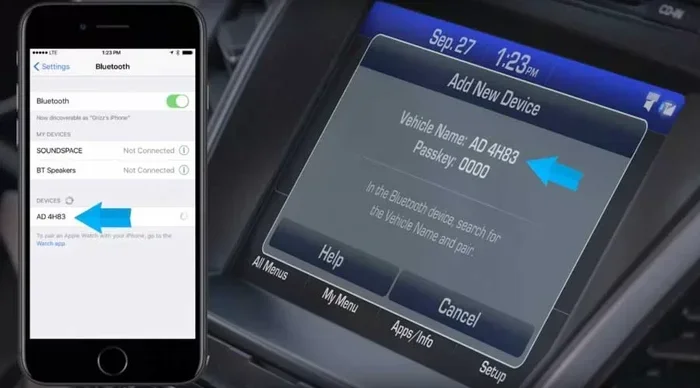
Go into your phone’s Bluetooth settings and look for your car’s name in the list of paired devices. Tap on it and select “Forget This Device” or “Unpair.” Do the same on your car’s infotainment screen. Remove every old phone entry you find.
Once both sides are clean, start the pairing process from scratch. Turn on Bluetooth on your phone, make it visible, and search for available devices on your car’s screen. Select your car when it appears and enter the PIN if required.
This fresh start solves the problem for many drivers. It is amazing how often a clean slate works where a tired old pairing failed.
Step Three: Update Your Phone and Car Software
Check your phone for any pending software updates. On iPhone, go to Settings, then General, then Software Update. On Android, go to Settings, then System, then Software Update.
For your car, the process depends on the make and model. Some vehicles let you check for updates through the infotainment system settings. Others require a visit to the dealer or a USB update. Check your car’s manual or contact the manufacturer for guidance.
Keeping both devices updated ensures compatibility and fixes known bugs that could be causing your Bluetooth not connecting problem.
Step Four: Reset Network Settings on Your Phone
If restarting and deleting pairings did not work, try resetting your phone’s network settings. This clears all saved Wi-Fi passwords, Bluetooth pairings, and cellular settings. It gives your phone’s wireless systems a completely fresh start.
On iPhone, go to Settings, then General, then Transfer or Reset iPhone, then Reset, and choose Reset Network Settings. On Android, go to Settings, then System, then Reset Options, and tap Reset Wi-Fi, Mobile, and Bluetooth.
Warning: You will lose saved Wi-Fi passwords. Make sure you know them before you reset. After the reset, reconnect to your Wi-Fi and try pairing with your car again.
Step Five: Check for Interference from Other Devices
Other electronic devices can interfere with Bluetooth signals. USB chargers, dash cams, GPS trackers, and even other phones in the car can create wireless noise that disrupts the connection.
Try unplugging unnecessary devices from your car’s power outlets and USB ports. Remove other phones from the vicinity. Then attempt to pair again. If the connection works, you have found your interference source.
Phone Settings That Affect Bluetooth Pairing
Your phone plays a big role in whether Bluetooth connects successfully. Several settings can either help or hurt the pairing process.
Bluetooth Visibility and Discovery Mode
Most phones default to hidden mode after a successful pairing. This means other devices cannot see your phone, which is great for privacy but bad when you want to connect a new device. Your car needs to see your phone to pair with it.
Make sure your phone is in discovery mode when you are trying to connect to your car. On most phones, you can toggle this in the Bluetooth settings menu. Look for an option that says “Visible to all nearby Bluetooth devices” or something similar.
Battery Saver Mode and Bluetooth
Battery saver mode can limit Bluetooth activity to conserve power. If your phone is in battery saver mode, it might not broadcast its Bluetooth signal properly. This can make it seem like your car cannot find your phone at all.
Turn off battery saver mode temporarily while you are trying to pair. Once the connection is established, you can turn it back on if you need to.
Location Services and Bluetooth
This one surprises a lot of people. On Android phones, location services are tied to Bluetooth scanning. If location services are turned off, your phone might not properly scan for Bluetooth devices.
Go to your phone’s settings and make sure location services are enabled. This is especially important for Android users. On iPhone, location services are less critical for Bluetooth, but it is still worth checking if you are having persistent issues.
App Permissions for Music and Calls
Once Bluetooth is connected, you want to stream music and make calls through your car’s speakers. For this to work, your phone needs to give the car access to specific features. Check that your car’s Bluetooth connection has permission to access media audio, calls, and contacts.
You can usually find these permissions in your phone’s Bluetooth settings when you tap on the car’s name in the paired devices list. Make sure all the toggles are turned on for the best experience.
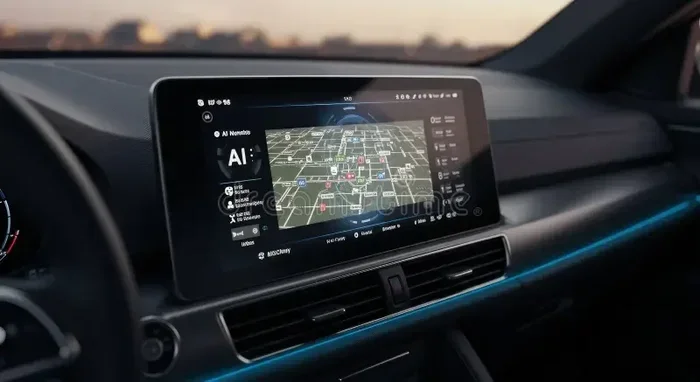
Car Infotainment System Problems
Sometimes the problem is not your phone at all. The car’s infotainment system itself might be causing the Bluetooth connection failure.
Frozen or Unresponsive Infotainment Screen
Car touchscreens can freeze just like any other computer. When the system is frozen, the Bluetooth module might stop working too. You might not even notice the screen is frozen if the audio is still playing.
The fix is the same as restarting your phone. Turn off the car, wait a full minute, and turn it back on. For a deeper reset, some cars let you hold the power button for 10 seconds to force a reboot of the infotainment system.
Bluetooth Module Hardware Failure
In rare cases, the Bluetooth module inside the car’s head unit fails. This can happen after electrical issues, water damage, or simply from old age. If you have tried every software fix and the car still will not connect, a hardware problem might be the cause.
Signs of a hardware failure include the Bluetooth option being completely missing from the car’s settings menu or the system showing a persistent error message. A mechanic or car audio specialist can diagnose this with the right tools.
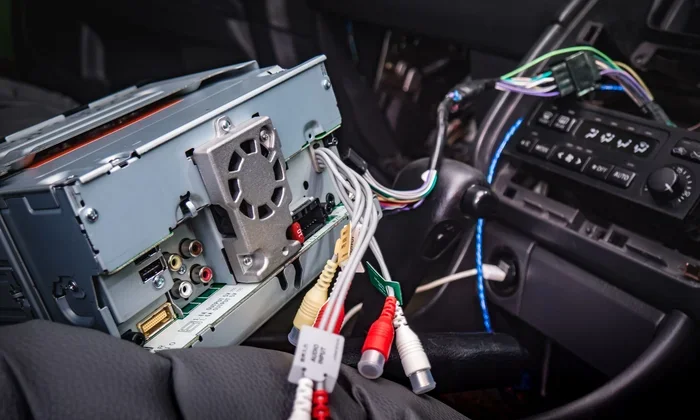
Aftermarket Stereo Compatibility Issues
If you have an aftermarket car stereo installed, the Bluetooth module might not be fully compatible with your phone. Some older aftermarket units struggle with newer phone operating systems. The Bluetooth protocol version matters a lot for smooth connectivity.
Check the stereo manufacturer’s website for firmware updates. You might also want to contact their support team for troubleshooting steps specific to your model. In some cases, a Bluetooth adapter or dongle can solve compatibility problems.
When to Seek Professional Help
Most Bluetooth problems are easy to fix at home. But sometimes, you need professional help. Here is when you should consider taking your car to a dealer or mechanic.
If you have tried all the steps in this guide and the connection still fails, the issue might be deeper than a simple settings problem. A dealer can run diagnostic tests on your car’s Bluetooth module and infotainment system. They can also check for known recalls or technical service bulletins related to Bluetooth issues in your specific model.
Quick Tip: Before visiting the dealer, write down all the steps you have already tried. This saves time and helps the technician focus on the real problem instead of repeating steps you have already done.
Also, if your car is still under warranty, Bluetooth issues might be covered. It is always worth checking with the manufacturer before paying for repairs out of pocket.
Tips to Keep Your Bluetooth Running Smoothly
Prevention is always better than cure. Here are some simple habits that keep your car’s Bluetooth working reliably day after day.
- Restart your car system monthly. A regular reboot clears cached data and keeps the Bluetooth module fresh.
- Keep your phone software up to date. Updates often include Bluetooth fixes and improvements.
- Limit paired devices. Only keep the devices you actually use in the car’s paired list.
- Avoid extreme temperatures. Heat and cold can affect electronic components, including Bluetooth modules.
- Place your phone in a central location. Keeping it on the dashboard or center console improves signal strength.
- Check for interference regularly. If you add new electronic devices to your car, test your Bluetooth connection afterward.
- Read your car’s manual. Every car has unique Bluetooth settings and features. The manual can help you get the most out of your system.
Following these simple habits means you spend less time troubleshooting and more time enjoying your drive. Hands-free calling, music streaming, and podcast listening should feel effortless. When your wireless pairing works smoothly, the whole driving experience improves.
Conclusion
Why is my car not letting me connect to Bluetooth is a question with many possible answers, but most of them have simple solutions. From basic restarts and clearing old pairings to updating software and checking for interference, the steps in this guide cover the vast majority of Bluetooth problems. You do not need to be a tech expert to get your car audio system working again.
Start with the simplest fixes and work your way up. Most of the time, a quick restart or a fresh pairing does the trick. If the problem persists, dig deeper into software updates and settings checks. And if nothing works, do not hesitate to seek professional help.
Your car’s Bluetooth is meant to make your life easier. With the right knowledge, you can keep it running smoothly and enjoy a connected driving experience every time you hit the road.
Frequently Asked Questions
Why does my car find my phone but won’t connect?
This usually happens when the pairing process is incomplete or when there is a software conflict between the two devices. Try deleting the old pairing on both your phone and your car, then start the connection process fresh. Also, make sure both devices have the latest software updates installed.
Can too many paired devices cause Bluetooth problems in my car?
Yes, absolutely. When the car’s Bluetooth memory is full, it struggles to manage connections properly. Clearing out old and unused pairings gives the system room to breathe and often fixes connection errors right away.
Does battery saver mode affect Bluetooth connectivity?
It can. Battery saver mode limits background activity, which sometimes includes Bluetooth broadcasting. Turn off battery saver while pairing your phone to your car, and you should see a better connection result.
How do I know if my car’s Bluetooth module is broken?
If the Bluetooth option is missing from your car’s settings or if you see a persistent error message even after trying all the fixes, the module might be faulty. A dealer or car audio specialist can run diagnostics to confirm whether it is a hardware issue.
What is the best distance for Bluetooth to work in a car?
Bluetooth works best within about 30 feet. If your phone is too far from the car’s console or buried under thick materials, the signal can weaken. Keep your phone in a central, unobstructed location for the strongest connection.
Do I need to update my car’s firmware to fix Bluetooth issues?
In many cases, yes. Outdated car firmware can have bugs that prevent proper Bluetooth pairing. Check your car manufacturer’s website or contact your dealer to find out if a firmware update is available for your specific model.