Reasons Why My Phone Wont Connect to Car Bluetooth
Your phone won’t connect to car Bluetooth because of simple issues like outdated software, incorrect settings, or temporary glitches. This guide walks you through every reason and fix so you can get back to hands-free calling and music streaming. Most problems are easy to solve at home in just a few minutes.
You’re getting into your car, ready to hit the road, and you reach for your phone. You want to play your favorite playlist or take a hands-free call. But then it happens. Your phone won’t connect to car Bluetooth. That little frustrating moment where nothing works. You’ve been here before, haven’t you?
Bluetooth connection problems between phones and cars are incredibly common. Almost every driver has dealt with this at some point. The good news is that most of the time, the fix is simple. You don’t need to be a tech expert. You just need to know what to look for.
In this article, we’re going to walk through every reason your phone might not connect to car Bluetooth. We’ll cover the most common causes, the best fixes, and some prevention tips that actually work. By the end, you’ll know exactly what to do the next time your Bluetooth pairing fails.
Key Takeaways
- Restart Both Devices: A simple restart of your phone and car system fixes most Bluetooth connection issues.
- Check Bluetooth Settings: Make sure Bluetooth is turned on, visible, and not connected to another device.
- Remove Old Pairings: Clearing old paired devices frees up space and removes conflicting connections.
- Update Software: Outdated phone or car firmware is a leading cause of Bluetooth failures.
- Check for Interference: Other wireless devices and physical barriers can weaken your Bluetooth signal.
- Reset Network Settings: A full network reset often solves stubborn connection problems.
📑 Table of Contents
Why Does Bluetooth Fail to Connect?
Bluetooth technology has been around for a long time. But it still manages to confuse people. The basic idea is simple. Two devices use short-range radio waves to talk to each other. When one device doesn’t respond, the connection fails.
Several things can interrupt this process. Sometimes it’s a software glitch. Other times, it’s a settings problem. And occasionally, it’s a hardware issue. Understanding the root cause is the first step toward fixing it.
Think of Bluetooth pairing like introducing two people at a party. Both devices need to be ready, willing, and able to communicate. If one is busy, distracted, or out of range, the introduction fails. The same logic applies to your phone and car stereo.
How Bluetooth Pairing Works
When you try to connect your phone to your car, your phone sends out a signal. The car’s infotainment system picks up that signal. They exchange information and form a connection. This is called Bluetooth pairing. Once paired, they remember each other and reconnect automatically.
But sometimes, this process breaks down. The phone might not send the signal properly. The car might not receive it. Or they might both send signals but fail to agree on the connection. Each of these scenarios has a different fix.
Common Bluetooth Connection Problems
Here are the most frequent Bluetooth connection problems drivers face:
- Phone not visible to car system – The car can’t find your phone during the search.
- Paired but no audio – The connection shows but sound doesn’t play through the car speakers.
- Connection drops frequently – The link keeps breaking during a drive.
- Phone connects but car doesn’t – One device pairs while the other refuses.
- Intermittent connectivity – The connection works sometimes but not others.
Each of these problems has a specific cause. And each cause has a solution. Let’s dig into the details now.
Top Reasons Your Phone Won’t Pair with Your Car
There are many reasons why your phone won’t connect to car Bluetooth. Some are tiny and easy to fix. Others require a bit more effort. Let’s look at the most common ones.
Bluetooth Is Turned Off or Disabled
This sounds obvious, but it happens all the time. You might think Bluetooth is on, but it’s actually off. A quick toggle in your settings usually fixes this. On most phones, you can swipe down from the top of the screen and tap the Bluetooth icon. Make sure it’s lit up and active.
Also, check your car’s infotainment system. The Bluetooth function might be turned off there too. Some cars have a dedicated button for this. Others hide it in the settings menu. Take a moment to verify both sides are enabled.
Your Phone Is Connected to Another Device
Modern phones can connect to multiple Bluetooth devices at once. But sometimes, this causes problems. If your phone is already connected to your headphones or smartwatch, it might not prioritize the car connection.
Try disconnecting from other paired devices temporarily. Then try connecting to your car again. This simple step solves the problem more often than you’d think.
Your Phone and Car Have Compatibility Issues
Not all phones work perfectly with all car systems. Device compatibility matters, especially with older car models. If your car’s infotainment system is several years old, it might not support newer Bluetooth versions.
Similarly, if you just got a new phone, it might use Bluetooth features your car doesn’t understand yet. This doesn’t mean they can’t work together. It just means you might need to adjust settings or use a workaround.
Outdated Software on Your Phone or Car System
Software updates matter for Bluetooth performance. Both your phone and your car’s system run on firmware. When either one falls behind, connection errors can appear.
Check for phone updates in your settings. Look for car updates in your vehicle’s manual or through the manufacturer’s app. Keeping both devices current is one of the best ways to prevent Bluetooth troubleshooting headaches later.
Too Many Paired Devices in Your Car
Car Bluetooth systems have a limit on how many devices they can remember. When that limit is reached, new pairings can fail. Old, forgotten devices take up valuable space.
Go into your car’s Bluetooth settings and delete devices you no longer use. This clears the list and makes room for your current phone. It’s a quick fix that many people overlook.
Physical Distance and Signal Interference
Bluetooth has a limited range. Typically, it works best within about 30 feet. If your phone is buried in your bag or tucked deep in your pocket, the signal might be too weak.
Other wireless devices can also interfere. Wi-Fi routers, microwave ovens, and even USB cables can create wireless interference. Try moving your phone closer to the car’s console or turning off nearby devices to see if that helps.
Step-by-Step Fixes for Bluetooth Connection Problems
Now that you know the common causes, let’s get into the fixes. These steps work for most Bluetooth connectivity issues. Try them in order for the best results.
Step 1: Turn Bluetooth Off and Back On
This is the simplest fix, and it works surprisingly often. Turn off Bluetooth on both your phone and your car. Wait about 10 seconds. Then turn it back on on both devices. This clears temporary glitches and refreshes the connection.
Think of it like closing and reopening an app on your phone. It’s a basic reset that solves many minor issues without any real effort.
Step 2: Remove and Re-Pair Your Devices
Sometimes the stored pairing data gets corrupted. Deleting the connection and setting it up fresh can fix this. On your phone, go to Bluetooth settings and forget the car. On your car system, remove the phone from the paired list.
Then start the pairing process from scratch. Make both devices visible. Search for each other. Enter the PIN if prompted. This fresh start often resolves stubborn connection dropped issues.
Step 3: Restart Both Your Phone and Car
A restart clears out temporary files and refreshes system processes. Restart your phone the normal way. For your car, turn it off, wait 30 seconds, and turn it back on.
This is especially helpful after software updates or when your car’s infotainment system has been running for a long time. A fresh start gives everything a clean slate.
Step 4: Clear Bluetooth Cache on Your Phone
Your phone stores cached data for Bluetooth connections. Over time, this cache can become corrupted. Clearing it forces your phone to rebuild fresh connection data.
On Android phones, go to Settings > Apps > Bluetooth > Storage > Clear Cache. On iPhones, you’ll need to reset network settings instead. This step is more advanced but very effective for persistent Bluetooth issues.
Step 5: Reset Network Settings
If clearing the cache doesn’t work, try a full network settings reset. This wipes all saved Wi-Fi networks, Bluetooth pairings, and cellular settings. You’ll need to reconnect to everything afterward.
On most phones, go to Settings > General Management > Reset > Reset Network Settings. This is a powerful fix for stubborn Bluetooth connection problems that won’t go away with simpler methods.
Quick Tips for Faster Fixes
- Always try the simplest fix first before moving to advanced steps.
- Keep your phone charged. Low battery can weaken Bluetooth signals.
- Try connecting in a different parking spot to rule out interference.
- If one fix doesn’t work, wait a minute before trying the next one.
When the Problem Is Your Car’s Bluetooth System
Sometimes the issue isn’t your phone at all. The car’s Bluetooth system might be the culprit. Understanding this distinction helps you solve the problem faster.
Signs Your Car’s Bluetooth System Has Issues
Watch for these warning signs:
- Your car can’t find any phones during a search.
- The car’s Bluetooth light is blinking red instead of blue.
- You can pair your phone but get no audio output.
- The car’s system freezes when you try to connect.
- Multiple phones fail to connect, even new ones.
If you notice any of these, the problem likely lives in the car’s system, not your phone.
How to Troubleshoot Your Car’s Bluetooth
Start by checking your car’s user manual. Most manufacturers include a Bluetooth troubleshooting section. Look for a factory reset option in the infotainment settings.
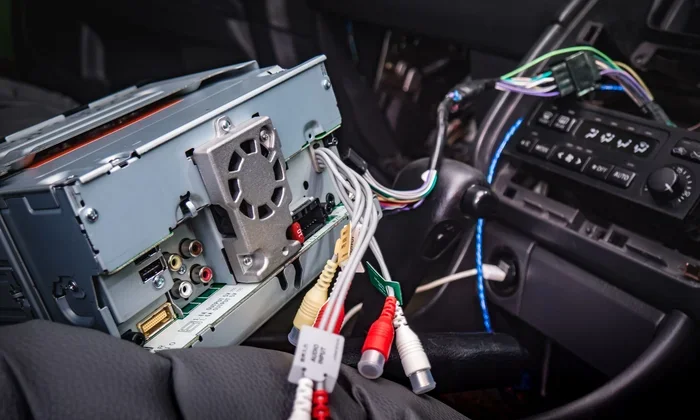
Some cars have a dedicated reset button behind the stereo unit. Others require you to hold down a combination of buttons on the steering wheel. Check your manual or search online for your specific car model.
If resets don’t work, the Bluetooth module inside the car might need replacement. This is less common but it does happen, especially in older vehicles with high mileage.
Comparing Phone vs. Car Bluetooth Problems
It’s not always easy to tell whether the phone or the car is causing the problem. Here’s a simple comparison to help you figure it out:
| Issue | Phone Is the Problem | Car Is the Problem |
|---|---|---|
| Phone can’t find car | Bluetooth is off or phone needs restart | Car Bluetooth is disabled or needs reset |
| Connection keeps dropping | Phone has low battery or is too far | Car Bluetooth module is faulty |
| No audio after pairing | Audio profile not selected on phone | Car speaker settings are misconfigured |
| Only one phone works | Phone has outdated software | Car has reached paired device limit |
| Works with other devices but not yours | Your phone has a settings conflict | Your phone is incompatible with the car |
This table should help you narrow down the source of the problem quickly. Start with the column that matches your situation and follow the suggested fixes.
How to Prevent Bluetooth Problems Before They Start
Prevention is always better than cure. A few simple habits can keep your Bluetooth wireless streaming running smoothly every time you get behind the wheel.
Keep Your Software Updated
Updates fix bugs and improve compatibility. Make it a habit to check for phone updates weekly. For your car, check for firmware updates monthly or whenever you visit the dealership.
Many car manufacturers now offer apps that notify you when updates are available. Download your car brand’s app and enable automatic notifications. This keeps you informed without any extra effort.
Manage Your Paired Devices Regularly
Go through your car’s Bluetooth settings once a month. Remove devices you no longer use. This keeps the system clean and prevents connection conflicts. It also improves overall device connectivity performance.
Store Your Phone in the Right Spot
Where you place your phone matters. Keep it on the console or in a mount near the car’s Bluetooth antenna. Avoid storing it in the trunk or in a metal phone case that blocks signals.
A strong Bluetooth signal means a more stable connection. Small placement changes can make a big difference in connection quality.
Avoid Using Too Many Wireless Devices at Once
If you have a smartwatch, wireless earbuds, and a tablet all searching for connections at the same time, your phone’s Bluetooth can get overwhelmed. Turn off devices you’re not actively using.
This reduces wireless interference and helps your phone focus on connecting to the car. It’s a small habit that pays off big time.
Expert Insight
Automotive technicians often see the same Bluetooth mistakes over and over. The most common one? People never delete old paired devices from their car system. A cluttered paired devices list is like a crowded closet. It slows everything down and causes conflicts. Clean it out regularly and your connections will be much more reliable.
Common Mistakes That Cause Bluetooth Failures
Here are the mistakes drivers make most often:
- Ignoring software updates – Outdated firmware is the number one cause of Bluetooth issues.
- Never clearing old pairings – A full paired devices list leads to connection conflicts.
- Keeping Bluetooth on all the time – This drains your battery and makes your phone search constantly.
- Not restarting the car system – A simple restart fixes more problems than people realize.
- Placing the phone too far away – Distance weakens the signal and causes dropped connections.
Avoiding these mistakes alone will solve most Bluetooth connection problems before they even start.
Key Takeaways for Better Bluetooth Connections
Let’s quickly recap the most important points to remember:
- Restart both devices before trying anything else. It fixes more problems than you’d expect.
- Check Bluetooth settings on both your phone and your car to make sure everything is enabled.
- Delete old paired devices regularly to keep your car’s Bluetooth system running smoothly.
- Update your phone and car software frequently to prevent compatibility issues.
- Place your phone near the car’s console for the strongest possible signal.
- Reset network settings as a last resort when nothing else works.
Following these simple habits will save you time and frustration. You’ll spend less time troubleshooting and more time enjoying your drive.
Conclusion
Dealing with a phone that won’t connect to car Bluetooth is frustrating. But it’s almost always fixable. The reasons are usually simple. The solutions are usually quick. Most of the time, a Bluetooth connection problem comes down to a settings issue, outdated software, or a crowded paired devices list.
Start with the basics. Turn Bluetooth off and on. Restart both devices. Remove old pairings. Then move to more advanced fixes if needed. The step-by-step fixes in this article cover everything from simple toggles to full system resets.
Remember that prevention plays a huge role too. Keep your software updated. Manage your paired devices. Store your phone in the right spot. These small habits keep your hands-free calling and music streaming working without interruption.
The next time your phone won’t connect to car Bluetooth, don’t panic. You now have the knowledge and tools to fix it yourself. Get back on the road and enjoy the drive.
Frequently Asked Questions
Why won’t my phone connect to my car Bluetooth even though it’s turned on?
This usually happens because your phone is already connected to another device, or the pairing data between the two systems has become corrupted. Try turning Bluetooth off on both devices, waiting 10 seconds, and turning them back on. If that doesn’t work, delete the old pairing and set it up fresh.
How do I reset my car’s Bluetooth system?
Most cars allow you to reset the infotainment system through the settings menu. Look for a factory reset or system reset option. Some models require you to hold a combination of buttons on the steering wheel or turn the ignition on and off a few times. Check your car’s user manual for specific instructions.
Can too many paired devices cause Bluetooth connection issues?
Yes, absolutely. Car Bluetooth systems have a limit on how many devices they can store. When that limit is reached, new pairings may fail or existing connections may become unstable. Go into your car’s Bluetooth settings and remove devices you no longer use to keep the system running smoothly.
Does phone placement in the car affect Bluetooth connectivity?
Yes, it does. Bluetooth works best within about 30 feet and has difficulty penetrating metal, thick cases, or other barriers. Keep your phone on the console or in a mount near the car’s Bluetooth antenna for the strongest and most stable connection.
Why does my Bluetooth connection keep dropping while driving?
Connection drops during driving are often caused by wireless interference from other devices, a weak phone signal due to low battery, or physical barriers like metal roofs. Try moving your phone closer to the car’s console, turning off nearby wireless devices, and making sure both your phone and car software are up to date.
Do I need to update my car’s software for better Bluetooth performance?
Yes, software updates often include fixes for Bluetooth connectivity bugs and improve compatibility with newer phones. Check your car manufacturer’s app or website for firmware updates. If your car doesn’t support over-the-air updates, ask your dealer to check for the latest firmware during your next service visit.