How to Know If Your Car Has Wireless Apple CarPlay
Wireless Apple CarPlay lets you connect your iPhone to your car without a cable. You can check for wireless CarPlay by looking at your infotainment screen, checking the owner manual, or visiting the manufacturer’s website. This guide walks you through every method so you can confirm wireless CarPlay compatibility fast and easily.
You just got into your car. You grab your iPhone. And you want to use Apple CarPlay — but without plugging in a cable. So you wonder, does my car even support wireless CarPlay?
It is a really common question. A lot of newer cars come with wireless Apple CarPlay built in. But not every vehicle has it. And figuring it out can feel confusing if you do not know where to look.
This guide is here to help. You will learn exactly how to check if your car has wireless CarPlay. We will walk you through every method step by step. You will also find out which car brands offer it, how it differs from wired CarPlay, and what you can do if your car does not support it yet. By the end, you will know everything you need about wireless CarPlay compatibility.
Key Takeaways
- Check the infotainment screen: Look for the CarPlay icon or wireless symbol on your dashboard display.
- Read the owner manual: Your car’s manual lists all CarPlay compatibility details, including wireless support.
- Visit the manufacturer website: Enter your vehicle’s year, make, and model to confirm wireless CarPlay features.
- Not all cars support it: Older models and budget vehicles may only offer wired Apple CarPlay or none at all.
- Aftermarket options exist: You can add wireless CarPlay to older cars using adapters or head unit replacements.
- Firmware updates matter: Some cars gain wireless CarPlay through software updates, even if they didn’t have it originally.
- iPhone compatibility is key: Make sure your iPhone model supports wireless CarPlay before checking your car.
📑 Table of Contents
What Is Wireless Apple CarPlay?
Wireless Apple CarPlay is a feature that lets you connect your iPhone to your car’s infotainment system without using a USB cable. It uses Bluetooth and Wi-Fi to create a wireless link between your phone and your car’s multimedia system.
Once connected, you get access to all the things you love about CarPlay. You can use Apple Maps for navigation. You can stream music from Spotify or Apple Music. You can make hands-free calls through Siri integration. And you can send and receive text messages — all without touching your phone.
The big difference between wireless and wired CarPlay is convenience. With a cable, you have to plug your phone in every time. With wireless CarPlay, your phone connects automatically when you get in the car. It is a small thing that makes a huge difference in your daily driving experience.
Not every car offers this feature. And even among cars that support CarPlay, not all of them use the wireless version. That is why knowing how to check matters so much.
How to Check If Your Car Supports Wireless CarPlay
There are several easy ways to find out if your car has wireless Apple CarPlay. You do not need to be a tech expert. Anyone can do these checks at home.
Check Your Vehicle’s Infotainment System
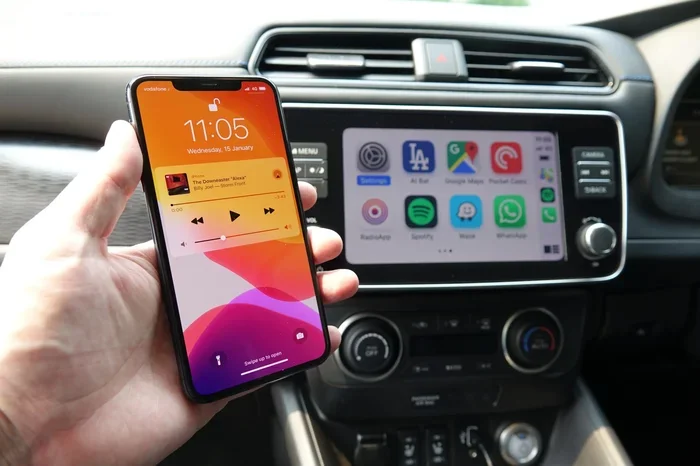
The fastest way is to look at your car’s infotainment screen. Start your car and look at the dashboard display. Here is what to do:
- Turn on your car’s ignition without starting the engine.
- Look at the home screen of your car stereo or dashboard display.
- Search for a CarPlay icon or a wireless CarPlay symbol.
- If you see a smartphone icon with a CarPlay logo, your car supports it.
- Some cars show a small wireless signal icon next to the CarPlay symbol to indicate it is wireless.
If you do not see anything right away, try connecting your iPhone with a cable first. If CarPlay works with a cable, then check your car’s settings menu. Look for a wireless CarPlay toggle or option. If it is there, your car supports the wireless version.
Look for the CarPlay Logo on the Screen
Many car manufacturers put the CarPlay logo directly on the screen or in the user interface. This is a quick visual clue. When you browse through your car’s settings or app menu, keep an eye out for:
- The Apple CarPlay logo (a phone icon with CarPlay branding).
- Labels like “Wireless CarPlay” or “CarPlay Wireless.”
- Icons in the quick settings or shortcut menu on the infotainment system.
If your car has a multimedia system that supports iPhone integration, the logo will likely be there. If you do not see it, that does not always mean your car lacks support. Some brands hide the feature in a settings menu. But it is a good first check.
Consult Your Car’s Owner Manual
Your car’s owner manual is one of the best resources. It tells you everything your vehicle can do. Here is how to use it:
- Flip to the section about the infotainment system or multimedia features.
- Search for mentions of “Apple CarPlay” or “wireless CarPlay.”
- Check if the manual specifies wired, wireless, or both types of support.
- Look for any firmware update instructions that might add wireless support later.
If you do not have the physical manual, you can usually find a digital version on the manufacturer’s website. Just enter your vehicle’s year, make, and model. The owner manual will tell you exactly what CarPlay features your car has.
Visit the Manufacturer’s Website
Every car brand publishes detailed specs for each model and year. Here is how to use this to your advantage:
- Go to the official website of your car’s brand.
- Find your specific vehicle by entering the year, trim level, and model.
- Look under the “Technology” or “Features” section.
- Check for “Apple CarPlay” and whether it says “wireless” or “wireless and wired.”
This method is very reliable. It gives you the official word straight from the source. You do not have to guess or rely on what a salesperson told you. The manufacturer website always has the most accurate CarPlay compatibility information.
Ask a Dealer or Call the Manufacturer
If you are still unsure, you can always ask for help. Call your local dealer with your car model and year. They can look up your vehicle’s features in their system. You can also call the manufacturer’s customer service line. They are trained to answer questions about wireless CarPlay support for specific vehicles.
Keep your Vehicle Identification Number (VIN) handy. The dealer can use it to pull up your exact car’s features. This is the most foolproof way to confirm CarPlay compatibility for your specific vehicle.
Which Car Brands Offer Wireless CarPlay?
Most major car brands now offer wireless Apple CarPlay in at least some of their models. The availability depends on the year, trim level, and package you choose. Here is a quick overview:
- BMW: Many models from 2019 onward offer wireless CarPlay as standard or optional.
- Ford: Newer Ford models with the SYNC 3 or SYNC 4 system support wireless CarPlay.
- Toyota: Higher trims of the Camry, RAV4, and Highlander often include wireless CarPlay.
- Honda: Many Honda models from 2020 onward offer wireless support in upper trims.
- Hyundai: The Sonata, Tucson, and Santa Fe often come with wireless CarPlay in newer years.
- Chevrolet: Models with the Infotainment 3 system or newer support wireless Apple CarPlay.
- Volkswagen: Many VW models from 2020+ offer wireless CarPlay in higher trims.
- Subaru: Newer Subaru models with the Starlink system support wireless CarPlay.
Remember, even within the same brand, not every trim level has wireless CarPlay. The base models might only offer wired support or none at all. Always double-check the specific trim and year of the vehicle you are interested in.
Wireless CarPlay vs Wired CarPlay: What Is the Difference?
Both wireless and wired Apple CarPlay give you the same core features. You get navigation, music, messaging, and Siri voice commands on your car’s display. But there are some important differences:
Connection Method
Wired CarPlay uses a USB cable to connect your iPhone to the car. Wireless CarPlay uses Bluetooth and Wi-Fi. The wireless connection is more convenient because you do not need to plug anything in.
Setup Process
With wired CarPlay, you plug in your phone and the connection starts right away. With wireless CarPlay, you pair your iPhone once through the car’s settings. After that, it connects automatically whenever you get in the car. The wireless connection is seamless and hands-free from the start.
Battery Impact
One thing to keep in mind: wireless CarPlay uses more battery than wired. Because it relies on Wi-Fi and Bluetooth, your phone may drain faster while connected. If your battery is low, a wired connection might be better. Some cars offer wireless charging pads that help offset this issue.
Connection Stability
Wired CarPlay tends to be slightly more stable. The USB connection is direct and rarely drops. Wireless CarPlay can occasionally disconnect if there is interference or if your phone moves around. However, most modern cars handle the wireless connection very well, and the difference is barely noticeable.
Speed and Performance
Wired connections can sometimes be slightly faster for loading maps and apps. But with modern wireless CarPlay systems, the speed difference is minimal. Most users do not notice any lag in everyday use.
Can You Add Wireless CarPlay to an Older Car?
The good news is yes. Even if your car does not come with wireless CarPlay, you have options. You can add this feature to many older vehicles with a few different approaches.
Aftermarket CarPlay Adapters
Aftermarket CarPlay adapters are small devices that plug into your car’s existing infotainment system. They add wireless CarPlay capability without replacing your whole stereo. Popular brands include Carlinkit, AAOW, and Tbox. These adapters are affordable and easy to install. They work with most cars that already have wired CarPlay support.
Here is what to expect from an adapter:
- Plug the adapter into your car’s USB port for CarPlay.
- Pair your iPhone with the adapter through Bluetooth.
- Enjoy wireless Apple CarPlay without replacing your factory head unit.
- Some adapters also support wireless charging for your phone.
Adapters are a great budget-friendly option. They cost between $30 and $100 depending on the brand and features. They are a simple way to get wireless CarPlay in a car that only has wired support.
Head Unit Replacement
If your car does not have CarPlay at all, you might consider replacing the head unit (also called the car stereo or infotainment system). Modern aftermarket head units from brands like Pioneer, Kenwood, and Sony come with wireless CarPlay built in.
Here are some things to consider:
- Head unit replacements cost more than adapters, usually between $200 and $500.
- Professional installation is recommended for best results.
- You can keep features like steering wheel controls and backup cameras.
- Some head units also support Android Auto, Bluetooth pairing, and GPS navigation.
A head unit replacement gives you the most complete upgrade. It transforms your car’s entire multimedia system and adds modern features like wireless CarPlay, better sound quality, and a clearer display.
Common Issues and How to Fix Them
Even when your car supports wireless Apple CarPlay, you might run into issues sometimes. Here are the most common problems and how to solve them.
CarPlay will not connect wirelessly. First, make sure Bluetooth and Wi-Fi are turned on your iPhone. Restart your phone and your car’s infotainment system. Sometimes a simple restart fixes the connection issue. You can also try forgetting the Bluetooth pairing and setting it up again from scratch.
Connection drops frequently. This can happen if your phone is too far from the car’s antenna. Make sure your phone is in a good position, like in a mount on the dashboard. Also check if there are any firmware updates available for your car’s multimedia system. Updates often improve wireless CarPlay stability.
CarPlay loads slowly. Slow loading can happen if your iPhone has too many apps open. Close unused apps before getting in the car. Also make sure your iPhone software is up to date. Older iPhone models might experience slower CarPlay performance compared to newer ones.
Siri does not respond. Go to your iPhone settings and make sure “Hey Siri” is enabled. Check that your car’s microphone is not muted. Sometimes a firmware update for the car fixes Siri integration issues.
Final Thoughts
Knowing whether your car has wireless Apple CarPlay is easier than most people think. You have several reliable methods at your fingertips. You can check the infotainment screen, look in the owner manual, visit the manufacturer website, or simply call your dealer. Each method gives you a clear answer about your CarPlay compatibility.
If your car does not support wireless CarPlay, you are not stuck. Aftermarket adapters and head unit replacements can bring this feature to almost any vehicle. The options are affordable and the installation is straightforward.
Wireless CarPlay has become a standard feature in many new cars. It makes driving safer, more connected, and more enjoyable. Taking a few minutes to check your car’s capabilities can save you a lot of frustration down the road. So go ahead and give it a try. Your iPhone and your daily commute will thank you.
Whether you drive a brand-new SUV or a trusty older sedan, understanding wireless CarPlay opens up a world of convenience. Navigation, music, calls, and messages — all right on your dashboard display without a single cable. That is the power of wireless Apple CarPlay, and now you know exactly how to find it.
Frequently Asked Questions
Does every new car come with wireless Apple CarPlay?
No, not every new car has wireless CarPlay. Many newer models offer it, but some still only include wired CarPlay or require an upgrade package. Always check the specific trim level and features list before buying.
Can I use wireless CarPlay with any iPhone?
Most iPhone models from the iPhone 8 and newer support wireless CarPlay. Older iPhones may only work with wired CarPlay. Make sure your iPhone is running a recent version of iOS for the best experience.
Is wireless CarPlay safe to use while driving?
Yes, wireless CarPlay is designed to be safe. It lets you use Siri voice commands for calls, messages, and navigation without taking your hands off the wheel. The hands-free design keeps your focus on the road.
Does wireless CarPlay drain my phone battery faster?
Wireless CarPlay does use more battery than wired because it relies on Wi-Fi and Bluetooth. If battery life is a concern, consider using a wireless charging pad in your car or switching to a wired connection when your battery is low.
What is the difference between CarPlay and Android Auto?
Apple CarPlay works with iPhones and offers Siri integration and Apple Maps. Android Auto works with Android phones and uses Google Maps. Both provide smartphone mirroring, navigation, music, and hands-free calling on your car’s display.
How do I know if my car needs a firmware update for wireless CarPlay?
Check your car’s infotainment system settings for a “Software Update” or “System Update” option. You can also visit the manufacturer’s website or ask your dealer. Some cars gain wireless CarPlay support through a firmware update even if they did not have it when new.
=== CONCLUSION ===
Wireless Apple CarPlay is a fantastic feature that makes driving more connected and convenient. Now you know exactly how to check if your car has it. Whether you inspect your infotainment screen, dig through your owner manual, or check the manufacturer website, you have all the tools you need. And if your car does not support it yet, aftermarket adapters and head unit replacements can bring wireless CarPlay to your vehicle. Take a few minutes today to find out your car’s CarPlay compatibility. You will be glad you did.