Learn How to Mirror iPhone to Car Screen in Minutes
Learn how to mirror iPhone to car screen using Apple CarPlay, wireless casting, or an HDMI adapter. This guide covers every method, troubleshooting tips, and expert recommendations to get your iPhone display on your car dashboard in minutes. Whether you use an older vehicle or a new infotainment system, you will find the right solution that fits your car and your budget.
Ever wanted to see your iPhone screen right on your car dashboard? The good news is that learning how to mirror iPhone to car screen is simpler than most people think. You do not need to be a tech expert to get it working. Whether you are on a long road trip or just running to the grocery store, having your phone display on your car screen makes everything more convenient.
In this guide, we will walk you through every method available today. You will learn about Apple CarPlay, wireless screen mirroring, HDMI adapters, and third-party apps. We will also cover common problems and how to fix them. By the end, you will know exactly which method works best for your car and your iPhone.
Let us get started. No matter what kind of car you drive or what iPhone model you have, there is a solution waiting for you.
Key Takeaways
- Apple CarPlay is the easiest way to mirror iPhone to car screen on most modern vehicles.
- Wireless mirroring works without cables if your car supports AirPlay or a compatible app.
- HDMI adapters offer a reliable wired option for older cars without smart features.
- Bluetooth alone cannot mirror your screen but it handles audio and hands-free calls.
- Troubleshooting steps can fix most connection issues quickly.
- Third-party apps expand your options if built-in methods do not work.
📑 Table of Contents
- Why You Should Mirror Your iPhone to Your Car Screen
- Methods to Mirror iPhone to Car Screen
- How to Mirror iPhone to Car Screen Using Apple CarPlay
- How to Mirror iPhone to Car Screen Wirelessly
- How to Mirror iPhone to Car Screen Using an Adapter
- Troubleshooting Common Mirroring Issues
- Tips for the Best Mirroring Experience
- Frequently Asked Questions
- Conclusion
Why You Should Mirror Your iPhone to Your Car Screen
Screen mirroring in your car is not just a cool tech trick. It actually makes your daily drive safer and more enjoyable. When your phone screen appears on your car display, you can access maps, music, and messages without constantly picking up your device.
Here are some of the top reasons people choose to mirror iPhone to car screen setups:
- Hands-free navigation. You can see turn-by-turn directions on a large display instead of squinting at your small phone screen.
- Safer music control. Change songs or adjust volume using your car dashboard buttons while keeping your eyes on the road.
- Easy call management. See incoming calls on a bigger screen and answer them with a single tap.
- Passenger entertainment. Back seat passengers can watch videos or browse content on the car screen during long trips.
- Seamless integration. Many modern cars come with built-in systems designed to work perfectly with your iPhone.
The bottom line is that mirroring your iPhone to your car screen reduces distractions. It keeps your eyes on the road and your hands on the wheel. That alone makes it worth setting up.
Methods to Mirror iPhone to Car Screen
Not every car is the same, and not every method works for every vehicle. Here are the main ways you can get your iPhone screen onto your car display. Each method has its own pros and cons, so read through all of them before deciding which one fits your situation.
1. Apple CarPlay
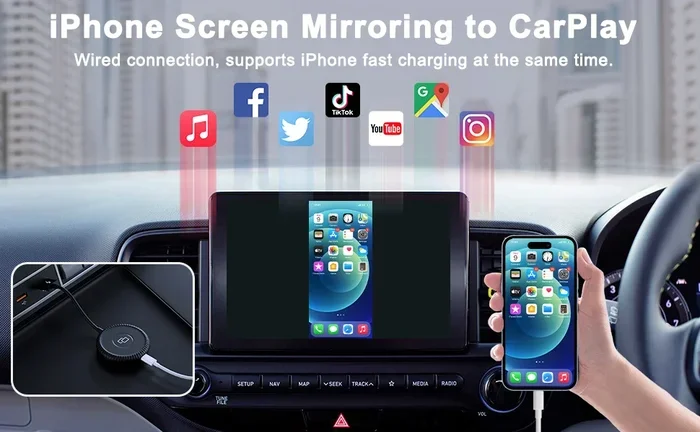
Apple CarPlay is the gold standard for mirroring iPhone to car screen. It is Apple’s official system that connects your iPhone to your car’s infotainment display. Most cars made after 2016 support CarPlay in some form.
With CarPlay, you get a simplified version of your iPhone interface on your car screen. You can use Siri, access Maps, play music from Apple Music or Spotify, and send or receive messages. The interface is designed to be driver-friendly, so it keeps things clean and easy to read.
How it works:
- Plug your iPhone into your car’s USB port using a Lightning cable.
- Wait for the CarPlay icon to appear on your car screen.
- Tap the icon and follow the on-screen setup prompts.
- Once connected, your iPhone display will mirror on your car screen.
CarPlay also works wirelessly on newer cars and iPhones. You simply connect through Bluetooth and Wi-Fi, and no cable is needed. This is the most popular way to mirror iPhone to car screen for a reason. It is fast, reliable, and built right into your iPhone.
2. Wireless Screen Mirroring (AirPlay)
If your car supports AirPlay, you can mirror your iPhone screen without any cables at all. AirPlay is Apple’s wireless streaming technology, and it works with many modern car infotainment systems.
How it works:
- Make sure both your iPhone and your car are connected to the same Wi-Fi network.
- Open the Control Center on your iPhone by swiping down from the top right corner.
- Tap the Screen Mirroring icon.
- Select your car’s display from the list of available devices.
- Your iPhone screen will now appear on your car display.
AirPlay mirroring gives you the full iPhone experience on your car screen. You see everything exactly as it appears on your phone. However, it uses more battery and data than CarPlay. It also depends on a strong Wi-Fi connection for smooth performance.
3. HDMI Adapter or Cable
For older cars that do not have smart features, an HDMI adapter is a great solution. This method works with almost any car that has a screen, even if it is not a smart system.
What you need:
- A Lightning to HDMI adapter (also called a digital AV adapter).
- An HDMI cable.
- A car screen with an HDMI input port.
How it works:
- Plug the Lightning adapter into your iPhone.
- Connect the HDMI cable to the adapter.
- Plug the other end of the HDMI cable into your car’s HDMI input.
- Switch your car display to the HDMI source.
- Your iPhone screen will appear on your car display instantly.
This wired method gives you a stable connection with no lag. It is especially useful for older vehicles where wireless options are not available. Many people use this method to mirror iPhone to car screen in classic or vintage cars.
4. Third-Party Apps
If none of the built-in methods work for your car, third-party apps can fill the gap. Apps like Screen Mirroring, AirScreen, and Mirror for Samsung TV allow you to cast your iPhone screen to your car display over Wi-Fi or Bluetooth.
How to get started with a third-party app:
- Download a compatible mirroring app from the App Store.
- Install the app on your iPhone and the corresponding receiver on your car system (if supported).
- Connect both devices to the same Wi-Fi network.
- Open the app and follow the pairing instructions.
- Start mirroring your screen.
Third-party apps are flexible, but they may have ads or require a one-time purchase. Quality and performance vary from app to app, so read reviews before downloading. These apps are a solid backup option when you want to mirror iPhone to car screen but your car lacks native support.
How to Mirror iPhone to Car Screen Using Apple CarPlay
Since Apple CarPlay is the most popular and reliable method, let us dive deeper into the setup process. Whether you have a new car or an older model, CarPlay is likely an option for you.
Step-by-Step CarPlay Setup
Follow these steps carefully to get CarPlay running on your car display:
- Check compatibility. Make sure your car supports Apple CarPlay and your iPhone is running iOS 7 or later. Most iPhones from the iPhone 5s onward work with CarPlay.
- Use a certified cable. Apple recommends using a Lightning to USB cable that is MFi certified (Made for iPhone). Cheap cables can cause connection issues.
- Enable CarPlay on your iPhone. Go to Settings > General > CarPlay > Available Cars and select your car.
- Connect the cable. Plug the cable into your iPhone and then into your car’s USB port.
- Accept the connection. Your car screen should display the CarPlay interface. Tap the CarPlay icon if it does not appear automatically.
- Customize your settings. Go to Settings > General > CarPlay on your iPhone to choose which apps appear on your car screen.
Once CarPlay is set up, it remembers your car automatically. The next time you plug in your iPhone, CarPlay will launch without any extra steps. This is what makes CarPlay the best option for most people who want to mirror iPhone to car screen.
Wireless CarPlay Setup
Wireless CarPlay eliminates the need for a cable entirely. Here is how to set it up:
- Go to Settings > General > CarPlay > Available Cars on your iPhone.
- Select your car from the list.
- Choose the Wireless option.
- Follow the prompts to pair your iPhone with your car via Bluetooth and Wi-Fi.
- Once paired, your iPhone will connect to CarPlay automatically whenever you get in the car.
Wireless CarPlay works best on iPhone 12 and later models. It requires a car infotainment system that supports wireless connectivity. If your car and iPhone both support it, wireless CarPlay is the most convenient way to mirror iPhone to car screen.
How to Mirror iPhone to Car Screen Wirelessly
Wireless mirroring is the dream for many iPhone users. No cables, no clutter, and no fumbling with connections while driving. There are a few ways to achieve wireless screen mirroring, and each has its own strengths.
Using AirPlay Directly
If your car has built-in AirPlay support, you are in luck. Many newer vehicles from brands like BMW, Mercedes-Benz, and Honda now include native AirPlay compatibility. The setup is simple and takes only a few seconds.
Just open Control Center on your iPhone, tap Screen Mirroring, and select your car. Your entire iPhone display will appear on the car screen. You can navigate, play music, and use any app just as you would on your phone.
Using a Wireless CarPlay Adapter
What if your car supports CarPlay but only with a cable? You can buy a wireless CarPlay adapter to add wireless capability. These small devices plug into your car’s USB port and create a wireless bridge between your iPhone and your car system.
Popular wireless CarPlay adapters include brands like Carlinkit and AAWireless. They are easy to install and typically cost between $30 and $80. They are one of the best solutions for people who want to mirror iPhone to car screen wirelessly in a car that only has wired CarPlay.
Using a Rearview Mirror Display
Another wireless option is a replaceable rearview mirror with a built-in screen. These aftermarket mirrors mount in place of your standard rearview mirror and connect to your iPhone via Bluetooth or Wi-Fi. They display navigation, music, and even backup camera feeds on a large, clear screen.
Brands like Pioneer and Kenwood offer rearview mirror displays that support iPhone mirroring. These are especially useful for older cars that do not have a touchscreen infotainment system at all.
How to Mirror iPhone to Car Screen Using an Adapter
For cars without any smart features, an adapter is your best friend. This method works with almost any vehicle that has a screen, even a basic factory radio with a display.
The most common adapter setup includes:
- Lightning to Digital AV Adapter. This is Apple’s official adapter that costs around $50. It plugs into your iPhone and outputs a video signal through HDMI.
- HDMI cable. A standard HDMI cable connects the adapter to your car’s input port.
- USB power source. The adapter needs power, which it draws from your iPhone’s Lightning port or a USB port in your car.
Tips for using an adapter:
- Make sure your car screen has an HDMI input. Some older cars use RCA or composite inputs instead. In that case, you will need an HDMI-to-RCA converter.
- Use a high-quality HDMI cable for the best picture quality.
- Keep your iPhone plugged in while mirroring. Screen mirroring drains battery quickly.
- Some apps, like Netflix and Hulu, may block mirroring due to copyright restrictions. This is normal and not a problem with your setup.
Using an HDMI adapter is the most universal way to mirror iPhone to car screen. It works regardless of your car’s age, make, or model. If you have an older vehicle, this method is worth considering.
Troubleshooting Common Mirroring Issues
Even with the best setup, you may run into problems now and then. Here are the most common issues people face when trying to mirror iPhone to car screen, along with simple fixes.
CarPlay or Mirroring Will Not Connect
This is the most common complaint. Try these steps first:
- Unplug and replug your cable. A loose connection is often the culprit.
- Restart your iPhone by holding the power button and sliding to power off.
- Restart your car’s infotainment system by holding the power button for 10 seconds.
- Make sure your iPhone is unlocked and on the Home screen when you connect it.
- Update your iPhone to the latest iOS version. Go to Settings > General > Software Update.
Screen Freezes or Laggs During Mirroring
If your mirrored screen stutters or freezes, the connection is likely weak. Here is what to do:
- If using a cable, try a different Lightning cable. Cheap or damaged cables cause lag.
- If using wireless, move closer to your car’s display to improve the signal.
- Close background apps on your iPhone to free up processing power.
- Restart both your iPhone and your car’s infotainment system.
Audio Does Not Play Through Car Speakers
Sometimes the video shows up but the audio stays on your iPhone. To fix this:
- Check that your car audio system is set to the correct input source.
- On your iPhone, open Control Center and make sure the audio output is set to your car, not your iPhone speakers.
- If using CarPlay, go to Settings > Sounds & Haptics on your iPhone and check your audio routing.
Third-Party App Not Working
If a mirroring app fails to connect, try the following:
- Delete and reinstall the app on both devices.
- Make sure both devices are on the same Wi-Fi network.
- Check for app updates in the App Store.
- Restart your iPhone and your car’s display system.
Most mirroring issues are easy to fix. A little patience and a few simple steps will get you back up and running in no time.
Tips for the Best Mirroring Experience
Want your iPhone mirroring to work flawlessly every time? Follow these practical tips to get the best results.
- Keep your iPhone updated. New iOS updates often improve CarPlay and mirroring performance.
- Use a quality cable. A certified Lightning cable prevents connection drops and lag. Avoid cheap, uncertified cables.
- Clear your iPhone storage regularly. A full iPhone can slow down mirroring performance. Keep at least 5 GB of free space.
- Use a wireless CarPlay adapter for older cars. This small investment adds wireless convenience to any vehicle.
- Disable unnecessary notifications. Too many pop-ups on your car screen can be distracting while driving.
- Set up your favorite apps in CarPlay. Go to Settings > General > CarPlay on your iPhone and pin the apps you use most.
- Keep your car’s software updated. Many car manufacturers release infotainment updates that improve iPhone compatibility.
These small steps make a big difference. A well-optimized mirroring setup is smooth, fast, and reliable every single time you get behind the wheel.
Frequently Asked Questions
Can I mirror my iPhone to any car screen?
Not every car supports screen mirroring natively. However, you can still mirror your iPhone to almost any car screen using an HDMI adapter or a wireless CarPlay adapter. If your car has a basic display, a simple adapter will do the job. If your car has a touchscreen infotainment system, you likely have CarPlay or AirPlay support built in.
Is it safe to mirror my iPhone screen while driving?
Yes, it is safe when used correctly. Apple CarPlay is specifically designed to minimize distractions while driving. It uses a simplified interface with large buttons and voice commands through Siri. Avoid tapping your phone while driving. Use steering wheel controls or voice commands to interact with your mirrored screen safely.
Do I need an expensive car to mirror my iPhone?
Absolutely not. You can mirror iPhone to car screen even in older or budget vehicles. An HDMI adapter costs under $15 and works with almost any car that has a screen. Wireless CarPlay adapters are also affordable and add wireless functionality to cars that only support wired connections.
Why does my screen mirroring keep disconnecting?
Disconnections usually happen because of a weak connection. If you are using a cable, try a different cable or a different USB port in your car. If you are using wireless mirroring, make sure your iPhone and car are close to each other and on the same Wi-Fi network. Restarting both devices also helps resolve frequent disconnections.
Can I mirror Netflix or other streaming apps to my car screen?
Some streaming apps like Netflix and Hulu block screen mirroring due to digital rights management (DRM) restrictions. This is a content protection feature, not a problem with your setup. However, you can still use Apple Music, Spotify, Google Maps, and most other apps without any issues while mirroring iPhone to car screen.
What is the difference between CarPlay and screen mirroring?
Apple CarPlay shows a simplified, driver-friendly version of your iPhone on your car screen. It only displays supported apps and is optimized for safety. Full screen mirroring shows your entire iPhone display exactly as it appears on your phone. CarPlay is generally safer and more stable for driving, while full mirroring gives you access to everything on your phone.
Conclusion
Learning how to mirror iPhone to car screen opens up a world of convenience and safety on the road. Whether you choose Apple CarPlay, wireless AirPlay, an HDMI adapter, or a third-party app, there is a method that fits every car and every budget. The key is finding the right approach for your specific vehicle and iPhone combination.
Start with CarPlay if your car supports it. It is the most polished and reliable option. If your car is older, an HDMI adapter or a wireless CarPlay adapter will get the job done. And if you run into any issues, the troubleshooting tips in this guide will help you get back on track quickly.
Take a few minutes today to set up your mirroring connection. You will wonder how you ever drove without it. Your iPhone on your car screen makes navigation easier, music more accessible, and calls safer. It is one of the best upgrades you can make for your daily drive.