How to Download GPS Maps for Free and Navigate Anywhere
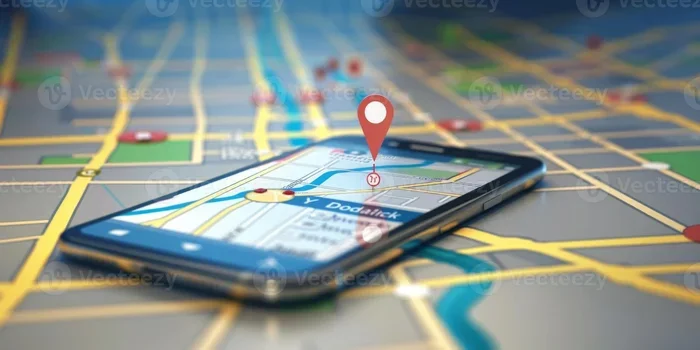
Learning how to download GPS maps for free is one of the smartest moves any driver can make. With offline maps on your phone, you can navigate without Wi-Fi, avoid data charges, and find your way even in remote areas. This guide walks you through the best free apps, step-by-step download methods, and expert tips to keep you on track anywhere.
Ever been driving through a beautiful stretch of road with no cell signal and realized your GPS just gave up on you? That frustrating moment happens to almost everyone at some point. The good news is that you can fix this problem completely. How to download GPS maps for free is a skill that every driver should have in their back pocket. It takes just a few minutes, costs nothing, and can save you from getting lost in the middle of nowhere.
Whether you are planning a road trip through the mountains, commuting through areas with poor coverage, or just want to stop burning through your mobile data, offline GPS maps are the answer. In this guide, we will walk you through everything you need to know. We will cover the best free apps, the exact steps to download maps, and practical tips to make your navigation smooth and reliable. Let us get started.
Key Takeaways
- Download GPS maps for free: You don’t need expensive subscriptions to get reliable offline navigation.
- Multiple free apps work great: Google Maps, OsmAnd, MAPS.ME, and Here WeGo all offer offline map downloads.
- Save money on data roaming: Offline maps eliminate the need for constant internet access while driving.
- Storage matters: Plan ahead for map file sizes, which can range from a few hundred MB to several GB.
- Updates are easy: Most free apps let you refresh downloaded maps over Wi-Fi whenever needed.
- Works without cellular signal: Preloaded maps function anywhere, even in dead zones and rural areas.
📑 Table of Contents
- Why You Need Offline GPS Maps
- Top Free Apps for Downloading GPS Maps
- How to Download GPS Maps for Free: Step-by-Step Guide
- How to Save Data and Battery While Using GPS
- Common Mistakes to Avoid When Downloading Maps
- Expert Tips for Better GPS Navigation
- How to Choose the Right App for Your Needs
- Final Thoughts
Why You Need Offline GPS Maps
Most people take their phone’s GPS for granted until it stops working. You are cruising down a highway, and suddenly that little “no signal” icon pops up. Your turn-by-turn directions freeze. Your map stops loading. Panic sets in. This is exactly when offline maps save the day.
Here is why downloading GPS maps for free is such a game changer:
- No internet needed: Offline maps work anywhere, even in tunnels, mountains, and rural areas where cell towers cannot reach.
- Zero data usage: Navigation without downloading map tiles means you do not burn through your monthly data plan.
- Faster loading: Since the map data is stored directly on your device, it loads instantly. No waiting for tiles to buffer.
- Battery friendly: Your phone does not waste power constantly searching for a signal, so your battery lasts longer on long drives.
- Peace of mind: You always have a backup navigation tool, which is especially important during road trips or emergencies.
Think of offline maps as an insurance policy for your travels. You hope you never need them, but you will be incredibly glad they are there when you do.
Who Benefits Most from Offline Navigation?
Offline GPS maps are not just for off-road adventurers. They help a wide range of people in everyday situations. Road trippers benefit the most because they often drive through areas with spotty coverage. Delivery drivers save money on data costs by using offline navigation all day. Travelers visiting foreign countries avoid expensive roaming charges by preloading maps before they land. Even daily commuters in cities with underground tunnels or parking garages find offline maps invaluable.
The bottom line is simple. GPS navigation without internet is not a luxury. It is a practical tool that makes every drive safer and more convenient.
Top Free Apps for Downloading GPS Maps
Not all navigation apps are created equal. Some are packed with features, while others keep things simple. The key is finding the right free GPS app that lets you download maps for offline use. Here are the best options available right now.
Google Maps
Google Maps is the most popular navigation app in the world, and for good reason. It offers offline map downloads for virtually any location on the planet. You can search for a specific area, tap download, and your map is ready to use without any internet connection. The app also provides turn-by-turn directions, traffic updates (when you have signal), and business listings. The main downside is that downloaded maps expire after 30 days, so you need to connect to Wi-Fi occasionally to refresh them.
OsmAnd
OsmAnd is a powerful open-source navigation app built on OpenStreetMap data. It offers incredibly detailed maps, including hiking trails, bike paths, and points of interest. Offline map downloads in OsmAnd are highly customizable. You can choose which regions to download, adjust the level of detail, and even download map themes. The app is more complex than Google Maps, but power users love the depth of features. It is an excellent choice for anyone who wants full control over their GPS navigation experience.
MAPS.ME
MAPS.ME is a user-friendly app that uses OpenStreetMap data to provide detailed offline maps. The interface is clean and intuitive, making it easy for anyone to download and use maps quickly. It offers turn-by-turn navigation, search functionality, and the ability to bookmark favorite locations. Free map downloads are straightforward, and the app works well for both driving and walking directions. MAPS.ME is a solid choice for casual users who want something that just works.
Here WeGo
Here WeGo was originally developed by Nokia and offers reliable offline navigation with clean, easy-to-read maps. The app provides driving directions, public transit info, and walking routes. Downloading GPS maps for entire countries or specific regions is simple and fast. Here WeGo is a great option for international travelers because it supports navigation in many countries around the world, all without needing an internet connection.
Comparison Table: Best Free Offline Map Apps
| App | Map Source | Offline Navigation | Turn-by-Turn Directions | Map Expiry | Best For |
|---|---|---|---|---|---|
| Google Maps | Yes | Yes | 30 days | General use and road trips | |
| OsmAnd | OpenStreetMap | Yes | Yes | Never (manual update) | Power users and hikers |
| MAPS.ME | OpenStreetMap | Yes | Yes | Never | Quick and easy downloads |
| Here WeGo | Here Technologies | Yes | Yes | Never | International travel |
How to Download GPS Maps for Free: Step-by-Step Guide
Now that you know which app to use, let us walk through the actual process. Each app has a slightly different method, but the general steps are very similar. We will use Google Maps as the primary example since it is the most widely used.
Step 1: Choose Your App and Connect to Wi-Fi
First, download your preferred navigation app from the App Store or Google Play Store. Make sure you are connected to Wi-Fi before you start downloading maps. Map files can be large, and you do not want to eat through your cellular data. For example, downloading a single state in the US on Google Maps can take anywhere from 100 MB to 500 MB depending on the level of detail.
Step 2: Search for the Area You Want
Open your app and search for the region you plan to visit. In Google Maps, type in the name of a city, state, or country. Zoom in to the level of detail you want. You can download maps for entire countries or just specific cities and highways. The more zoomed in you are, the more detail you get, but the larger the file size.
Step 3: Initiate the Download
In Google Maps, tap your profile picture in the top right corner, then select “Offline Maps.” Tap “Select Your Own Map” and adjust the frame to cover your desired area. Hit “Download,” and the app will start saving the map data to your device. In OsmAnd, go to the map download section, browse the available regions, and tap download next to the area you want. In MAPS.ME, tap the search icon, find your location, and tap the download arrow.
Step 4: Verify Your Download
Once the download completes, make sure the map is fully saved. In Google Maps, go to “Your Places” and check the “Offline” tab. You should see your downloaded map listed there. Turn on airplane mode and open the app to test that the map loads without internet. This quick test ensures everything works before you actually need it on the road.
Step 5: Update Maps Regularly
Downloaded maps are not permanent unless you use apps like OsmAnd or MAPS.ME. Google Maps offline maps expire after 30 days. To keep them current, connect to Wi-Fi every few weeks and refresh your downloads. Updated maps include new roads, changed speed limits, and revised points of interest. Keeping your map storage current is essential for accurate navigation.
Quick Tip: Set a calendar reminder on your phone to update your offline maps once a month. This small habit prevents unpleasant surprises when you are miles away from any Wi-Fi connection.
How to Save Data and Battery While Using GPS
Even with offline maps, your phone still uses some power and resources during navigation. If you are on a long road trip, you want your phone to last as long as possible. Here are practical ways to conserve both data and battery while using your GPS device or smartphone.
Reduce Screen Brightness
Your phone’s screen is the biggest battery drain. Lower the brightness to the lowest comfortable level. If your phone has an auto-brightness setting, turn it off and set it manually low. This simple change can extend your battery life by a significant margin.
Turn Off Unnecessary Features
Disable Bluetooth, Wi-Fi scanning, and background app refresh for apps you are not using. If you are using offline maps, you do not need these features active. In Google Maps, you can also turn off “Live Traffic” since it requires an internet connection and drains battery for no benefit when you are offline.
Use Airplane Mode with Wi-Fi Off
Some drivers make the mistake of keeping cellular data on while using offline maps. This is unnecessary and wastes battery. Switch to airplane mode and turn off Wi-Fi. Your offline maps will still work perfectly, and your phone will sip battery instead of draining it searching for a signal.
Keep Your Phone Cool
Phones heat up during extended GPS use, especially in hot weather. Heat reduces battery efficiency and can even cause your phone to throttle performance. Keep your phone in a shaded spot on the dashboard or use a vent-mounted holder where airflow keeps it cool.
Quick Tip: Bring a car charger with a fast-charging capability. Even with battery-saving measures, a long drive can drain your phone. A quality car charger ensures your navigation stays alive from start to finish.
Common Mistakes to Avoid When Downloading Maps
Downloading GPS maps for free is simple, but people still make avoidable mistakes. Here are the most common ones and how to prevent them.
Forgetting to Download Maps Before You Leave
This is the number one mistake. People assume they can download maps at their destination or along the way. But if you are heading to a remote area with no Wi-Fi, you will be stuck. Always download your maps at home over Wi-Fi before you start your trip.
Downloading Maps That Are Too Small
It is tempting to download just the city you are visiting, but roads often extend beyond city limits. If you are taking a detour or exploring rural areas, a small map download will not cover you. Always download a larger area than you think you need. A good rule of thumb is to download at least a 50-mile radius around your route.
Ignoring Map Expiry Dates
As mentioned earlier, Google Maps offline maps expire after 30 days. If you forget to refresh them, you will lose access to your offline data. Set reminders and make map updates part of your trip preparation routine.
Not Checking Storage Space
Map files can take up significant space on your phone. A full country download can be several gigabytes. Before you start downloading, check your available storage. If your phone is nearly full, consider clearing out old photos, apps, or files to make room. Running out of storage mid-download is frustrating and avoidable.
Relying on Only One App
What happens if the app crashes or you accidentally delete the map files? Always have a backup. Download maps in at least two apps, or keep a physical road atlas in your glove box as a last resort. Redundancy might sound excessive, but it is better to be prepared.
Expert Insight: “The best GPS navigation strategy is a layered approach. Use offline maps as your primary tool, keep a paper map as a backup, and always let someone know your planned route before heading out.” — Road safety experts consistently recommend this multi-layered approach for long-distance and unfamiliar driving.
Expert Tips for Better GPS Navigation
Once you have your offline maps set up, you can take your navigation game to the next level with a few expert tips. These small adjustments make a big difference in accuracy and convenience.
Preload Multiple Regions
If you are planning a cross-country road trip, download maps for every state or region along your route. This ensures seamless navigation even if you cross from one coverage area into another. Preloading also means you do not have to worry about finding Wi-Fi at every stop to refresh your maps.
Bookmark Key Locations
Before you hit the road, save your hotels, restaurants, gas stations, and attractions as bookmarks in your navigation app. Offline maps support saved locations, so you can find them even without internet. This is especially helpful in unfamiliar cities where you might not recognize street names.
Download Maps for Your Return Route
Many people forget to download maps for their return trip. If you are driving a loop or a round trip, make sure both directions are covered. It is easy to get caught off guard on the way home if you only prepped one direction.
Use Voice Directions
Turn on voice guidance in your navigation app. Voice directions keep your eyes on the road and your hands on the wheel. Most free GPS apps offer voice navigation at no extra cost. Make sure your phone volume is turned up high enough to hear directions over your radio or music.
Keep Your Phone Mounted Properly
A phone mount improves visibility and safety. Use a windshield or dash mount that holds your phone securely without blocking your view. Make sure the mount does not interfere with your airbags or create a glare on the screen. A well-positioned mount makes following turn-by-turn directions much easier.
Check for Map Updates Before Major Trips
Roads change. New highways are built, speed limits are adjusted, and businesses close or open. Before any major trip, spend five minutes checking for map updates in your app. This ensures your travel routes are based on the most current road information available.
Key Takeaways:
- Download maps over Wi-Fi before every trip to avoid using mobile data.
- Cover a wider area than you think you need to account for detours.
- Bookmark important stops so you can find them offline.
- Use voice guidance to keep your attention on the road.
- Update your maps regularly to ensure accuracy.
How to Choose the Right App for Your Needs
With so many free options available, picking the right app can feel overwhelming. Here is a simple way to decide based on your needs.
If you want the most familiar and widely supported option, go with Google Maps. It works on both Android and iOS, offers excellent map detail, and handles turn-by-turn directions flawlessly. If you are a power user who wants deep customization and detailed topographic maps, choose OsmAnd. For quick and simple downloads without any fuss, MAPS.ME is your best bet. And if you travel internationally frequently, Here WeGo covers an impressive number of countries with reliable offline navigation.
You can also use more than one app. Many experienced travelers keep Google Maps for general navigation and OsmAnd for detailed outdoor exploration. Having options gives you flexibility and a safety net.
The most important thing is to simply start. Download a map today, test it in airplane mode, and build confidence in your offline navigation skills. Once you experience the freedom of GPS without internet, you will never go back to relying solely on data-connected navigation.
Final Thoughts
Learning how to download GPS maps for free is one of the easiest and most valuable skills you can add to your driving routine. It costs nothing, takes just a few minutes, and provides peace of mind on every trip. Whether you are commuting through the city or exploring a remote mountain road, offline maps keep you guided and confident.
Remember to choose a reliable free app, download maps before your trip, update them regularly, and always have a backup plan. With the right preparation, you will never have to worry about losing your navigation signal again. Take a few minutes today to download your first offline map. Your future self, driving through a dead zone with complete confidence, will thank you.
GPS navigation should feel empowering, not stressful. With free offline maps in your pocket, every road becomes an open invitation. Download your maps, hit the road, and enjoy the journey with total confidence.
Frequently Asked Questions
Can I download GPS maps for free on both Android and iPhone?
Yes, all the major free navigation apps work on both Android and iOS devices. Google Maps, OsmAnd, MAPS.ME, and Here WeGo are available in both app stores and offer the same offline map download features regardless of your operating system.
How much storage space do offline maps take up?
Storage needs vary depending on the area and detail level. A single city might take 100 to 300 MB, while an entire country can require 1 to 5 GB. Check your phone’s available storage before downloading, and consider downloading only the regions you need to save space.
Do offline GPS maps provide turn-by-turn directions?
Yes, most free apps including Google Maps, OsmAnd, MAPS.ME, and Here WeGo offer full turn-by-turn directions with offline maps. You will receive voice guidance, route suggestions, and estimated arrival times even without an internet connection.
How often do I need to update my downloaded maps?
Google Maps offline maps expire after 30 days and need to be refreshed over Wi-Fi. Other apps like OsmAnd, MAPS.ME, and Here WeGo do not expire but benefit from periodic updates to include new roads and changed routes. Aim to update your maps once a month for the best accuracy.
Can I use offline maps for walking and hiking as well as driving?
Absolutely. Apps like OsmAnd and MAPS.ME provide detailed walking and hiking trails in addition to driving directions. Many offline maps include pedestrian paths, bike routes, and even topographic data for outdoor enthusiasts.
Will using offline GPS maps drain my phone battery quickly?
Offline maps actually use less battery than online navigation because your phone does not constantly search for a cellular signal. However, keeping your screen on and using GPS hardware still consumes power. Lower your screen brightness and use a car charger for long drives to maximize battery life.
=== CONCLUSION ===
How to download GPS maps for free is a simple yet powerful skill that transforms the way you drive. With offline maps on your phone, you gain freedom from unreliable signals, expensive data charges, and the anxiety of getting lost in unfamiliar areas. The process is quick, the apps are free, and the benefits are immediate.
Pick your preferred app, download your maps before every trip, and enjoy the confidence of knowing you are always guided. Whether you are a daily commuter or an adventurous road tripper, offline GPS navigation is an essential tool that belongs in every driver’s digital toolkit. Start today, and never let a lost signal ruin your journey again.