How Do I Pair My Samsung Phone to My Car Step by Step
Pairing your Samsung phone to your car is easier than you think. This guide walks you through every step of the Samsung phone car pairing process using Bluetooth, Android Auto, and USB connections. You will learn how to set up hands-free calling, stream music, and troubleshoot common issues in minutes.
Have you ever jumped into your car, dropped your Samsung phone in your lap, and wished you could just play your favorite playlist without fumbling with cables? You are not alone. Millions of drivers every day search for the easiest way to connect their Samsung Galaxy device to their vehicle. The good news is that pairing a Samsung phone to a car is a straightforward process once you know the steps.
Whether your car has a modern infotainment system or an older Bluetooth setup, this guide covers everything you need. We will walk through the Samsung phone car pairing process from start to finish. You will also learn tips for hands-free calling, media streaming, and fixing common connection problems. By the end, you will be cruising with your phone fully integrated and your hands safely on the wheel.
Key Takeaways
- Bluetooth pairing is the most common method and works with nearly all modern cars and Samsung phones.
- Android Auto offers a smarter experience with navigation, music, and voice commands on your car screen.
- Prepare both devices first by updating software and clearing old connections for a smooth pairing process.
- Common issues like connection drops can be fixed with simple resets and clearing the Bluetooth cache.
- Wireless Android Auto is now supported on many newer Samsung phones and car infotainment systems.
- Contact syncing and steering wheel controls make your driving experience safer and more convenient.
📑 Table of Contents
- Understanding Bluetooth Connection Between Your Samsung Phone and Car
- How Do I Pair My Samsung Phone to My Car Step by Step
- Setting Up Android Auto for a Smarter Driving Experience
- Samsung Phone and Car Infotainment: Making It Work Seamlessly
- Quick Tips for a Perfect Samsung Phone Car Pairing
- Common Mistakes to Avoid When Pairing Your Samsung Phone
- Troubleshooting Common Bluetooth Connection Issues
- Expert Insights for the Best Samsung Phone Car Experience
- Conclusion
Understanding Bluetooth Connection Between Your Samsung Phone and Car
What Is Bluetooth Pairing?
Bluetooth pairing is the process of linking two devices wirelessly so they can share data. In your car, this means your Samsung Galaxy phone connects to the car’s audio system. Once paired, you can make calls, play music, and use voice commands without touching your phone.
The technology uses short-range radio waves. These waves transfer data between your phone and the car’s infotainment system. Most cars made after 2012 support Bluetooth connection natively. If your car is older, you may need a simple Bluetooth adapter that plugs into the auxiliary port.
Why Wireless Connection Matters for Driving Safety
Using a hands-free calling setup through your car keeps your eyes on the road. Texting or holding your phone while driving is dangerous and illegal in most places. A proper phone sync lets you answer calls through your car’s speakers and microphone.
Beyond calls, media streaming lets you hear music, podcasts, and navigation prompts through your car speakers. This creates a much better driving experience. You stay connected without the distraction of handling your device.
How Do I Pair My Samsung Phone to My Car Step by Step
The Samsung phone car pairing process follows a clear sequence. Whether you use Bluetooth or a USB cable, the steps are simple. Let us break them down so you can get connected in under five minutes.
Step 1: Prepare Your Samsung Phone
Before you start, take a moment to prep your device. This small step saves time and prevents frustration later.
- Update your Samsung phone to the latest software version. Go to Settings, then Software Update, and tap Download.
- Turn off Bluetooth on your phone temporarily. This clears any stale connections that might interfere.
- Delete old car connections from your phone’s Bluetooth settings. This gives you a clean slate for the new pairing.
- Make sure your phone is charged or plugged in. A low battery can sometimes cause pairing issues.
Step 2: Enable Bluetooth on Your Samsung Phone
Swipe down from the top of your screen to open the Quick Settings panel. Tap the Bluetooth icon to turn it on. You will see the Bluetooth symbol appear in your status bar.
Next, go to Settings, then Connections, and tap Bluetooth. Make sure the toggle is switched on. Your phone will now start scanning for nearby devices. Keep Bluetooth visible so your car can find it.
Step 3: Turn on Your Car’s Infotainment System
Start your car engine or switch to accessory mode. Navigate to the Settings menu on your car’s touchscreen or dashboard display. Look for a section labeled Bluetooth, Phone, or Connections.
Turn on Bluetooth in your car settings. Your car will now begin searching for available devices. On some models, you may need to press a “Search” or “Scan” button on the screen.
Step 4: Search for and Select Your Samsung Phone
On your car’s display, you should see your Samsung Galaxy phone appear in the list of available devices. Tap on your phone name to initiate the pairing request.
Your phone will show a prompt asking you to confirm the connection. You may see a pairing code on both screens. Verify the codes match, then tap Pair or Confirm on your phone. This ensures no unauthorized device connects to your car.
Step 5: Complete the Pairing and Test the Connection
Once paired, your car may ask for permissions. Allow access to contacts, messages, and media. This lets you use hands-free calling and stream music through your car speakers.
Test the connection by playing a song from your phone. You should hear it come through your car audio system. Try making a call using your steering wheel controls to confirm everything works. If you hear sound and can make calls, you are all set.
Setting Up Android Auto for a Smarter Driving Experience
Android Auto takes your Samsung phone car pairing to the next level. It projects a simplified version of your phone interface onto your car’s touchscreen. You get navigation, music, and messaging in a driver-friendly format. It is one of the best smartphone integration tools available today.
Wireless Android Auto vs USB Connection
Wireless Android Auto is the newer and more convenient option. It connects through Bluetooth and Wi-Fi without any cables. You just need a compatible Samsung phone and a car that supports wireless Android Auto.
A USB connection still works well for older cars. It provides a stable connection and charges your phone at the same time. However, a cable can be annoying to manage. If your car supports it, wireless Android Auto is the better choice.
| Feature | Wireless Android Auto | USB Connection |
|---|---|---|
| Cable Required | No | Yes |
| Charging | May vary | Yes |
| Setup Speed | Fast | Moderate |
| Stability | Good | Very Stable |
| Compatibility | Newer cars and phones | Most vehicles |
Getting Android Auto Running on Your Car Display
First, download Android Auto from the Google Play Store on your Samsung Galaxy phone. Open the app and follow the on-screen setup instructions. You will need to grant permissions for location, contacts, and media.
Once set up, open Android Auto and connect your phone to your car. If your car supports wireless Android Auto, it should connect automatically. If not, plug in a USB cable and select Android Auto as the audio source on your car display.
You will see a simplified home screen with your favorite apps. Use voice commands by saying “Hey Google” to navigate, call contacts, or play music. This keeps your hands on the wheel and eyes on the road.
Samsung Phone and Car Infotainment: Making It Work Seamlessly
Getting the initial Bluetooth connection is just the start. To truly enjoy your Samsung phone in the car, you need to fine-tune a few settings. These small adjustments make a big difference in your daily driving experience.
Phonebook and Contact Syncing
After pairing, your car should sync with your phone’s contacts. This lets you dial friends and family using your car’s display or steering wheel controls. If contacts do not appear, go to your car’s Bluetooth settings and make sure contact sync is enabled.
On your Samsung phone, check that you have given your car permission to access contacts. Go to Settings, then Apps, find your car’s infotainment app, and check Permissions. Make sure Contacts is set to Allow.
Media Streaming and Music Playback
Media streaming is one of the best reasons to pair your phone with your car. You can play Spotify, YouTube Music, Apple Music, or any other app through your car speakers. The audio routes through the Bluetooth connection automatically once paired.
For the best experience, set your car’s audio source to Bluetooth or Media Audio. You can control playback from your car’s touchscreen or use voice commands. This is especially helpful when you are driving on busy roads.
Using Steering Wheel Controls
Most modern cars have steering wheel buttons that work with a paired Samsung phone. These buttons typically let you answer calls, skip tracks, or activate voice assistants. Check your car’s manual to learn which buttons do what.
You can also customize steering wheel controls in some cars. For example, you might assign a button to launch Android Auto directly. This shortcut saves time and makes your setup feel personalized.
Quick Tips for a Perfect Samsung Phone Car Pairing
- Keep both devices updated. Software updates often fix Bluetooth connection bugs and improve compatibility.
- Restart both devices before pairing. A simple reboot clears temporary glitches that can block the connection.
- Stay within range. Bluetooth works best within about 30 feet. Park close to your car if you are having trouble.
- Clear old pairings regularly. Too many saved connections can slow down the pairing process.
- Use the correct audio source. After pairing, select Bluetooth Audio or Media on your car display to hear sound.
- Enable “Access Contacts” and “Access Media.” Without these permissions, your car cannot sync your phonebook or play music.
Common Mistakes to Avoid When Pairing Your Samsung Phone
Even with clear instructions, people make mistakes that delay the Samsung phone car pairing process. Here are the most common ones and how to avoid them.
Skipping software updates. Old software on either your phone or car can cause compatibility issues. Always check for updates before you start pairing. This is the number one fix for most connection problems.
Not clearing old Bluetooth connections. If your phone remembers a previous car, it may try to connect to the wrong device. Go to your Bluetooth settings and remove any old or unused pairings before starting fresh.
Ignoring permissions. Your car needs permission to access contacts, messages, and media. Without these, you will get a partial connection that misses key features. Always review permission prompts carefully.
Using the wrong audio source. After pairing, many people forget to switch their car’s audio source to Bluetooth. The phone connects, but no sound comes through. Simply tap the source button on your car display and select Bluetooth.
Assuming all cars work the same way. Every car infotainment system is slightly different. The general process is the same, but menu names and button placements vary. Refer to your car’s manual if you get stuck.
Troubleshooting Common Bluetooth Connection Issues
Sometimes the Samsung phone car pairing does not go smoothly. Connection drops, audio delays, and failed pairings happen to everyone. Here is how to fix the most common problems.
Why Won’t My Samsung Phone Connect to My Car?
If your phone does not appear on your car’s screen, try these steps. First, toggle Bluetooth off and on again on both devices. This refreshes the connection and often fixes temporary glitches.
Next, restart both your Samsung Galaxy phone and your car’s infotainment system. Turn off the car, wait 30 seconds, and start it again. On your phone, hold the power button and restart.
If the problem continues, go to your phone’s Bluetooth settings and “Forget” the car device. Then start the pairing process from scratch. This clears any corrupted data that might be blocking the connection.
Quick Fixes for Pairing Problems
- Clear the Bluetooth cache on your Samsung phone. Go to Settings, then Apps, find Bluetooth, and tap Clear Cache.
- Check for interference. Other Bluetooth devices, USB cables, or even USB chargers can sometimes interfere with the connection.
- Move closer to the car. Bluetooth range is limited. Standing right next to your car can help during the initial pairing.
- Reset network settings on your phone. Go to Settings, then General Management, and tap Reset. Choose Reset Network Settings. This clears all Wi-Fi and Bluetooth connections but fixes deep connection issues.
- Check your car’s Bluetooth limit. Some car systems only remember a certain number of paired devices. Delete old ones you no longer use to make room.
Expert Insights for the Best Samsung Phone Car Experience
Automotive tech experts agree that a good phone sync transforms your driving experience. Here are some insider tips that go beyond the basics.
Set up your phone before you start driving. Do your pairing and settings adjustments while parked. This keeps you focused on the road and avoids distractions. Once your setup is done, you can just get in and go.
Use voice commands whenever possible. Samsung phones work with Google Assistant and Bixby. You can say “Hey Google, call Mom” or “Hey Bixby, play jazz music” without ever touching your phone. This is the safest way to stay connected while driving.
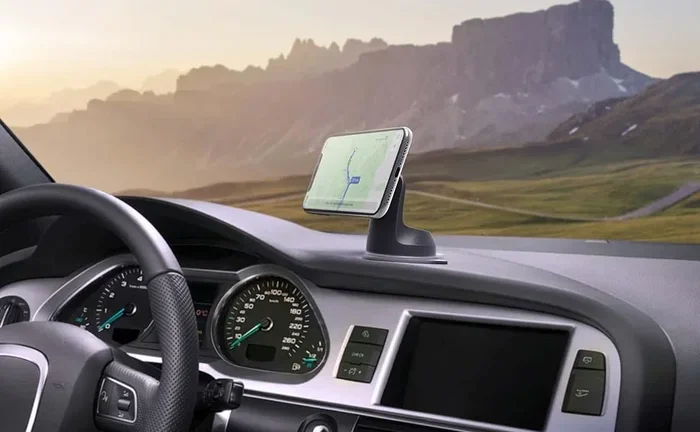
Consider a wireless charging mount. If you use Android Auto frequently, your phone battery can drain quickly. A wireless charging mount in your car keeps your phone powered and ready to connect. Many mounts also hold your phone at the perfect angle for the car display.
Explore your car’s sound settings. After pairing, spend a few minutes adjusting the equalizer and balance settings on your car display. This lets you fine-tune the audio to your car’s acoustics. You will notice a big improvement in sound quality.
Keep your phone’s screen brightness low while driving. A bright screen at night can be distracting and drain your battery. Most Samsung Galaxy phones have an adaptive brightness feature that handles this automatically. Make sure it is turned on.
Conclusion
Pairing your Samsung phone to your car is one of the simplest upgrades you can make to your daily commute. The process is fast, the benefits are real, and the technology keeps getting better. Whether you use a basic Bluetooth connection or the full Android Auto experience, you will enjoy safer calls, better music, and smoother navigation.
Follow the steps in this guide and you will be connected in no time. If you run into issues, the troubleshooting section has you covered. Remember to keep your devices updated, clear old pairings, and grant the right permissions. These small habits keep your Samsung phone car pairing running smoothly for years.
Now that you know how do I pair my Samsung phone to my car, it is time to give it a try. Get in your car, follow the steps, and enjoy a smarter, safer driving experience. Your phone and your car were made to work together. All it takes is a few minutes to set it up.
Frequently Asked Questions
Can I pair multiple Samsung phones to the same car?
Yes, most car infotainment systems support multiple paired devices. Each phone will need to go through the Bluetooth pairing process separately. When you get in the car, the system usually connects to the last phone that was paired or the one closest to the car’s receiver.
Why does my Samsung phone disconnect from my car randomly?
Random disconnections are usually caused by software glitches or low battery on either device. Try clearing the Bluetooth cache on your phone and restarting both devices. If the problem persists, delete the pairing and set it up again from scratch.
Do I need Android Auto to connect my Samsung phone to my car?
No, Android Auto is optional. You can connect your Samsung Galaxy phone to your car using standard Bluetooth without Android Auto. However, Android Auto adds features like navigation, voice commands, and a cleaner interface that many drivers find very useful.
Can I play Spotify and make calls at the same time through my car?
Yes, once your Samsung phone is paired, you can stream music from Spotify and answer phone calls simultaneously. Your car’s infotainment system handles both audio streams. Calls will pause your music automatically and resume when the call ends.
What should I do if my car does not show my Samsung phone in the Bluetooth list?
First, make sure Bluetooth is turned on and visible on your phone. Restart both your phone and car infotainment system. If your phone still does not appear, try forgetting any old car connections on your phone and scanning again. Also check that your car is not already connected to another device.
Is it safe to pair my Samsung phone with a rental car?
Yes, it is generally safe. However, always review the permissions you grant during pairing. After you return the rental car, go to your phone’s Bluetooth settings and forget the vehicle. This prevents your personal data from staying on the rental car’s system.
=== META DESCRIPTION ===
Learn how do I pair my Samsung phone to my car step by step with Bluetooth, Android Auto, and quick fixes for a seamless driving connection.