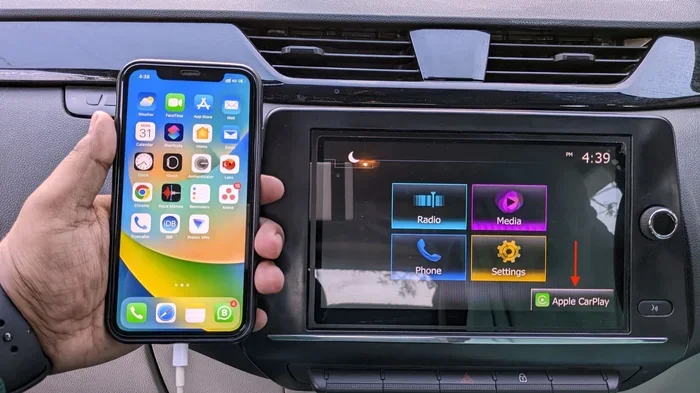
How Can I Pair My iPhone to My Car Without Any Hassle
How Can I Pair My iPhone to My Car is an essential topic that provides valuable insights.
Key Takeaways
- Understanding How Can I Pair My iPhone to My Car: Provides essential knowledge
📑 Table of Contents
- What Happens When You Pair Your iPhone to Your Car
- How to Pair iPhone to Car Using Bluetooth
- Setting Up Apple CarPlay for a Seamless Connection
- Wireless vs Wired Connection: Which Is Better
- Troubleshooting Common iPhone Car Pairing Issues
- Tips to Keep Your iPhone and Car Connected Smoothly
- Can You Use Siri While Driving Through Your Car Connection
- Key Takeaways
What Happens When You Pair Your iPhone to Your Car
Before we jump into the steps, let us talk about what actually happens when you connect your phone to your car. Understanding the basics makes everything much easier.
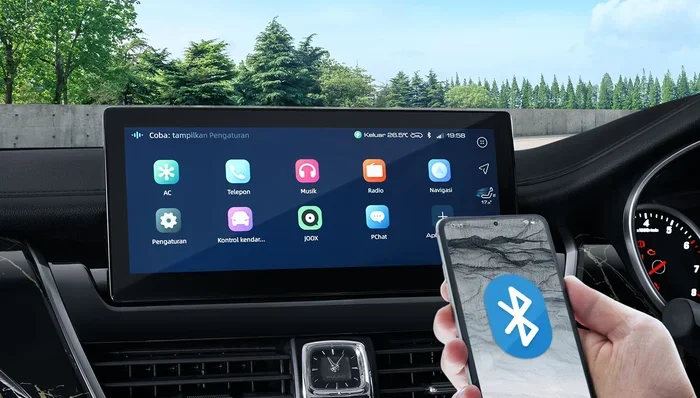
When you pair your iPhone to car using Bluetooth, your phone and your car’s infotainment system create a wireless link. This link lets you do several things at once:
- Play music through your car speakers
- Make and receive phone calls hands-free
- Use GPS navigation on a larger screen
- Send and receive text messages through voice
- Control podcasts and audiobooks from your dashboard
There are two main ways to connect. The first is Bluetooth pairing, which is wireless. The second is a USB wired connection, which is faster and more reliable. Some cars support both. Many newer cars also support Apple CarPlay, which gives you a special iPhone interface right on your car screen.
Wireless CarPlay is also becoming more common. This means you do not even need a cable. Your iPhone connects to your car over Wi-Fi and Bluetooth together. It is incredibly convenient once it is set up.
How to Pair iPhone to Car Using Bluetooth
Bluetooth is the most common way to connect your iPhone to your car. Almost every car made in the last ten years supports it. Here is exactly how to do it.
Step 1: Prepare Your iPhone
First, make sure your iPhone is ready. Open the Settings app. Tap on Bluetooth. Turn it on if it is off. You should see the toggle switch turn green. Your iPhone will now start looking for nearby devices.
Next, make sure your car is turned on. You do not need to start the engine. Just turn the ignition to the accessory mode. This powers up the car’s audio system without starting the motor.
Step 2: Put Your Car in Pairing Mode
Every car is a little different here. Most cars have a “Bluetooth” or “Phone” button on the steering wheel or the infotainment screen. Press it. The car will say it is searching for devices. Some cars will show a message on the screen that says “Pairing Mode Active.”
For many Ford, Toyota, Honda, and Chevrolet models, you can also find the pairing option in the Settings menu on the car screen. Look for “Phone” or “Connections” and then “Add New Device.”
Step 3: Find Your Car on Your iPhone
Now go back to your iPhone. Under Settings, Bluetooth, you should see a list of available devices. Your car’s name will appear there. It might say something like “Ford SYNC” or “Toyota Audio” or “Honda Display Audio.”
Tap on your car’s name. Within a few seconds, both your phone and your car will show a pairing code. Make sure the codes match. Then tap “Pair” on your iPhone. If your car asks you to confirm, tap “Yes” or “Confirm” on the car screen.
Step 4: Test the Connection
Once paired, try playing a song on your iPhone. It should come through your car speakers. Try making a call. You should hear the other person through your car’s audio system. If everything works, you are all set.
Quick Tip: If your car does not show up on your iPhone, restart both devices. Turn Bluetooth off and back on. Sometimes a simple restart fixes everything.
Setting Up Apple CarPlay for a Seamless Connection
Apple CarPlay is one of the best features on any modern iPhone. It mirrors your iPhone interface onto your car screen. You get a bigger display for maps, music, and messages. It makes driving safer and more fun.
What You Need for CarPlay
Not every car supports CarPlay. Here is what you need:
- An iPhone 5 or newer (iPhone 15 and later use a USB-C cable)
- A car that supports CarPlay (check your car’s manual or the manufacturer website)
- A Lightning or USB-C cable (for wired CarPlay)
- A compatible stereo or infotainment unit
Many aftermarket car stereos from brands like Pioneer, Kenwood, and Sony now support CarPlay too. So even if your car is older, you might be able to add CarPlay with a new stereo unit.
How to Set Up CarPlay
Setting up CarPlay is straightforward. Here are the steps:
- Plug your iPhone into your car’s USB port using the right cable
- Your car screen should show the CarPlay icon automatically
- Tap the CarPlay icon on the car screen
- Your iPhone will ask you to allow CarPlay. Tap “Allow”
- You will see your CarPlay home screen on the car display
For wireless CarPlay, the process is even simpler. Go to your iPhone Settings. Tap General. Tap CarPlay. Select your car from the list. That is it. Your iPhone will connect automatically every time you get in the car.
Making CarPlay Work Better
Here are some tips to get the most out of CarPlay:
- Keep your iPhone updated to the latest iOS version
- Use a high-quality USB cable to avoid connection drops
- Restart your iPhone and car infotainment system if CarPlay does not load
- Disable low power mode, as it can interfere with CarPlay
- Make sure your car’s firmware is up to date
Wireless vs Wired Connection: Which Is Better
This is a common question. Should you use Bluetooth and wireless CarPlay, or should you plug in a cable? Both have pros and cons. Let us break it down.
Wired Connection (USB Cable)
A wired connection gives you the most stable link between your iPhone and car. The sound quality is often better. There is no lag. Charging happens at the same time. This is great for long road trips.
The downside is the cable. It can be annoying to plug in and unplug every time. Cables can also wear out or break over time. And some cars only have USB ports in awkward spots.
Wireless Connection (Bluetooth and Wireless CarPlay)
Wireless is all about convenience. You get in the car. It connects automatically. No cables needed. Wireless CarPlay has improved a lot in recent years. The sound quality is very close to wired now.
The downside is that wireless connections can sometimes drop. If you drive through an area with a lot of interference, you might lose the signal temporarily. Wireless CarPlay also uses more battery than wired.
| Feature | Wired (USB) | Wireless (Bluetooth/Wi-Fi) |
|---|---|---|
| Stability | Very high | High |
| Sound Quality | Excellent | Very good |
| Convenience | Medium | Excellent |
| Charging | Yes | No (unless wired separately) |
| Setup Time | Plug and go | Auto-connect after first setup |
| Cable Needed | Yes | No |
My Recommendation: If you drive short distances and want the best sound quality, go wired. If you want convenience and have a car that supports wireless CarPlay, go wireless. Many people keep a cable in the glove box for when they need a backup.
Troubleshooting Common iPhone Car Pairing Issues
Sometimes things do not work the first time. That is normal. Here are the most common problems and how to fix them.
iPhone Does Not Show Up on the Car Screen
This is the most common issue. It usually happens because Bluetooth is turned off on one of the devices. Check both your iPhone and your car. Make sure Bluetooth is on. Make sure your car is in pairing mode. Restart both devices and try again.
Paired but No Sound
If your iPhone connects but you hear nothing, check the audio source on your car. Make sure it is set to Bluetooth or Aux. On your iPhone, go to Settings, Bluetooth, tap the “i” icon next to your car, and make sure “Audio Sharing” is turned on.
Connection Keeps Dropping
Interference can cause drops. Other Bluetooth devices nearby might be causing issues. Move away from other electronics. Restart both devices. If you are using wireless CarPlay, try switching to a wired connection to see if that helps.
CarPlay Will Not Load
If CarPlay freezes or will not start, try these steps:
- Unplug the cable and plug it back in
- Restart your iPhone
- Restart your car’s infotainment system
- Update your iPhone to the latest iOS
- Reset your car’s Bluetooth settings and pair again
iPhone Says “This Device Is Not Compatible”
This message means your car does not support CarPlay or your iPhone is too old. Check the CarPlay compatibility list on Apple’s website. If your car does not support CarPlay natively, you can buy an aftermarket CarPlay adapter.
Tips to Keep Your iPhone and Car Connected Smoothly
Once you have your iPhone paired to your car, you want it to work every single time. Here are some tips that make a big difference.
Keep Your Software Updated
Both iOS updates and car firmware updates can improve Bluetooth and CarPlay performance. Make sure you install updates when they are available. These updates often fix bugs that cause connection problems.
Delete Old Pairings
If your car has paired with many devices, it can get confused. Go to your car’s Bluetooth settings and delete old pairings. Do the same on your iPhone. Then pair fresh. This often solves mysterious connection issues.
Use a Quality Cable
If you use a wired connection, the cable matters a lot. Cheap cables can cause connection drops and slow charging. Buy cables from reputable brands or directly from Apple. A good cable lasts longer and works more reliably.
Restart Before Long Trips
Before a long road trip, restart your iPhone and your car’s infotainment system. This clears out any temporary glitches. It is a small step that saves a lot of frustration on the road.
Check Your Car’s User Manual
Every car is different. Your car’s user manual has specific instructions for Bluetooth and CarPlay setup. It also has a troubleshooting section that can help you solve problems quickly. Keep it in your glove box for reference.
Can You Use Siri While Driving Through Your Car Connection
Yes! One of the best parts of pairing your iPhone to your car is using Siri. You can make calls, send texts, and get directions all by voice. This keeps your hands on the wheel and your eyes on the road.
To use Siri, press and hold the voice command button on your steering wheel. Or say “Hey Siri” if your iPhone supports it. Siri works through your car’s audio system, so you can hear responses clearly. This makes iPhone car integration one of the safest ways to use your phone while driving.
Key Takeaways
- Bluetooth pairing is the most common way to connect your iPhone to your car. It works with almost every car made in the last decade.
- Apple CarPlay gives you a dedicated iPhone interface on your car screen. It makes navigation, music, and messaging much easier and safer.
- Wireless CarPlay is becoming the standard. It offers the same features as wired CarPlay without the cable.
- Troubleshooting is usually simple. Restarting both devices and re-pairing fixes most connection issues.
- Keep your software updated. Both iOS and car firmware updates improve performance and fix bugs.
- Use high-quality cables for wired connections. They provide better sound and more reliable charging.
- Siri integration makes driving safer. You can control your phone entirely by voice while keeping your hands on the wheel.
Frequently Asked Questions
Why won’t my iPhone connect to my car via Bluetooth?
This usually happens because Bluetooth is turned off on one of the devices, or the car is not in pairing mode. Turn Bluetooth on your iPhone off and back on. Restart your car’s infotainment system. Then try pairing again. If it still does not work, delete the old pairing on both devices and start fresh.
Do I need a special cable for Apple CarPlay?
You need a Lightning or USB-C cable depending on your iPhone model. For the best experience, use an Apple-certified cable. Cheap, uncertified cables can cause connection drops and may not support data transfer, which CarPlay requires.
Can I connect my iPhone to any car?
Most cars made after 2015 support Bluetooth at minimum. CarPlay support depends on the car’s make, model, and year. You can check Apple’s website for a full list of CarPlay-compatible vehicles. If your car does not support CarPlay, you can add it with an aftermarket adapter.
How do I know if my car supports wireless CarPlay?
Check your car’s user manual or the manufacturer’s website. Look for “wireless CarPlay” in the specifications. Newer car models from brands like BMW, Mercedes, and Hyundai often support it. If your car only has a USB port for CarPlay, it uses a wired connection.
Will pairing my iPhone to my car drain the battery?
Bluetooth and CarPlay use some battery, but not a lot. Wireless CarPlay uses slightly more battery than Bluetooth alone. If you are worried about battery drain, you can turn off Bluetooth when you are not driving. Using a wired connection actually charges your iPhone while driving.
Can I pair my iPhone to multiple cars?
Yes. Your iPhone can remember multiple car Bluetooth profiles. When you get in a different car, it will ask if you want to connect. You can also go to Settings, Bluetooth, and manually switch between paired cars. This is helpful if you share a car with a family member.
=== CONCLUSION ===
So, how can I pair my iPhone to my car? The answer is simpler than you think. Whether you use Bluetooth, a USB cable, or Apple CarPlay, the process is straightforward once you know the steps. Start with Bluetooth for a basic connection. Then explore CarPlay for a richer experience on your car screen.
Keep your devices updated. Use good cables. Restart when things go wrong. These small habits keep your iPhone car connection working smoothly every single day. You will enjoy hands-free calls, great music, and easy navigation without any hassle.
Now that you have all the information, go ahead and try it. Your next drive will be more connected, more convenient, and more enjoyable. Safe travels!