How Do I Get My iPhone to Automatically Text While Driving
Getting your iPhone to automatically text while driving is simple and can save lives. You can use the built-in Do Not Disturb While Driving feature to set up auto-reply messages for incoming texts. This guide walks you through every step, from enabling the feature to customizing your driving responses. You will learn about iPhone driving mode settings, hands-free texting options, and how to keep yourself and others safe on the road.
Every day, thousands of accidents happen because of distracted driving. Texting behind the wheel is one of the biggest causes. But what if your iPhone could handle this for you? What if it could automatically reply to messages so you do not have to pick up your phone? The good news is that Apple built a powerful feature right into iOS that does exactly this. In this article, we will show you exactly how to get your iPhone to automatically text while driving. You will learn the step-by-step setup, the best settings to use, and some tips to make the whole process smooth and effortless.
Driving requires your full attention. Even a quick glance at your screen can be dangerous. Apple understands this, which is why they created the Do Not Disturb While Driving mode. This feature does more than just silence notifications. It can also send automatic replies to anyone who texts you. This way, your friends and family know you are behind the wheel and will respond when it is safe. Whether you are on a short commute or a long road trip, setting this up takes only a few minutes. Let us dive into everything you need to know.
Key Takeaways
- Do Not Disturb While Driving is the best built-in tool for auto-texting on your iPhone.
- Auto-reply messages let people know you are driving and cannot respond right away.
- You can customize your driving mode settings to fit your personal needs.
- Siri voice commands offer a completely hands-free way to send and read texts.
- Setting up Apple CarPlay adds another layer of safety and convenience.
- Knowing the iPhone driving safety features helps you stay compliant and focused.
📑 Table of Contents
- Why Auto-Texting While Driving Matters
- How to Set Up Do Not Disturb While Driving
- Customizing Your Auto-Reply Messages
- Using Siri for Hands-Free Texting While Driving
- Apple CarPlay and Its Role in Safe Driving
- Common Mistakes to Avoid When Setting Up Auto-Texting
- Expert Tips for Maximizing iPhone Driving Safety
- How Do I Get My iPhone to Automatically Text While Driving? The Complete Picture
Why Auto-Texting While Driving Matters
Before we get into the setup, let us talk about why this matters so much. Distracted driving is a serious problem on roads everywhere. The National Highway Traffic Safety Administration reports that thousands of people are injured each year in crashes caused by distracted drivers. Texting while driving takes your eyes off the road, your hands off the wheel, and your mind off the task at hand. Even a few seconds of distraction can lead to a life-changing accident.
Using your iPhone to automatically reply while driving solves this problem. It removes the temptation to check your phone. It also keeps your relationships strong because people know you are driving and will get back to them soon. This is not just about following the law. It is about protecting yourself, your passengers, and everyone else on the road. The iPhone driving safety features make this easier than ever before.
The Science Behind Distracted Driving
Studies show that looking at your phone for just two seconds at highway speeds is like driving blindfolded for the length of a football field. That is a scary thought. The brain simply cannot multitask well when it comes to driving and texting. Even hands-free setups can pull your cognitive attention away from the road. This is why automatic text replies are so valuable. They eliminate the need to interact with your phone at all. Your iPhone does the work for you.
How to Set Up Do Not Disturb While Driving
The Do Not Disturb While Driving feature is the core tool for auto-texting on your iPhone. It is built into iOS and works seamlessly once you turn it on. Here is how to get it set up on your device.
Step-by-Step Setup Guide
Follow these simple steps to enable the feature:
- Open the Settings app on your iPhone.
- Scroll down and tap on Focus.
- Select Do Not Disturb from the list.
- Tap on Do Not Disturb While Driving.
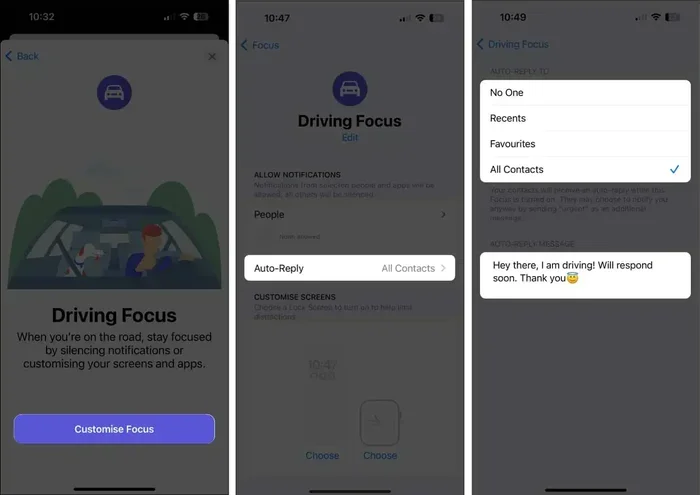
- Choose how you want the feature to activate. You have three options: Automatically, When Connected to Car Bluetooth, or Manual.
- Tap Auto-Reply to set up your driving message.
- Choose who can receive your auto-reply: Everyone, Recents, or Favorites.
- Customize your auto-reply text if you want.
- Exit Settings. You are all set.
That is it. Your iPhone will now detect when you are driving and respond to texts automatically. The feature uses a combination of speed detection and Bluetooth connectivity to know when you are behind the wheel. It is smart, simple, and very effective.
Choosing the Right Activation Method
Each activation method has its own benefits. The Automatically option uses sensors to detect when you are in a moving vehicle. This is the most convenient choice because you do not have to do anything. The When Connected to Car Bluetooth option activates the mode only when your phone pairs with your car. This is great if you want more control. The Manual option lets you turn it on from your Control Center whenever you need it. Pick the one that fits your driving habits best.
Customizing Your Auto-Reply Messages
One of the best things about the Do Not Disturb While Driving feature is that you can customize your auto-reply messages. You do not have to use the default text. You can write something that fits your personality and needs.
Default Auto-Reply Text
The default message reads: “I am currently driving with Do Not Disturb While Driving turned on. I will get back to you when I arrive.” This is clear and gets the point across. Most people find it perfectly fine for everyday use.
Writing Your Own Auto-Reply
If you want something different, you can write your own message. Here are some ideas:
- “Hey, I am driving right now and cannot text. I will reply when I get where I am going!”
- “On the road and unable to respond. Will reach out soon. Drive safe!”
- “Currently behind the wheel. I will get back to you as soon as I arrive.”
Keep your message short and friendly. People should understand immediately that you are driving and not ignoring them. The goal is to set expectations without causing worry.
Who Gets Your Auto-Reply
You can choose who receives your auto-reply messages. The Everyone option sends the reply to all texters. The Recents option limits replies to people you have contacted recently. The Favorites option only replies to people in your Favorites list. This is useful if you want to reduce unnecessary notifications while still keeping important people informed.
Using Siri for Hands-Free Texting While Driving
If you want to go beyond auto-replies, Siri voice commands are a game-changer. You can use Siri to read your messages aloud and even dictate replies without touching your phone. This is the safest way to stay connected while driving.
Setting Up Siri for Driving
To use Siri while driving, make sure “Hey Siri” is enabled on your device. Go to Settings > Siri & Search and turn on Listen for “Hey Siri”. Now, when you get a text while driving, you can simply say “Hey Siri, read my messages.” Siri will announce who texted you and what the message says. You can then say “Reply” and dictate your response. All of this happens without you ever touching the screen.
Siri Shortcuts for Drivers
You can also create Siri Shortcuts for common driving tasks. For example, you can set up a shortcut that says “I am driving” and automatically sends a pre-written message to your contacts. This adds another layer of convenience to your iPhone driving mode setup. Shortcuts save time and reduce the need to interact with your phone at all.
Apple CarPlay and Its Role in Safe Driving
Apple CarPlay is another excellent tool for drivers who want to stay connected safely. When you connect your iPhone to your car’s infotainment system, CarPlay brings a simplified, driver-friendly interface to your dashboard screen.
How CarPlay Helps With Texting
CarPlay works hand in hand with the Do Not Disturb While Driving feature. When CarPlay is active, it can display your auto-reply status and read incoming messages through your car’s speakers. You can use voice commands to reply without ever looking at your phone. The large buttons and voice-controlled interface make it easy to stay focused on the road. If your car supports CarPlay, this is definitely worth setting up.
Setting Up CarPlay for Auto-Texting
To get started with CarPlay, connect your iPhone to your car using a Lightning cable or wirelessly if your car supports it. Go to Settings > General > CarPlay and select your car. Once connected, you can access messaging, calls, and navigation from your car’s screen. Make sure your driving mode settings are configured correctly so CarPlay and Do Not Disturb work together smoothly.
Common Mistakes to Avoid When Setting Up Auto-Texting
Even with a great feature like Do Not Disturb While Driving, there are some common mistakes people make. Avoiding these will help you get the most out of the feature.
Forgetting to Turn on the Feature
The most common mistake is simply forgetting to enable the feature. If you set it to manual activation, you need to remember to turn it on each time you drive. Consider using the automatic activation method so your iPhone handles this for you. This removes the mental load and ensures you are always protected.
Not Customizing Your Auto-Reply
Many people leave the default auto-reply message unchanged. While the default works fine, customizing it adds a personal touch and makes the reply feel more natural. Take a few minutes to write a message that sounds like you.
Ignoring Passenger Mode
If you are a passenger and not the driver, the Do Not Disturb While Driving mode can be annoying. It may silence notifications even when you are not driving. Apple includes a Passenger Mode option. If you see the driving notification and you are not driving, tap “I Am Not Driving.” This prevents the mode from activating when you are just riding along.
Overlooking Bluetooth Connectivity Issues
If you chose the When Connected to Car Bluetooth activation method, make sure your Bluetooth is working properly. A weak Bluetooth connection can cause the feature to activate at the wrong times or not activate at all. Keep your Bluetooth settings up to date and test your connection regularly.
Expert Tips for Maximizing iPhone Driving Safety
Beyond the basic setup, there are several expert tips that can help you get even more out of your iPhone driving safety features. These small adjustments can make a big difference in your daily driving routine.
Tip 1: Use a Mount for Your Phone
If you do use your phone for navigation or music while driving, a phone mount keeps it visible and accessible without you having to hold it. This pairs well with hands-free texting because your phone is in one fixed location and Siri can easily interact with it.
Tip 2: Set Up Emergency Bypass
If someone really needs to reach you while you are driving, you can set up emergency bypass for specific contacts. Go to their contact card, tap Edit, and enable Emergency Bypass for calls. This way, repeated calls from that person will still get through even when Do Not Disturb is active.
Tip 3: Keep Your iOS Updated
Apple regularly improves its driving features with each iOS update. Keeping your iPhone updated ensures you have the latest driving focus mode capabilities and bug fixes. Check for updates in Settings > General > Software Update on a regular basis.
Tip 4: Test Your Setup Before a Long Trip
Before heading out on a road trip, test your auto-reply and Siri setup. Send a test text to yourself and see if the auto-reply comes through correctly. Make sure Siri reads messages clearly and that your voice commands work as expected. A quick test can save you frustration on the road.
How Do I Get My iPhone to Automatically Text While Driving? The Complete Picture
So, to answer the main question directly: how do I get my iPhone to automatically text while driving? The answer is the Do Not Disturb While Driving feature combined with auto-reply settings. This built-in iOS tool handles everything for you. It detects when you are driving, silences notifications, sends automatic replies, and works seamlessly with Siri and CarPlay. You do not need any third-party apps. You do not need any extra hardware. Everything you need is already on your iPhone.
The setup takes less than five minutes. The benefits last a lifetime. By enabling this feature, you are choosing safety over convenience. You are choosing to protect yourself and others. And you are still staying connected with the people who matter to you. That is a win-win situation for everyone on the road.
Take a few minutes today to set up your iPhone driving mode. Customize your auto-reply, test your Siri commands, and make sure everything is working the way you want. Once it is set up, you can drive with confidence knowing your phone is handling messages the right way. Safe driving starts with smart choices, and this is one of the smartest choices you can make.
Frequently Asked Questions
Can I still receive texts while driving if I turn on Do Not Disturb While Driving?
Yes, you can still receive texts. The feature silences notifications and sends auto-replies, but messages are still delivered to your phone. When you arrive at your destination and turn off driving mode, you can read and respond to all your messages safely.
Does the Do Not Disturb While Driving feature work if I am a passenger?
It can, which is why Apple included a Passenger Mode. If you tap “I Am Not Driving” when the notification appears, the feature will not activate. You can also connect to your car’s Bluetooth as a passenger and the mode will still work correctly if you adjust the settings.
Can I use Siri to send a text while driving without touching my phone?
Absolutely. Siri allows you to dictate and send texts entirely by voice. You can say “Hey Siri, send a text to [contact name]” and then dictate your message. This keeps your hands on the wheel and your eyes on the road at all times.
Will auto-reply messages work if someone texts me from an Android phone?
Yes, auto-reply messages work regardless of what type of phone the sender uses. Whether the person is on an Android device, an iPhone, or any other messaging platform, your auto-reply will be delivered as a standard SMS or iMessage.
Do I need Apple CarPlay to use the auto-texting feature while driving?
No, Apple CarPlay is not required. The Do Not Disturb While Driving feature works independently on your iPhone. CarPlay simply adds a more convenient interface and enhances the experience if your car supports it.
What happens if someone calls me while Do Not Disturb While Driving is active?
Calls are silenced and sent to voicemail, unless the caller has Emergency Bypass enabled or calls twice within three minutes. This ensures you are not distracted by incoming calls while you are driving.
=== CONCLUSION ===
Setting up your iPhone to automatically text while driving is one of the best things you can do for your safety and the safety of others. The Do Not Disturb While Driving feature, combined with auto-reply messages and Siri voice commands, gives you a complete hands-free solution. You stay connected without the distractions. You set expectations with your contacts without picking up your phone. And you drive with confidence knowing your iPhone has your back.
Take action today. Go to your Settings, enable the feature, write a personalized auto-reply, and test everything out. It only takes a few minutes, and the peace of mind it gives you is priceless. Drive safe, stay connected the smart way, and let your iPhone handle the rest.