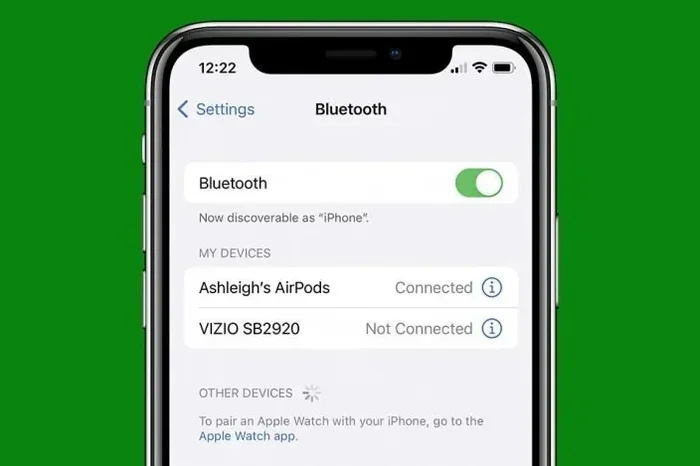
Why Is Bluetooth Refusing to Connect with Your Device
Bluetooth refusing to connect is one of the most frustrating tech problems drivers face every day. Whether your Bluetooth won’t pair with your car stereo, keeps dropping mid-drive, or won’t discover new devices, the causes are usually simple and fixable. This guide walks you through the real reasons behind Bluetooth connection failures and gives you step-by-step solutions that work. You’ll learn quick troubleshooting tips, common mistakes to avoid, and expert-backed advice to keep your car’s Bluetooth running smoothly.
You’re getting into your car, ready to hit the road, and you reach for your phone to play your favorite playlist through the speakers. You tap Bluetooth. Nothing happens. You try again. Still nothing. The dreaded Bluetooth refusing to connect problem strikes again.
This issue affects millions of drivers every single day. It doesn’t matter if you drive a brand-new SUV or a classic sedan. If your Bluetooth connection won’t work, your drive feels incomplete. The good news? Most Bluetooth problems have simple solutions. You don’t need to be a tech expert to fix them.
In this article, we’ll explore exactly why your Bluetooth won’t connect and what you can do about it. We’ll cover everything from basic fixes to advanced troubleshooting. By the end, you’ll know how to solve the problem and keep it from coming back.
Key Takeaways
- Distance and interference are the most common reasons Bluetooth refuses to connect in your car.
- Outdated software and firmware on your phone or car infotainment system often causes pairing failures.
- Clearing Bluetooth cache and removing old pairings can fix stubborn connection problems instantly.
- Bluetooth settings on both devices need to be checked — one wrong toggle can break the connection.
- Version mismatches between your phone and car stereo can lead to compatibility issues.
- Restarting both devices remains the simplest and most effective first step for any Bluetooth problem.
📑 Table of Contents
- Why Bluetooth Refuses to Connect: The Top Reasons
- Step-by-Step Fixes for Bluetooth Refusing to Connect
- Bluetooth Problems Specific to Cars
- How to Prevent Bluetooth Connection Problems in the Future
- When to Seek Professional Help
- Quick Tips for Faster Bluetooth Pairing
- Common Mistakes That Cause Bluetooth to Fail
- Expert Insights on Bluetooth Connectivity
- Key Takeaways
- Frequently Asked Questions
- Conclusion
Why Bluetooth Refuses to Connect: The Top Reasons
Understanding the root cause is the first step to fixing any tech problem. When it comes to Bluetooth connectivity issues, there are several common culprits. Let’s break them down one by one.
Distance and Physical Barriers
Bluetooth has a limited range. Most devices work within about 30 feet of each other. If your phone is buried in your glove box or your back pocket, the signal might not reach your car’s infotainment system. Physical barriers like metal panels, tinted windows, and even your body can weaken the Bluetooth signal strength.
Here’s a quick test. Move your phone closer to your car’s center console. Try pairing again. If it works, distance was the problem. This is one of the most overlooked reasons for Bluetooth pairing problems.
Signal Interference
Other electronic devices can interfere with your Bluetooth connection. Wi-Fi routers, USB cables, and even other phones in your vehicle can create Bluetooth signal interference. This is especially common in newer cars packed with sensors and wireless technology.
Think of it like trying to have a conversation in a noisy room. The Bluetooth signal gets drowned out. If you notice your Bluetooth audio cutting out near certain electronics, interference is likely the cause.
Software and Firmware Issues
Your phone and your car’s infotainment system both run on software. When that software gets outdated, Bluetooth compatibility issues can arise. A phone update might change how Bluetooth communicates, and your car’s system might not be ready for it.
Similarly, your car’s firmware might need an update. Manufacturers release updates to fix bugs and improve performance. If you haven’t updated your car’s system in a while, that could be why Bluetooth won’t pair anymore.
Bluetooth Cache and Old Pairings
Over time, your phone stores a list of every device it has ever paired with. This Bluetooth cache can become cluttered. Old, unused pairings can conflict with new ones, causing your Bluetooth device pairing to fail.
Clearing this cache is one of the most effective fixes for stubborn connection problems. We’ll walk you through the exact steps later in this article.
Version Mismatch Between Devices
Bluetooth comes in different versions. Bluetooth 5.0 is much faster and has a longer range than older versions. If your phone supports Bluetooth 5.3 but your car stereo only supports Bluetooth 2.1, you might run into Bluetooth version mismatch problems.
This doesn’t mean they won’t work together at all. But certain features like high-quality audio streaming might not function properly. The Bluetooth connection might be slow, unstable, or simply refuse to form.
Step-by-Step Fixes for Bluetooth Refusing to Connect
Now that you know the common causes, let’s get into the fixes. These steps work for most car models and phone types. Try them in order for the best results.
Step 1: Turn Bluetooth Off and On Again
This might sound too simple, but it works more often than you’d think. Turning Bluetooth off and back on forces both devices to refresh their connection settings. On your phone, go to Bluetooth settings and toggle it off. Wait 10 seconds. Turn it back on.
Do the same with your car’s infotainment system if it has a Bluetooth toggle. This simple reset often resolves temporary Bluetooth connection errors.
Step 2: Restart Both Devices
A full restart clears temporary glitches that can block Bluetooth from working. Power off your phone completely. Turn off your car’s ignition. Wait about 30 seconds. Start your car and turn your phone back on.
This method is especially helpful when your Bluetooth won’t discover devices. A restart forces both systems to rescan for available connections.
Step 3: Remove Old Pairings
Go to your phone’s Bluetooth settings and look at the list of paired devices. Delete any devices you no longer use — especially old cars, headphones, or speakers you’ve replaced. Then do the same on your car’s system.
After clearing old pairings, try connecting fresh. This removes conflicts that build up over time and cause Bluetooth refusing to connect errors.
Step 4: Clear Bluetooth Cache on Your Phone
On Android phones, you can clear the Bluetooth cache to fix persistent issues. Go to Settings, then Apps, then find the Bluetooth app. Tap Storage and select Clear Cache. On iPhones, resetting network settings achieves a similar result.
Clearing Bluetooth cache removes corrupted data that can block connections. This is one of the most powerful fixes for Bluetooth connectivity troubleshooting.
Step 5: Update Your Software
Check for software updates on both your phone and your car’s infotainment system. On your phone, go to Settings, then Software Update. For your car, check the manufacturer’s website or visit a dealership.
Updates often include fixes for Bluetooth pairing problems and Bluetooth device pairing bugs. Keeping everything up to date is one of the best ways to prevent connection issues.
Step 6: Reset Network Settings
If nothing else works, resetting your phone’s network settings can do the trick. This clears all Wi-Fi passwords, Bluetooth pairings, and cellular settings. You’ll need to reconnect to your Wi-Fi and re-pair your devices afterward.
On iPhone, go to Settings, then General, then Transfer or Reset iPhone, then Reset Network Settings. On Android, the path varies by brand but is usually found under Settings, then System, then Reset Options.
Bluetooth Problems Specific to Cars
Car Bluetooth issues have some unique challenges that phone-to-phone connections don’t face. Understanding these helps you troubleshoot more effectively.
Car Stereo Bluetooth Not Discovering Phones
If your car’s stereo won’t find your phone, the issue might be with the discovery mode. Most car systems need to be in pairing mode to find new devices. Check your car’s manual for the exact steps to enter pairing mode.
Some cars require you to hold down the Bluetooth button on the steering wheel or the infotainment knob for several seconds. If you skip this step, your phone will never see the car as an available device.
Bluetooth Hands-Free Calling Not Working
Even if your Bluetooth audio works for music, hands-free calling might fail. This usually happens because the car’s system needs permission to access your phone’s contacts and microphone.
Go to your phone’s Bluetooth settings, find your car, and check the permissions. Make sure Phone, Contacts, and Microphone access are all enabled. Without these permissions, Bluetooth hands-free calling simply won’t work.
Bluetooth Audio Quality Issues in Cars
If your Bluetooth connects but the sound quality is poor, the problem might be with the audio codec. Car stereos support different Bluetooth audio codecs like SBC, AAC, and aptX. If your phone and car don’t share a common codec, the audio quality drops.
Some newer cars support high-quality Bluetooth audio codecs. If yours does, make sure your phone is set to use the best available codec. You can usually find this in your phone’s Developer Options under Bluetooth Audio Codec settings.
How to Prevent Bluetooth Connection Problems in the Future
Prevention is always better than cure. Here are some simple habits that keep your Bluetooth connection strong and reliable.
Keep Your Devices Updated
Regular software updates fix known bugs and improve compatibility. Make it a habit to check for updates at least once a month. This applies to both your phone and your car’s infotainment system.
Limit the Number of Paired Devices
Your car’s Bluetooth system can only handle so many paired devices at once. The more devices you pair, the more likely Bluetooth connection issues become. Periodically go through your paired device list and remove ones you no longer use.
Keep Your Phone Charged
Low battery can affect Bluetooth performance. When your phone’s battery drops below 20%, the Bluetooth signal may weaken. Keep your phone charged before long drives to maintain a strong Bluetooth signal.
Avoid Multiple Active Bluetooth Devices
If you have Bluetooth earbuds, a smartwatch, and your phone all trying to connect to your car at the same time, things can get messy. Your car’s system might get confused about which device to prioritize.
Turn off Bluetooth on devices you’re not actively using in the car. This reduces signal interference and helps your phone connect faster.
When to Seek Professional Help
Most Bluetooth problems are easy to fix at home. But sometimes, the issue goes deeper than a simple reset. Here are signs you need professional help.
If your car’s Bluetooth system stops working entirely after a software update, the infotainment system might need a professional reset or reinstallation. A dealership or certified mechanic can often flash the system back to working order.
If you’ve tried every fix and Bluetooth refusing to connect persists, the Bluetooth module in your car’s stereo might be hardware failure. This requires professional diagnosis and possibly a replacement unit.
Also, if your car is still under warranty, contact your dealer before attempting major fixes. Some troubleshooting steps might void your warranty, and the dealer can often resolve Bluetooth connectivity issues for free.
Quick Tips for Faster Bluetooth Pairing
- Turn off other wireless devices near your car before pairing to reduce interference.
- Make sure your phone screen is unlocked — some phones block pairing when locked.
- Keep your phone near the car’s antenna, usually located on the roof or windshield.
- Delete and re-pair devices instead of just reconnecting when problems persist.
- Restart your car’s infotainment system by holding the power button for 10 seconds.
- Check your car manual for specific Bluetooth pairing instructions — every model is slightly different.
Common Mistakes That Cause Bluetooth to Fail
Many drivers make simple mistakes that lead to Bluetooth connection problems. Avoiding these can save you a lot of frustration.
Not checking if Bluetooth is on. It sounds obvious, but it’s surprisingly common. Make sure Bluetooth is actually enabled on both devices before troubleshooting anything else.
Ignoring software updates. Outdated software is one of the top causes of Bluetooth pairing problems. A simple update can fix what hours of troubleshooting cannot.
Keeping too many old pairings. Cluttered Bluetooth memory slows down the connection process and causes conflicts. Clean it out regularly.
Placing your phone in the wrong spot. Your phone needs to be within range and free from metal obstructions. The center console or a dashboard mount is ideal.
Skipping the restart. Restarting both devices is the single most effective troubleshooting step. Don’t skip it just because it seems too simple.
Expert Insights on Bluetooth Connectivity
Automotive tech experts agree that most Bluetooth connection problems come down to three things: outdated software, cached data, and interference. According to specialists in car infotainment systems, a simple restart and cache clear solves about 80% of all Bluetooth issues.
Experts also recommend pairing your phone every time you get into a new car, even if it’s already paired. This refreshes the connection and prevents the system from defaulting to an old or broken pairing profile.
One often-overlooked tip from professionals is to check your car’s Bluetooth settings for the Bluetooth multipoint connection feature. This allows your phone to connect to two devices simultaneously, which can help if your car stereo and phone both need to stay connected.
Another expert recommendation is to factory reset your car’s infotainment system once a year. This clears out all the accumulated data and gives the Bluetooth module a fresh start. It’s like a spring cleaning for your car’s tech.
Key Takeaways
- Distance and interference are the most common reasons Bluetooth refuses to connect in your car.
- Outdated software and firmware on your phone or car infotainment system often causes pairing failures.
- Clearing Bluetooth cache and removing old pairings can fix stubborn connection problems instantly.
- Bluetooth settings on both devices need to be checked — one wrong toggle can break the connection.
- Version mismatches between your phone and car stereo can lead to compatibility issues.
- Restarting both devices remains the simplest and most effective first step for any Bluetooth problem.
Frequently Asked Questions
Why won’t Bluetooth find my car’s system?
Your car might not be in pairing mode. Check your car’s manual for how to enter discovery mode. Also, make sure Bluetooth is turned on in your phone’s settings and that you’re within 30 feet of the car. Moving closer and restarting both devices often fixes this issue.
Can too many paired devices cause Bluetooth problems?
Yes, absolutely. When your car’s Bluetooth system has too many paired devices stored, it can slow down the connection process and cause conflicts. Delete devices you no longer use to keep your Bluetooth list clean and functioning well.
Does a phone case affect Bluetooth connectivity?
Some phone cases, especially thick metal or magnetic ones, can weaken the Bluetooth signal. If you notice connection issues, try removing your phone case and pairing again. This simple test can reveal if the case is blocking the signal.
How do I update my car’s Bluetooth firmware?
Check your car manufacturer’s website for firmware updates. Some newer cars support over-the-air updates through the infotainment system. For older models, you may need to visit a dealership. Regular updates improve Bluetooth compatibility and fix known connection bugs.
Why does Bluetooth connect but the audio keeps cutting out?
This is usually caused by signal interference or a version mismatch. Move closer to the car’s center console and turn off other wireless devices nearby. If the problem persists, clearing the Bluetooth cache and re-pairing the devices often resolves the audio dropout issue.
Is there a difference between Bluetooth and Bluetooth Low Energy?
Yes. Bluetooth Low Energy (BLE) uses less power but has a lower data transfer rate. Car audio systems typically use standard Bluetooth for music streaming. If your phone only supports BLE and your car doesn’t, you may experience connection or audio quality problems.
Conclusion
Bluetooth refusing to connect doesn’t have to ruin your day or your drive. With the right knowledge, you can diagnose and fix most Bluetooth problems in just a few minutes. Start with the simple fixes — turn it off and on, restart both devices, and clear old pairings. These steps solve the majority of Bluetooth connection issues.
Keep your software updated, limit paired devices, and stay aware of interference sources. These habits go a long way in preventing future problems. And remember, when all else fails, a professional can help you get to the bottom of stubborn Bluetooth connectivity issues.
The road is meant to be enjoyed with your favorite music playing. Don’t let a Bluetooth problem keep you from the driving experience you deserve. Use the tips in this guide, and your Bluetooth connection will be back to smooth and reliable in no time.