How Do I Control CarPlay And Make Every Drive Better
Controlling CarPlay is easier than you think. This guide walks you through every way to manage Apple CarPlay, from basic touchscreen controls to advanced Siri voice commands. You will learn how to customize your CarPlay settings, troubleshoot common issues, and make every drive safer and more enjoyable.
If you own an iPhone and a compatible car, you have probably heard of Apple CarPlay. It is one of the most popular smart driving features available today. But knowing that CarPlay exists and actually knowing how to use it are two very different things. Many drivers connect their phones and feel lost by all the options on the screen.
The good news is that learning how to control CarPlay does not require any tech skills. You do not need to be a gadget expert. This guide will show you exactly how to take charge of your CarPlay experience. You will learn simple tricks, hidden settings, and practical tips that make every drive smoother and safer.
Whether you are a first-time CarPlay user or someone who has been using it for years, there is always something new to discover. Let us walk through everything you need to know about controlling Apple CarPlay the right way.
Key Takeaways
- Master Touch and Voice Controls: Learn how to navigate CarPlay using both your screen and Siri for hands-free driving.
- Customize Your Home Screen: Rearrange apps and choose what matters most to you every time you get behind the wheel.
- Use Steering Wheel Buttons: Control CarPlay without taking your hands off the wheel using your car’s built-in controls.
- Fix Common Problems Fast: Troubleshoot connectivity, display, and audio issues with simple step-by-step solutions.
- Explore Wireless CarPlay: Ditch the cable and enjoy seamless connectivity with wireless CarPlay setup.
- Boost Safety and Convenience: Use CarPlay features like navigation, music, and messaging to stay connected while staying focused on the road.
📑 Table of Contents
- What Is CarPlay and Why Does It Matter?
- How to Control CarPlay Using the Touchscreen
- Using Siri Voice Commands to Control CarPlay
- Controlling CarPlay with Steering Wheel Buttons
- CarPlay Settings and Customization Options
- Troubleshooting Common CarPlay Issues
- Wireless CarPlay: Going Beyond the Cable
- Expert Tips to Make CarPlay Work Better for You
- Common Mistakes to Avoid When Using CarPlay
- How CarPlay Compares to Other Smartphone Integration Systems
- Conclusion
What Is CarPlay and Why Does It Matter?
Apple CarPlay is a feature that mirrors the most useful parts of your iPhone onto your car’s display. It gives you access to maps, music, messages, and phone calls. The whole point is to keep your eyes on the road and your hands on the wheel.
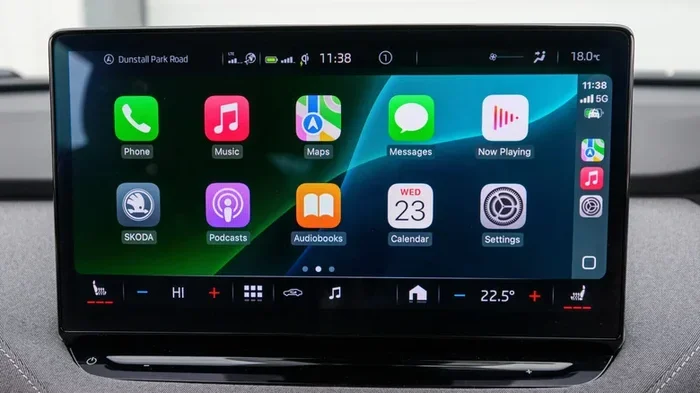
When you connect your iPhone to your car, CarPlay launches automatically. You see a clean, simple interface with large icons. These icons represent your favorite apps. Tapping on them opens the app right on the car screen. It is designed to be distraction-free and driver-friendly.
Not all cars support CarPlay, but most newer models do. You can check if your car is CarPlay compatible by looking at your vehicle’s manual or visiting Apple’s website. Many aftermarket stereo systems also support CarPlay, which makes it accessible to a wide range of drivers.
The beauty of CarPlay is that it adapts to what you need. Whether you are navigating to a new place, streaming a podcast, or sending a quick voice message, CarPut puts everything at your fingertips. But to get the most out of it, you need to know how to control it properly.
How to Control CarPlay Using the Touchscreen
The most basic way to interact with CarPlay is through the touchscreen on your car’s display. Once CarPlay is active, the screen shows your CarPlay home screen. This is where all the action begins.
The home screen displays rows of app icons. You will see your most-used apps right at the top. These include Maps, Music, Messages, Phone, and Safari. Swiping left or right lets you access more apps. The layout is very similar to your iPhone, so it feels familiar right away.
Navigating the CarPlay Home Screen
To open an app, simply tap its icon. To go back, swipe left or tap the back arrow. You can also swipe down from the top of the screen to access quick settings. This panel shows things like brightness, Do Not Disturb, and audio controls.
Here are some simple touchscreen gestures you should know:
- Tap: Open an app or select an item.
- Swipe left or right: Move between screens or pages.
- Swipe down: Access quick settings and controls.
- Swipe up: Go back to the home screen.
- Long press: Get more options for certain apps or items.
These gestures are intuitive and easy to remember. You will feel comfortable with them after just a few drives. The touchscreen is great for stationary moments, like when you are parked at a red light or in a parking lot.
Customizing Your CarPlay Layout
One of the best things about CarPlay is that you can personalize it. You can choose which apps appear on your home screen and in what order. To do this, go to Settings on your iPhone and tap General, then CarPlay. From there, select your car and customize the layout.
You can also rearrange apps by tapping and holding an icon. This lets you drag it to a new position. Put the apps you use most often in the most visible spots. This saves you time and keeps your eyes off the road for shorter periods.
Some drivers like to keep their CarPlay screen minimal. They only keep Maps and Music visible. Others prefer to have everything accessible. It is all about what works best for you. Experiment with different layouts until you find one that feels right.
Using Siri Voice Commands to Control CarPlay
Voice control is one of the most powerful features of CarPlay. Siri voice commands let you do almost everything without touching the screen. This is especially important for safety while driving.
To activate Siri, you can say “Hey Siri” if your iPhone supports it. Alternatively, you can press and hold the voice control button on your steering wheel. Some cars also have a dedicated Siri button on the dashboard.
Once Siri is listening, you can give simple commands like:
- “Call Mom.”
- “Navigate to the nearest gas station.”
- “Play my driving playlist.”
- “Send a message to John saying I am on my way.”
- “What is the weather today?”
Siri understands natural language, so you do not need to use exact phrases. Speak to her the way you would speak to a friend. She will interpret your request and take action. This hands-free approach makes driving much safer and more convenient.
Setting Up Siri for CarPlay
If Siri is not working with CarPlay, you may need to check your settings. Go to Settings on your iPhone, tap Siri & Search, and make sure “Listen for Hey Siri” is turned on. Also check that CarPlay has permission to use Siri in Settings, then CarPlay.
You can also adjust which Siri commands are available. For example, you might want Siri to handle calls and messages but not music. Tailoring these settings helps Siri work the way you want it to.
Controlling CarPlay with Steering Wheel Buttons
Most modern cars have steering wheel controls that work with CarPlay. These buttons let you manage your CarPlay experience without ever looking away from the road. Learning to use them is a game changer for safe driving.
Common steering wheel controls include volume up and down, track skip, play and pause, and voice command activation. The exact buttons vary by car model, but most vehicles offer at least basic audio controls.
Here is how to make the most of your steering wheel controls:
- Volume buttons: Adjust the volume of your music or navigation prompts.
- Play/Pause button: Toggle music playback with a single press.
- Track skip buttons: Move to the next or previous song.
- Voice command button: Activate Siri instantly for hands-free control.
- Answer/End call button: Handle incoming calls without touching your phone.
Using steering wheel controls keeps your hands on the wheel and your eyes on the road. This is the safest way to interact with CarPlay while driving. If your car does not have these controls, you can still use the touchscreen or Siri voice commands.
CarPlay Settings and Customization Options
CarPlay offers a range of settings that let you fine-tune your experience. Many of these settings are accessed through your iPhone rather than the car’s display. Understanding these options helps you get the most out of every drive.
Audio and Sound Settings
In CarPlay, audio settings control how music, podcasts, and navigation sounds come through your car’s speakers. You can adjust the volume balance between media and navigation prompts. This ensures you hear turn-by-turn directions clearly even when music is playing.
To access audio settings, open the CarPlay Control Center by swiping down from the top of the screen. From there, you can adjust volume, switch audio output, and manage active apps. You can also use your car’s built-in volume knob if it is compatible with CarPlay.
Display and Brightness
CarPlay automatically adjusts screen brightness based on ambient light. During the day, the screen gets brighter for better visibility. At night, it dims to reduce glare. You can also manually adjust brightness from the quick settings panel.
If you find the screen too bright or too dim, swipe down from the top of the CarPlay home screen and use the brightness slider. This small adjustment can make a big difference in comfort, especially during night drives.
Do Not Disturb While Driving
This feature is a lifesaver for distracted driving prevention. When enabled, Do Not Disturb While Driving silences notifications and sends auto-replies to messages. It keeps your focus on the road without missing important communication.
To turn it on, go to Settings on your iPhone, then Focus, then Do Not Disturb While Driving. You can set it to activate automatically when you are driving or connect manually when needed. CarPlay integrates with this feature seamlessly.
Troubleshooting Common CarPlay Issues
Even though CarPlay is designed to work smoothly, you may run into issues from time to time. Knowing how to fix common problems saves you frustration and keeps your drives on track.
CarPlay Not Connecting
If CarPlay does not launch when you connect your iPhone, try these steps. First, make sure your cable is plugged in securely. A loose connection is the most common cause of CarPlay not working. If you are using a wireless connection, check that both your phone and car support wireless CarPlay.
Next, restart your iPhone and your car’s infotainment system. Sometimes a simple reboot fixes connectivity issues. You should also check that CarPlay is enabled in your iPhone settings under General, then CarPlay.
Screen Not Responding to Touch
A frozen or unresponsive CarPlay screen can be annoying. This usually happens when the system is overloaded or has a minor software glitch. Try disconnecting your iPhone and reconnecting it. If that does not work, restart your car’s display system.
Make sure your iPhone is running the latest version of iOS. Apple regularly releases updates that fix CarPlay bugs and improve compatibility. Keeping your software up to date is one of the best ways to prevent issues.
Audio Cutting Out or Sounds Distorted
If your audio sounds muffled or cuts in and out, check your car’s audio settings. Make sure CarPlay is selected as the audio source. Also check that your cable is not damaged, as a faulty cable can cause audio problems.
For wireless CarPlay, interference from other Bluetooth devices can sometimes cause audio issues. Turn off unused Bluetooth connections and see if that helps. Moving your iPhone closer to the car’s antenna can also improve wireless audio quality.
Wireless CarPlay: Going Beyond the Cable
Wireless CarPlay is a fantastic upgrade over the traditional cable connection. It lets your iPhone connect to your car without plugging in anything. The experience is cleaner, more convenient, and less cluttered.
Not all cars support wireless CarPlay, but the list is growing every year. Many 2022 and newer models from brands like BMW, Mercedes, and Ford offer wireless support. You can also add wireless CarPlay capability using an aftermarket adapter that plugs into your car’s USB port.
Setting up wireless CarPlay is straightforward. First, make sure both your iPhone and car support wireless connectivity. Then, go to Settings on your iPhone, tap General, then CarPlay, and select your car. Choose the wireless option when prompted. Your phone will connect automatically the next time you get in the car.
Wireless CarPlay uses your car’s built-in Wi-Fi for data transfer. This means you get a stable connection without worrying about cables. You can charge your iPhone using a wireless charging pad or a separate charger while using CarPlay wirelessly.
Expert Tips to Make CarPlay Work Better for You
Here are some expert insights that help you get the most from your CarPlay setup. These tips come from experienced drivers and tech enthusiasts who have mastered the art of CarPlay control.
- Use a high-quality cable: If you use a wired connection, a premium MFi-certified cable ensures stable performance and faster data transfer.
- Keep your apps updated: Updated apps work better with CarPlay and often include new features and bug fixes.
- Pin your favorite apps: Use the pin feature in CarPlay settings to keep your most-used apps front and center.
- Enable Siri suggestions: CarPlay can suggest apps based on your habits, like your morning podcast or your commute playlist.
- Use dark mode at night: Dark mode reduces screen glare and makes it easier to see the display in low light.
- Set a default navigation app: Choose your preferred navigation app as the default so it opens automatically when you tap the map icon.
These small adjustments add up to a much better CarPlay experience. They take only a few minutes to set up but pay off every time you drive.
Common Mistakes to Avoid When Using CarPlay
Even experienced CarPlay users make mistakes that reduce their experience. Being aware of these pitfalls helps you avoid them and get the most from your setup.
- Using CarPlay while driving aggressively: Even with voice commands, minimize screen interaction while the car is in motion.
- Ignoring software updates: Outdated iOS versions can cause CarPlay bugs and compatibility issues.
- Overloading the home screen: Too many apps make it harder to find what you need quickly.
- Using cheap cables: Low-quality cables cause connection drops and audio problems.
- Not customizing settings: Default settings are a starting point, but personalization makes CarPlay truly useful.
Avoiding these mistakes keeps your CarPlay running smoothly and safely. A little attention to setup and maintenance goes a long way.
How CarPlay Compares to Other Smartphone Integration Systems
CarPlay is not the only smartphone integration system available. Android Auto offers similar features for Android users. Both systems aim to reduce distractions and keep drivers connected safely. However, CarPlay stands out for its clean interface, deep Siri integration, and wide app support.
Here is a quick comparison of the two systems:
- Interface: CarPlay uses large, bold icons and a clean layout. Android Auto has a similar design but with Google’s visual style.
- Voice Assistant: Siri works seamlessly with CarPlay. Google Assistant is built into Android Auto.
- App Support: CarPlay supports a wide range of apps including Spotify, Pandora, Google Maps, and WhatsApp. Android Auto supports similar apps with Google’s ecosystem.
- Compatibility: CarPlay works with iPhones and compatible cars. Android Auto works with Android phones and compatible vehicles.
Both systems are excellent, but CarPlay has a slight edge in consistency and ease of use. If you are an iPhone user, CarPlay is the natural choice for smartphone integration in your car.
Conclusion
Learning how to control CarPlay transforms the way you drive. From touchscreen gestures to Siri voice commands, steering wheel buttons to wireless connectivity, you now have all the tools to make CarPlay work for you. The key is to explore the settings, customize your layout, and use features that match your driving habits.
Remember that safety always comes first. Use voice commands when possible, keep your screen interactions minimal, and never let technology distract you from the road. CarPlay is designed to enhance your driving, not complicate it.
Take a few minutes today to review your CarPlay settings and try out the tips in this guide. You will be surprised at how much smoother and more enjoyable your drives become. Controlling CarPlay is not just about technology. It is about making every journey safer, smarter, and more connected.
Frequently Asked Questions
How do I turn on CarPlay in my car?
Connect your iPhone to your car using a USB cable or wirelessly if supported. CarPlay should launch automatically. If it does not, tap the CarPlay icon on your car’s display or go to your car’s settings and select CarPlay as the active source.
Can I use CarPlay without a cable?
Yes, if both your iPhone and car support wireless CarPlay. You can connect wirelessly by going to Settings on your iPhone, tapping General, then CarPlay, and selecting your car. Wireless CarPlay uses your car’s built-in Wi-Fi for a seamless connection.
Why does my CarPlay screen keep freezing?
A freezing screen is often caused by a loose cable connection or outdated software. Try using a different cable, restarting your iPhone, or updating to the latest iOS version. If the problem persists, restart your car’s infotainment system.
Can I use CarPlay with an Android phone?
No, CarPlay is exclusive to Apple devices. Android users can use Android Auto, which offers similar features and a comparable experience. Both systems are designed to keep drivers connected and safe while on the road.
How do I change my default navigation app in CarPlay?
Go to Settings on your iPhone, then General, then CarPlay. Select your car and choose the default navigation app from the list. You can also open the app directly within CarPlay and set it as your preferred navigation tool.
Is it safe to use CarPlay while driving?
CarPlay is designed to be safer than using your phone directly while driving. It uses large icons, voice commands through Siri, and steering wheel controls to minimize distractions. However, you should always prioritize road focus and avoid complex interactions while the vehicle is in motion.