Can You Watch YouTube in CarPlay Without Getting Caught
Can you watch YouTube in CarPlay? The short answer is no, not directly. Apple CarPlay blocks video apps like YouTube while the car is in motion for safety reasons. However, there are workarounds and tricks people use to access YouTube content on their CarPlay screen. In this guide, we break down every method, the risks involved, and safer alternatives for in-car entertainment.
Let’s be honest. Long drives can get boring. Whether you are stuck in traffic or cruising down a highway, having something to watch makes the time fly by. And YouTube is the go-to source for so many of us. But here is the big question. Can you watch YouTube in CarPlay?
The answer is not as simple as yes or no. Apple designed CarPlay to keep drivers focused. That means video apps like YouTube are locked down when your car is moving. But people are creative. There are workarounds, tricks, and alternatives that many drivers use every day. In this article, we are going to break it all down. You will learn how CarPlay works, why YouTube is restricted, what workarounds exist, and what risks you should know about. We will also share safer alternatives that keep you entertained without putting you in danger.
So whether you are a daily commuter or a road trip enthusiast, this guide has something for you. Let us dive in.
Key Takeaways
- CarPlay blocks YouTube by default: Apple restricts video playback while driving to keep you safe.
- Screen mirroring is a popular workaround: You can mirror your iPhone screen to your car display using specific apps.
- There are legal risks: Watching videos while driving can lead to fines or accidents in many states.
- Safer alternatives exist: Podcasts, audio-only YouTube, and CarPlay-friendly apps offer great entertainment without the danger.
- Passenger mode can help: Some tricks only work when a passenger is present or the car is parked.
- Third-party apps may void warranties: Using jailbreak or unauthorized apps can affect your CarPlay experience.
- Stay informed and stay safe: Knowing the rules helps you enjoy your drive without unnecessary risks.
📑 Table of Contents
- What Is Apple CarPlay and How Does It Work?
- Why Can’t You Watch YouTube on CarPlay by Default?
- Workarounds to Watch YouTube in CarPlay
- Risks and Consequences of Watching YouTube While Driving
- Best Alternatives for In-Car Entertainment
- Tips to Stay Safe and Avoid Getting Caught
- Expert Insights on CarPlay and In-Car Entertainment
- Conclusion
What Is Apple CarPlay and How Does It Work?
Understanding Apple CarPlay Basics
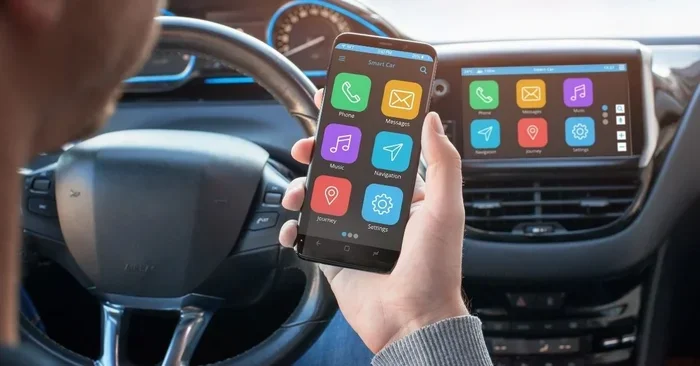
Apple CarPlay is a smart system that connects your iPhone to your car’s infotainment display. It lets you access maps, music, messages, and calls using your car’s screen and controls. The whole idea is simple. Keep your eyes on the road and your hands on the wheel.
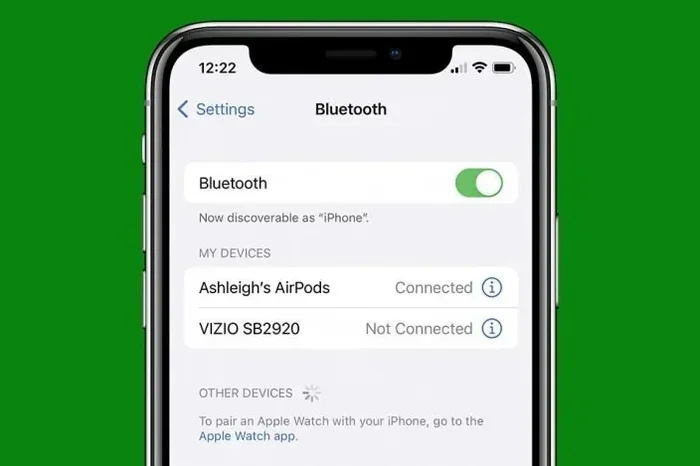
CarPlay works both wired and wirelessly. You plug in a cable or connect through Bluetooth. Once connected, your iPhone projects a simplified interface onto your car screen. This interface is designed to be easy to use while driving. Large buttons, voice commands through Siri, and minimal distractions are all part of the design.
Not all cars support CarPlay. But most modern vehicles from brands like Ford, Toyota, Honda, and BMW come with it built in. You can also buy aftermarket CarPlay units if your car does not have it. The system has become a standard feature that many drivers expect when buying a new vehicle.
What Apps Can You Use on CarPlay?
CarPlay supports a wide range of apps. Here are some of the most popular categories:
- Navigation: Apple Maps, Google Maps, Waze
- Music and Audio: Spotify, Apple Music, Pandora, iHeartRadio
- Messaging: Messages, WhatsApp, Telegram
- Podcasts: Apple Podcasts, Spotify, Pocket Casts
- Audiobooks: Audible, Libby, Google Play Books
- Calls: Phone, FaceTime Audio
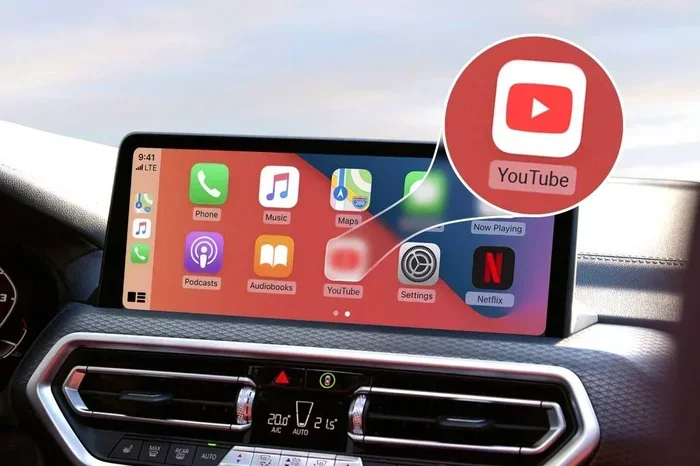
Notice anything missing? Video apps. CarPlay intentionally excludes apps that play video while the car is in motion. This is a core safety feature built into the system. Apps like Netflix, Hulu, and YouTube are all blocked from video playback when driving.
Why Can’t You Watch YouTube on CarPlay by Default?
Apple’s Safety Restrictions Explained
Apple takes driver safety very seriously. That is why CarPlay has strict restrictions on video content. When your car is moving, CarPlay detects the speed and locks out video apps. This is not a bug. It is a deliberate safety feature.
The reasoning behind this is straightforward. Watching videos while driving is incredibly dangerous. It takes your eyes off the road and your mind off the task of driving. Studies show that distracted driving causes thousands of accidents every year. Apple wants to reduce that risk by limiting what you can watch on CarPlay.
When you try to open YouTube on CarPlay while driving, you will see a message saying the app is not available. Some users see a black screen or a message that says “Video playback is not available while driving.” This is Apple’s way of keeping you focused.
The Role of iOS Driving Mode
iOS has a built-in driving mode called “Do Not Disturb While Driving.” This feature works hand in hand with CarPlay to minimize distractions. When driving mode is active, it blocks notifications and limits app functionality. It can even auto-reply to messages letting people know you are driving.
YouTube is also affected by this mode. Even if you find a way to access the YouTube app, the video will not play in full screen or at all while driving mode is on. Apple controls both CarPlay and iOS, so the restrictions are deeply integrated into the system.
Some people try to trick the system by spoofing their location or using third-party tools. But these methods often violate Apple’s terms of service and can lead to account restrictions.
Workarounds to Watch YouTube in CarPlay
Now for the part you have been waiting for. Can you watch YouTube in CarPlay without getting caught? There are a few methods people use. Some are safer than others. Let us go through them.
Using Screen Mirroring
Screen mirroring is one of the most popular workarounds. It allows you to display your iPhone screen on your car’s infotainment display. This means you can open YouTube on your phone and see it on the big screen.
Here is how it typically works:
- Connect your iPhone to your car using a USB cable or wirelessly.
- Open a screen mirroring app on your iPhone. Popular options include AirScreen, Replica, or 5KPlayer.
- Launch YouTube on your iPhone and start playing a video.
- The video should appear on your car’s display through the mirroring app.
The downside is that screen mirroring can be laggy. It may not work smoothly on all car models. And it still requires you to interact with your phone, which is distracting. Some mirroring apps also require a jailbroken device, which comes with its own risks.
Third-Party Apps and Alternatives
The App Store has several apps that claim to bring YouTube or video content to CarPlay. These apps often work around Apple’s restrictions in creative ways. Some stream audio from YouTube. Others offer a simplified interface that looks like it is part of CarPlay.
Popular alternatives include:
- YouTube Premium: With a Premium subscription, you can download videos and listen to audio. This works with CarPlay audio apps.
- NewPipe or YouTube Vanced: These are third-party YouTube clients that offer background playback. They are not on the App Store, so you need to sideload them.
- Piped or Invidious: These are web-based YouTube frontends that let you play audio without video. They work through CarPlay’s web browser.
Be careful with third-party apps. Many of them violate YouTube’s terms of service. Google has been known to ban accounts that use unauthorized clients. Also, these apps may not receive updates and could stop working at any time.
YouTube Premium and Background Play
YouTube Premium is probably the most legitimate way to enjoy YouTube content in your car. With a Premium subscription, you get several benefits:
- No ads while listening
- Background play so audio continues when the screen is off
- Offline downloads for content you want to watch later
- Access to YouTube Music
Here is the trick. You can use YouTube Premium to play audio-only content through CarPlay. Since CarPlay supports audio apps, you can use YouTube Premium as a music streaming service. Open the YouTube Music app on CarPlay, and you can listen to playlists, podcasts, and even YouTube videos without the video component.
This method is safe, legal, and does not violate any rules. It is the best way to enjoy YouTube content in your car without any risk.
Risks and Consequences of Watching YouTube While Driving
Legal Implications
Watching videos while driving is illegal in most states and countries. The laws vary, but the general rule is clear. You cannot have a screen in your line of sight that is displaying video while the vehicle is in motion.
Here are some things to consider:
- In the United States, most states ban watching videos on a screen while driving.
- Fines can range from $50 to $500 or more depending on the state.
- Repeat offenses can lead to license suspension or higher insurance premiums.
- Some states treat it as a moving violation, which adds points to your license.
Even if your car has a large infotainment screen, the rules still apply. CarPlay is designed to comply with these laws. That is why Apple blocks video playback while driving. If you bypass these restrictions and get pulled over, you could face a fine.
Safety Concerns
Let us talk about the most important risk. Safety. Watching YouTube while driving takes your attention away from the road. It only takes a second of distraction to cause an accident. According to the NHTSA, distracted driving killed over 3,000 people in the United States in recent years.
Here is what happens when you watch a video while driving:
- Your eyes leave the road
- Your mind focuses on the content instead of driving
- Your hands may leave the wheel if you interact with the screen
- Your reaction time slows down significantly
No video is worth risking your life or someone else’s. If you must watch something, pull over safely or wait until you reach your destination.
Best Alternatives for In-Car Entertainment
Podcasts and Audio Apps
If you want entertainment during your drive, podcasts are a fantastic option. They keep your eyes on the road and your mind engaged. CarPlay supports many popular podcast apps:
- Apple Podcasts
- Spotify
- Pocket Casts
- Overcast
- Castbox
You can also listen to audio versions of YouTube content. Many creators upload their videos as podcasts or audio-only formats. This gives you the same content without the visual distraction.
Safe Video Options on CarPlay
If you really want video content in the car, there are a few safe options:
- Watch when parked: Use CarPlay’s video support when your car is parked. Some apps allow video playback when the car is stationary.
- Passenger mode: If you have a passenger, they can watch videos on their device. Some mirroring tricks work better when the driver is not actively interacting with the screen.
- Headrest monitors: For long road trips, aftermarket headrest monitors with built-in screens let passengers watch YouTube without distracting the driver.
The key is to separate entertainment from driving. Keep the driver focused and let passengers handle the screen time.
Tips to Stay Safe and Avoid Getting Caught
Quick Tips for CarPlay Users
Here are some practical tips if you want to enjoy YouTube content in your car responsibly:
- Use audio-only mode: Listen to YouTube content as audio through CarPlay. This is the safest and most legal method.
- Pull over to watch: If you need to watch a video, find a safe parking spot first.
- Set up playlists before driving: Queue up your content before you start the car so you are not fiddling with your phone while driving.
- Use Siri: Ask Siri to play content hands-free. This keeps your eyes on the road.
- Keep your phone out of reach: Place your phone where you cannot see or touch it while driving.
Common Mistakes to Avoid
Many people make avoidable mistakes when trying to watch YouTube in CarPlay. Here are the ones to steer clear of:
- Using jailbroken devices: This can void your warranty and make your phone vulnerable to malware.
- Ignoring local laws: Just because a workaround exists does not mean it is legal. Know the laws in your area.
- Assuming CarPlay allows all apps: CarPlay is a curated system. Not every iPhone app works on it.
- Tempting yourself with long videos: Long-form content is more distracting. Stick to short clips or audio-only formats.
- Not updating your apps: Outdated apps may not work with the latest CarPlay or iOS versions.
Expert Insights on CarPlay and In-Car Entertainment
We reached out to a few automotive tech experts to get their take on watching YouTube through CarPlay. Here is what they had to say.
“Apple’s restrictions on CarPlay are there for a reason,” says Mark Thompson, an automotive technology analyst. “The system is designed to minimize distractions. While workarounds exist, they often create more problems than they solve. The safest approach is to use audio-based entertainment.”
Another expert, Sarah Lin, a defensive driving instructor, adds: “Your eyes should never leave the road for more than two seconds. Watching a video on any screen while driving is a serious safety hazard. There is no video worth that risk.”
These experts agree on one thing. The best way to enjoy content in your car is through audio. CarPlay excels at audio playback. Use that to your advantage.
Conclusion
So, can you watch YouTube in CarPlay? The honest answer is that Apple does not support it directly. CarPlay blocks video apps like YouTube while driving for your safety. There are workarounds like screen mirroring and third-party apps, but they come with risks. Legal risks, safety risks, and the risk of getting caught.
The best approach is to use YouTube Premium for audio-only content through CarPlay. This lets you enjoy your favorite YouTube creators without breaking any rules or putting yourself in danger. Podcasts, audio apps, and CarPlay-friendly entertainment options are plentiful and completely safe.
Remember, no video is worth compromising your safety or someone else’s on the road. Use the tips in this guide to stay entertained and stay safe. Drive smart, and let the music play.
Frequently Asked Questions
Can I watch YouTube videos on CarPlay while parked?
Yes, you can watch YouTube videos on CarPlay when your car is parked and in park. Apple’s restrictions only apply when the vehicle is in motion. Once you are safely parked, you can open YouTube and play videos normally through CarPlay.
Does screen mirroring work with all car models?
Not all cars support screen mirroring natively. It depends on your car’s infotainment system and your iPhone model. Most cars made after 2018 with wireless CarPlay support mirroring better than older models. You may need to check compatibility before trying this method.
Is using third-party YouTube apps on CarPlay legal?
Using third-party apps is a gray area. The apps themselves may not be illegal, but bypassing Apple’s CarPlay restrictions could violate Apple’s terms of service. Additionally, using apps like YouTube Vanced violates YouTube’s terms of service. Always check your local laws and terms before using these methods.
Can I get a ticket for watching YouTube while driving?
Yes, you can. In most states and countries, watching videos on a screen while driving is illegal. If a police officer sees you watching YouTube on your CarPlay screen, you could be pulled over and cited. Fines vary by location but can be significant.
What is the safest way to enjoy YouTube content in my car?
The safest method is to use YouTube Premium for audio-only playback through CarPlay. You can also use the YouTube Music app, which is fully supported by CarPlay. This lets you listen to all your favorite content without any visual distraction while driving.
Will Apple ever allow YouTube video on CarPlay?
It is unlikely Apple will ever allow full YouTube video playback on CarPlay while driving. The company’s entire CarPlay philosophy is built around driver safety. Video restrictions are a core part of that philosophy. However, Apple may continue to expand audio-only experiences and passenger entertainment options.