How Do I View Footage on My Dash Cam and Phone App
Viewing your dash cam footage is simpler than you think. Whether you watch it directly on the device or through a phone app, this guide walks you through every method. You will learn how to access, save, and share your dash cam clips in minutes.
Have you ever wondered how to actually watch the video your dash cam recorded? It sounds simple, but many drivers have no idea where to start. Whether you need to check a collision, review a close call, or just want to see what happened on your morning commute, viewing dash cam footage is the whole point of having one.
The good news is that it is easier than most people think. You can watch clips right on the dash cam screen, pull them up on your phone, or even transfer files to a computer. This guide covers every method step by step. By the end, you will know exactly how to view footage on your dash cam and phone app like a pro.
Let us walk through it together. No confusing tech talk, no fancy jargon. Just clear, practical steps you can use right away.
Key Takeaways
- Multiple playback options: You can view footage on the dash cam screen, your phone, or a computer.
- Phone apps make it easy: Most modern dash cams connect via Wi-Fi or Bluetooth for instant access.
- SD card management matters: Knowing how to remove and format your microSD card keeps footage safe.
- Event footage is auto-saved: The G-sensor locks important clips so they are not overwritten.
- Cloud storage adds backup: Some dash cams let you upload clips to the cloud for extra security.
- Regular playback helps: Checking your footage often ensures your dash cam works properly.
📑 Table of Contents
- How Do I View Footage on My Dash Cam?
- How to View Dash Cam Footage on Your Phone
- Understanding Dash Cam File Formats and Storage
- How to Transfer Footage to a Computer
- Managing and Organizing Your Dash Cam Footage
- Cloud Storage and Advanced Dash Cam Features
- How to Choose the Right Dash Cam for Easy Footage Viewing
- Conclusion
How Do I View Footage on My Dash Cam?
Most dash cams have a built-in screen, and that is the easiest place to start. Even if you only have a small display, you can still review your clips quickly. Here is how it works for most models.
Step 1: Turn on the Dash Cam
Make sure your dash cam is powered on. Some models start automatically when you turn the car on. Others need a manual button press. Look for a small power icon or press the home button on the device.
Step 2: Navigate to the Playback Menu
On the dash cam screen, find the playback icon. It usually looks like a triangle or a folder. Tap it gently if you have a touchscreen. If your model has buttons, press the menu or OK button to open the file list.
Step 3: Browse Your Clips
You will see a list of recorded files. These are usually sorted by date and time. Use the arrow buttons or swipe to scroll through them. Each file represents a segment of video, often lasting one to five minutes.
Step 4: Play and Review
Tap on any file to start playback. You can pause, rewind, or fast forward using the on-screen controls. Some dash cams let you adjust the volume or zoom in on specific parts of the video.
Quick Tips for Dash Cam Playback
- Use a stylus if the screen is small and hard to tap.
- Watch in a shaded area because direct sunlight can make screens hard to see.
- Check the timestamp on each clip to match it with an event you remember.
- Bookmark important clips if your dash cam has a save-lock feature.
How to View Dash Cam Footage on Your Phone
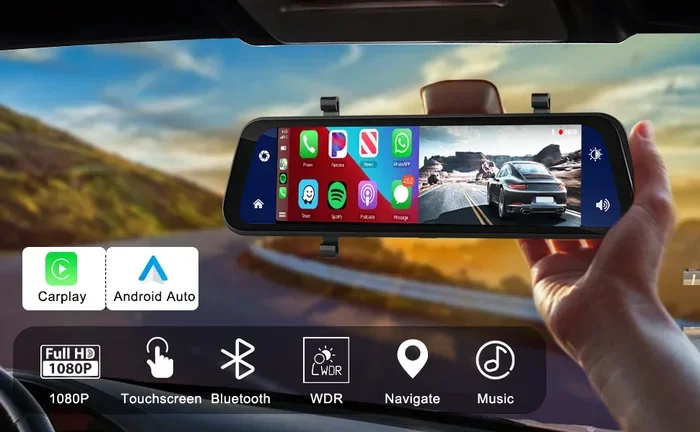
Watching clips on your phone is one of the biggest perks of owning a modern dash cam. Most brands now offer a free companion app. This lets you pull up dash cam footage on phone without removing the SD card.
Connect Your Dash Cam to Wi-Fi
Open your phone settings and look for the dash cam’s Wi-Fi network. The network name usually starts with the brand name, like “Garmin-XXXX” or “Thinkware-XXXX.” Tap to connect. Some apps detect the dash cam automatically once you open them.
Open the Companion App
Download the official app from your dash cam brand. For example, Garmin users get the Garmin Drive app. Thinkware users use the Thinkware Cam app. BlackVue users connect through the BlackVue app. Log in or create a free account if needed.
Browse and Download Clips
Once connected, the app shows your recorded files. You can stream videos directly or download them to your phone. Downloading is better if you want to keep a copy permanently or share it with someone.
Share Footage Easily
Most apps let you share clips via text message, email, or social media. This is incredibly useful after an accident. You can send the footage to your insurance company within minutes.
Quick Tips for Phone Playback
- Keep your phone close to the dash cam. Wi-Fi signals are usually short range.
- Turn off mobile data while connected to avoid extra charges.
- Check app permissions so the app can access your camera roll and storage.
- Update the app regularly for the best performance and new features.
Understanding Dash Cam File Formats and Storage
Not all dash cam files are the same. Knowing the basics helps you understand why some clips play smoothly and others do not. Let us break it down simply.
Common File Types
Most dash cams record in MP4 format. This is the most widely supported video type. It plays on phones, computers, and tablets without any extra software. Some older models use AVI or MOV files, but MP4 is the standard now.
Resolution and Quality
Dash cams record at different resolutions. Common options include 720p, 1080p, and 4K. Higher resolution means sharper video but larger file sizes. If you need to zoom in on a license plate, 1080p or higher works best.
How the SD Card Works
Dash cams store footage on a microSD card. These cards are small and removable. Most dash cams support cards from 16GB to 256GB. A 64GB card typically holds several hours of footage.
Here is a quick comparison of common SD card sizes and how much they hold:
- 16GB: About 2 to 3 hours of 1080p video.
- 32GB: About 4 to 6 hours of 1080p video.
- 64GB: About 8 to 12 hours of 1080p video.
- 128GB: About 16 to 24 hours of 1080p video.
- 256GB: About 30 to 48 hours of 1080p video.
Loop Recording Explained
Almost all dash cams use loop recording. This means the camera constantly overwrites the oldest files when the card fills up. This is great because you never run out of space. But it also means older footage gets deleted automatically.
The good news is that event footage is protected. When the dash cam detects a sudden impact, the G-sensor locks that clip. Locked files are not overwritten during loop recording. This ensures your most important videos stay safe.
How to Transfer Footage to a Computer
Sometimes you need to view clips on a bigger screen. Maybe you want to zoom in on details for an insurance claim. Or perhaps you just prefer watching on a monitor. Transferring files to a computer is straightforward.
Method 1: Remove the SD Card
Power off the dash cam and take out the microSD card. Use a card reader or an SD card adapter that fits your computer. Plug it in, and your computer will recognize the files. You can then copy, move, or delete clips as needed.
Method 2: Connect via USB
Some dash cams have a USB port. You can plug the dash cam directly into your computer using a USB cable. The computer will treat it like a removable drive. This method works without removing the SD card.
Method 3: Use the Phone App and Email
If you already downloaded clips to your phone, you can email them to yourself. Open your email on the computer and download the attachment. This is the slowest method but works in a pinch.
Quick Tips for Computer Playback
- Use VLC Media Player for free and reliable playback of all dash cam file types.
- Create a dedicated folder for your dash cam clips so they are easy to find.
- Back up important files to Google Drive, Dropbox, or an external hard drive.
- Format the SD card in the dash cam before reinserting it to avoid file errors.
Managing and Organizing Your Dash Cam Footage
Over time, you can build up a lot of dash cam videos. Keeping them organized saves you time and stress. Here are some simple habits that make a big difference.
Use the App’s Built-In Features
Most dash cam apps let you tag or star important clips. Use this feature to mark footage you want to keep. You can also create folders for different trips or dates. This makes finding specific videos much faster later.
Save Clips Before They Are Overwritten
Remember that loop recording deletes old files. If you see something important, save it right away. You can lock the file in the app or download it to your phone or computer. Do not wait until the next day because the clip might be gone.
Check Your Footage Regularly
Get into the habit of reviewing your dash cam footage once a week. This does two things. First, it helps you confirm the camera is working properly. Second, it lets you catch important events before they get overwritten. A quick five-minute check goes a long way.
Expert Insights
According to dash cam experts at Road and Track, drivers should always save footage immediately after any incident. Waiting even a few hours could result in the file being lost to loop recording. Many insurance companies also prefer dash cam footage that is unaltered and clearly timestamped, so keeping the original file intact is essential for a successful claim.
Common Mistakes People Make
- Forgetting to save clips: Important footage gets overwritten by loop recording.
- Using a low-quality SD card: Cheap cards can corrupt files and stop recording.
- Never formatting the card: This leads to file errors and playback issues over time.
- Ignoring app updates: Outdated apps may not work with newer dash cam models.
- Not checking the camera angle: A poorly angled camera captures useless footage.
Cloud Storage and Advanced Dash Cam Features
Some premium dash cams offer cloud backup. This means your clips upload to an online server automatically. Even if the dash cam is stolen or damaged, your footage stays safe in the cloud.
How Cloud Upload Works
When the dash cam connects to Wi-Fi, it can sync clips to a cloud service. Brands like BlackVue and Nextbase offer this feature. You can access your footage from any device with internet access. Just log into your account and browse the files.
GPS and Speed Data
Many dash cams record GPS data alongside video. This shows your speed and location on the footage. Insurance adjusters often find this information very helpful. You can usually view GPS data in the companion app or on the dash cam screen.
Parking Mode Recording
Some dash cams continue recording when the car is parked. This is called parking mode. If someone hits your car while you are away, the dash cam captures it. You can view this footage the same way you view regular clips. Just check the app or the SD card for files recorded during the parked time.
How to Choose the Right Dash Cam for Easy Footage Viewing
Not all dash cams are equal when it comes to viewing footage. If you are shopping for a new one, look for these features.
Screen Size
A larger screen makes playback much easier. Three-inch screens are common and work well. Five-inch screens are even better for reviewing clips on the go.
Wi-Fi Connectivity
Always choose a dash cam with Wi-Fi. This is the most convenient way to view footage on your phone. Without Wi-Fi, you are stuck with the small dash cam screen or removing the SD card every time.
App Compatibility
Check that the brand has a reliable phone app. Read reviews to see if the app is easy to use. Some apps are clunky and frustrating. Others are smooth and intuitive. The app experience matters a lot for daily use.
Front and Rear Cameras
Dual-channel dash cams record both the front and rear of your vehicle. This gives you more complete footage to review. Make sure the app supports both camera feeds for easy switching.
Conclusion
Knowing how to view footage on your dash cam and phone app is a skill every driver should have. It takes just a few minutes to learn, and it can save you a lot of hassle later. Whether you watch clips on the dash cam screen, your phone, or a computer, the process is simple once you know the steps.
Keep your SD card healthy, save important clips quickly, and review your footage regularly. These small habits make a huge difference. Your dash cam is only useful if you can access the footage when you need it most. Now you have all the tools and knowledge to do exactly that.
Take a few minutes today to try out your dash cam app. Connect your device, browse your clips, and get comfortable with the process. You will be glad you did the next time you need that video evidence.
Frequently Asked Questions
Can I view dash cam footage without a phone app?
Yes, you can. Most dash cams have a built-in screen for playback. You can also remove the SD card and insert it into a computer or card reader. The phone app is just the most convenient option for many drivers.
Why can’t I play my dash cam video on my phone?
This usually happens because the file format is not supported. Most dash cams use MP4, which plays on all devices. If your clip is in a different format, try downloading VLC Media Player or converting the file using a free online tool.
How long does dash cam footage stay on the SD card?
It depends on the card size and your recording settings. With loop recording enabled, older files are automatically overwritten when the card is full. Important clips locked by the G-sensor are protected and stay until you manually delete them.
Can I save dash cam footage to the cloud?
Yes, many modern dash cams support cloud backup. This requires a Wi-Fi connection and a cloud storage plan from the manufacturer. Cloud storage ensures your footage is safe even if the dash cam is damaged or stolen.
What should I do with dash cam footage after an accident?
Save the clip immediately to your phone or computer. Do not let it get overwritten by loop recording. Share the file with your insurance company and keep a backup copy. Original, unedited footage is the most convincing for claims.
Do all dash cams have a phone app?
Most modern dash cams do, but not all. Budget models may lack Wi-Fi or a companion app. Before buying, check the product specs to confirm app compatibility. A good app makes viewing and managing footage much easier.