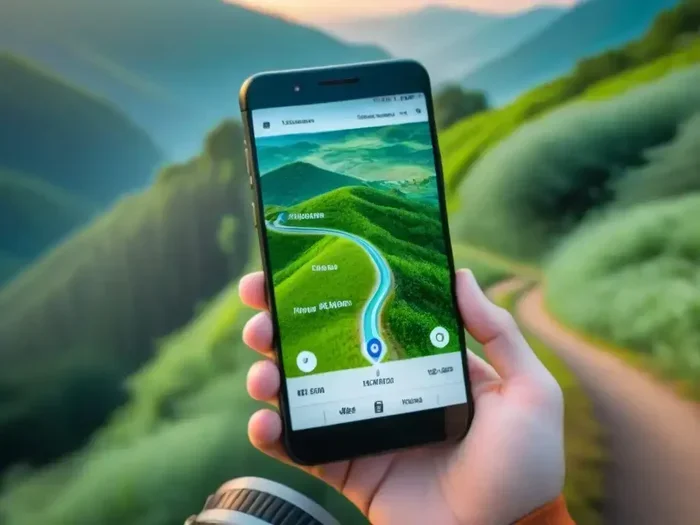
How Do I Download My Maps And Save Them For Offline
Knowing how to download your maps and save them for offline use is a game-changer for any driver. Whether you are planning a road trip or traveling through areas with weak cellular signals, having preloaded map data keeps you on track. This guide walks you through every step to download your maps on Google Maps, Apple Maps, and other popular apps. You will learn how to manage storage, update map regions, and use offline navigation like a pro.
Have you ever been driving through a remote area and suddenly lost your signal? It happens to all of us. Your navigation app freezes, the map stops loading, and you are left guessing which turn to take next. That frustrating moment is exactly why you need to know how to download your maps and save them for offline use.
Downloading maps is one of the simplest yet most powerful things you can do for your next road trip. It takes just a few minutes, costs nothing, and works even when you are completely off the grid. In this guide, we will walk you through every step in plain language. You will learn how to save map data on your phone, manage storage, update regions, and use offline navigation with confidence. Let us get started.
Key Takeaways
- Downloading maps works on both Google Maps and Apple Maps with just a few taps on your phone.
- Offline navigation keeps you on route even when you have no cellular signal or roaming data.
- Preloading map regions saves time and data during long road trips and international travel.
- Managing storage space is key since offline map data can take up significant room on your device.
- Updating your saved maps regularly ensures you have the latest roads, routes, and points of interest.
- Using offline maps is simple and free on most major navigation apps with no extra cost.
- Planning your map downloads before a trip helps you drive with confidence and avoid getting lost.
📑 Table of Contents
Why Downloading Maps Matters for Drivers
Most people take their phone’s navigation for granted. They assume the map will always load, the route will always calculate, and the directions will always be clear. But that is not always true. When you drive through mountains, rural highways, tunnels, or foreign countries, your cellular signal can drop without warning.
Here is why downloading your maps ahead of time makes a big difference:
- No internet needed. Offline maps work without Wi-Fi or mobile data. You can navigate through dead zones and still get turn-by-turn directions.
- Faster route calculations. Preloaded map data loads instantly. You do not have to wait for the app to fetch information from the cloud.
- Saves your data plan. Streaming map data uses a lot of cellular data. Offline maps use zero data once they are saved.
- Better for travel planning. You can study routes, find gas stations, and locate restaurants before you even leave home.
- Works internationally. When you cross borders, roaming data can be expensive or unavailable. Offline maps solve this problem completely.
Think of downloaded maps as a safety net. They give you peace of mind every time you hit the road. Whether you are commuting daily or heading out on a cross-country adventure, having offline navigation ready to go is smart planning.
When You Need Offline Maps Most
Certain situations make offline maps absolutely essential. If any of these sound familiar, you should start downloading map regions today:
- Road trips through national parks or rural areas
- Driving through mountain passes or desert highways
- Traveling to countries with limited data coverage
- Commuting through tunnels or underground parking garages
- Emergency situations when cell towers are overloaded
In all of these cases, navigation without internet is not a luxury. It is a necessity. A few minutes of preparation can save you hours of stress and uncertainty.
How to Download Maps on Google Maps
Google Maps is the most popular navigation app in the world. The good news is that it makes downloading maps very easy. Here is exactly how to do it on both Android and iPhone.
Step-by-Step Guide for Google Maps
Follow these steps to save map regions for offline use:
- Open the Google Maps app on your phone.
- Make sure you are connected to Wi-Fi or mobile data for the initial download.
- Tap your profile picture in the top right corner.
- Select “Offline maps” from the menu.
- Tap “Select your own map.”
- Pinch and zoom to adjust the map area you want to save.
- Tap “Download” and wait for the process to finish.
That is it. The app will save the map data to your device. You can now navigate that area without any internet connection. The offline map will include roads, businesses, landmarks, and basic route directions.
Choosing the Right Map Region Size
One important thing to know is that Google Maps limits the size of each offline region. You can download areas up to a certain size depending on your device’s storage space. Here are some tips for choosing the right region:
- For a city or town, download the entire metro area. This gives you coverage for suburbs and nearby highways.
- For a road trip, download each state or province you will pass through as a separate region.
- For international travel, download the specific regions or cities you plan to visit.
Keep in mind that larger regions use more storage space. A single state map can take up several hundred megabytes. Plan ahead and make sure your phone has enough room.
Managing Your Saved Offline Maps
Once you have downloaded maps, you can manage them easily:
- Go to Settings and tap “Offline maps” to see all your saved regions.
- Tap any region to see its size and expiration date.
- Delete old maps you no longer need to free up space.
- Rename regions to help you remember what each one covers.
Google Maps automatically updates your saved maps when you connect to Wi-Fi. This means your map updates stay current without any extra effort on your part.
How to Download Maps on Apple Maps
If you use an iPhone, Apple Maps also lets you save maps for offline use. The process is slightly different from Google Maps, but just as simple. Here is how it works.
Step-by-Step Guide for Apple Maps
Follow these steps to save maps on your iPhone:
- Open the Apple Maps app on your device.
- Search for the city or region you want to save.
- Tap the location name at the bottom of the screen.
- Scroll down and tap “Download Map.”
- Choose the map size by pinching and zooming.
- Tap “Download” and wait for the process to complete.
Your preloaded maps will now be available even when you are offline. Apple Maps includes basic navigation, points of interest, and traffic information for saved regions.
Apple Maps vs Google Maps for Offline Use
Both apps have strengths when it comes to offline navigation. Here is a quick comparison:
| Feature | Google Maps | Apple Maps |
|---|---|---|
| Offline navigation | Full turn-by-turn directions | Basic directions and points of interest |
| Map region size | Up to a few hundred MB per region | Similar size limits |
| Storage management | Easy to view and delete maps | Managed through iPhone settings |
| Offline search | Search for businesses and landmarks | Limited offline search |
| Platform | Android and iPhone | iPhone only |
For most drivers, Google Maps offers the best offline experience. But if you are an iPhone user, Apple Maps still provides solid offline coverage for your daily commute and road trips.
How to Download Maps on Other Navigation Apps
Google Maps and Apple Maps are not the only options. Several other navigation apps also support offline map downloads. Here are a few popular choices.
Waze
Waze is known for its real-time traffic updates and community alerts. However, Waze has limited offline functionality. It does not allow full map downloads like Google Maps does. You can still use basic navigation if you plan your route while online and start driving before the signal drops.
Sygic
Sygic is a dedicated offline navigation app. It lets you download entire country maps and use full GPS navigation without any internet connection. Sygic offers features like voice guidance, speed camera alerts, and route planning. It is a great choice for drivers who frequently travel in areas with poor connectivity.
HERE WeGo
HERE WeGo is another excellent option for offline maps. It offers free offline navigation for driving, walking, and public transit. You can download full country maps and use them without any data connection. The app also includes public transit directions, which is helpful for city travel.
MapQuest and OsmAnd
MapQuest offers basic offline map saving. OsmAnd is a powerful open-source app that allows detailed offline map downloads with advanced features like custom map layers and waypoints. Both apps are worth exploring if you want more control over your offline navigation.
Managing Storage and Map Data
Downloaded maps take up space on your phone. If you download many regions or save maps for large areas, your map storage can grow quickly. Here is how to keep things under control.
How Much Space Do Offline Maps Use?
The amount of storage needed depends on the region size and detail level. Here are some general estimates:
- A single city map: 50 to 150 MB
- A state or province map: 200 to 500 MB
- A country map: 500 MB to 2 GB
- Multiple regions combined: 3 GB or more
Before you start downloading, check your available storage space. Go to your phone settings and look at your storage breakdown. Make sure you have enough free room for the maps you want to save.
Tips to Save Storage Space
- Download only the regions you need. There is no reason to save maps for areas you will not visit.
- Delete old maps after your trip is over. This frees up space for new downloads.
- Use smaller region sizes when high detail is not needed. A less detailed map uses less space.
- Check your map cache regularly. Some apps store temporary data that can be cleared safely.
How to Clear Map Cache
Over time, your apps may build up a map cache that takes up extra space. Clearing this cache can free up room without deleting your saved maps. On Android, go to Settings, then Apps, then Google Maps, and tap “Clear Cache.” On iPhone, you may need to offload the app and reinstall it to clear cached data.
Tips for Using Offline Maps While Driving
Now that you know how to download and manage your maps, let us talk about how to use them effectively while driving. A few smart habits can make your offline navigation experience much better.
Plan Your Routes Before You Leave
One of the best things you can do is plan your route while you still have internet access. Look up your destination, check for traffic, and identify alternate routes. Save the route in your app before you lose signal. This way, even if your connection drops mid-trip, you already have a clear path forward.
Download Maps the Night Before
Do not wait until you are on the road to download maps. Do it the night before your trip while you are on Wi-Fi. This ensures the download completes fully and you have time to verify the map region covers your route correctly.
Keep Your Maps Updated
Roads change. New highways are built, and old routes are modified. Make sure your map updates are turned on so your saved regions stay current. Set a reminder to update your maps once a month, especially before a big trip.
Use Voice Directions
When driving, it is safer to use voice directions rather than looking at the screen. Both Google Maps and Apple Maps offer voice-guided navigation for offline maps. Turn on voice guidance in your app settings before you start driving.
Save Your Favorite Locations
Before you go offline, save important locations like gas stations, hotels, and restaurants to your app. You can search for them later even without an internet connection. This is especially helpful when you are in an unfamiliar area and need to find a place to eat or refuel.
Common Mistakes to Avoid
- Forgetting to download maps before a trip. Always check your offline maps the night before you leave.
- Downloading maps on cellular data. Large map downloads can use a lot of data. Wait for Wi-Fi instead.
- Ignoring storage limits. If your phone runs low on space, maps may not download properly or may delete themselves automatically.
- Assuming all features work offline. Some features like live traffic and business hours require an internet connection. Know what is available offline and what is not.
- Not checking map expiration dates. Some offline maps expire after 30 days. Check your saved regions and re-download if needed.
Expert Insight: The Best Approach for Road Trips
For the best results on a road trip, combine offline maps with a few other smart strategies. Download map regions for every state or province on your route. Save your hotel and destination addresses before you leave. Carry a car charger to keep your phone powered. And always have a backup plan, like a paper map, in case your phone battery dies. These simple steps ensure you never lose your way, no matter where the road takes you.
Key Takeaways
Downloading your maps and saving them for offline use is one of the easiest ways to improve your driving experience. It removes the stress of losing signal, saves your data plan, and gives you reliable navigation in any location. With just a few minutes of preparation, you can drive with confidence knowing your offline maps have you covered.
Remember these key points:
- Download map regions before every trip while on Wi-Fi.
- Choose the right app for your needs. Google Maps offers the most complete offline experience.
- Manage your storage space to ensure maps download properly.
- Keep your saved maps updated for accurate directions.
- Use voice guidance and save favorite locations for safer, more convenient navigation.
The next time you plan a drive, take five minutes to download your maps. It is a small step that makes a huge difference. Safe travels and happy navigating.
Frequently Asked Questions
Can I use offline maps for turn-by-turn navigation?
Yes, both Google Maps and Apple Maps offer turn-by-turn directions for offline maps. Google Maps provides the most complete offline navigation experience with voice guidance, route calculation, and points of interest. Just make sure you download the map region before you lose internet connection.
How much storage space do I need to download maps?
The storage needed depends on the size of the region you download. A city map may use 50 to 150 MB, while a full country map can take up 1 GB or more. Check your phone’s available storage before downloading and delete old maps you no longer need to free up space.
Do offline maps use any data after they are downloaded?
No, offline maps do not use any data once they are saved to your device. You can navigate, search for saved locations, and get directions without using any cellular data or Wi-Fi. This makes them perfect for international travel and areas with no signal.
How often should I update my downloaded maps?
It is a good idea to update your offline maps at least once a month. Map data changes frequently with new roads, businesses, and route adjustments. Google Maps will prompt you to update saved regions when you connect to Wi-Fi. You can also manually check for updates in the Offline Maps section of the app.
Can I download maps for multiple regions at the same time?
Yes, you can download multiple map regions on both Google Maps and Apple Maps. Just make sure you have enough storage space on your device. It is best to download regions one at a time while connected to Wi-Fi to ensure each download completes successfully.
What happens if my offline map expires?
Google Maps offline maps expire after 30 days if you do not connect to the internet. The app will try to refresh the map data when you reconnect. To avoid this, connect to Wi-Fi periodically so your saved maps stay active and up to date.
=== CONCLUSION ===
Downloading your maps and saving them for offline use is one of the smartest things you can do as a driver. It takes just a few minutes, costs nothing, and gives you reliable navigation no matter where the road leads. Whether you are exploring a new city, crossing through rural areas, or traveling internationally, offline maps keep you on track and stress-free.
Follow the steps in this guide to set up offline maps on Google Maps, Apple Maps, or any other navigation app you prefer. Manage your storage, update your regions regularly, and plan your downloads before every trip. With these habits in place, you will always have a dependable map in your pocket.
Now that you know exactly how to download your maps, there is no reason to hit the road unprepared. Take a few minutes today, save your regions, and drive with confidence tomorrow. Your future self will thank you the next time you lose signal and still arrive at your destination on time.