Does CarPlay Use Bluetooth or Wi-Fi for Calls and Music
Apple CarPlay uses both Bluetooth and Wi-Fi depending on the feature and connection type. Bluetooth handles calls and basic audio streaming, while Wi-Fi powers wireless CarPlay for faster data transfer. Understanding which connection your CarPlay setup uses helps you get the best performance from your iPhone in the car.
If you use Apple CarPlay every day, you have probably asked yourself a simple question. Does CarPlay use Bluetooth or Wi-Fi? The answer is not as straightforward as you might think. CarPlay uses both connections, and each one handles different tasks. Bluetooth takes care of phone calls and basic audio. Wi-Fi powers the wireless experience for streaming, maps, and apps. Understanding how these two technologies work together inside your car can save you a lot of frustration.
Whether you are on a long road trip or just driving to work, the connection type affects how your music sounds and how clearly your calls come through. A wired connection gives you the most reliable experience. Wireless CarPlay offers convenience but relies on Wi-Fi for its speed. In this guide, we will break down exactly how each connection works, what it means for your daily drive, and how to get the best performance from your setup.
Key Takeaways
- Bluetooth handles calls and basic audio: It is the default connection for phone calls and standard music playback through CarPlay.
- Wi-Fi enables wireless CarPlay: It provides faster data speeds for streaming apps, maps, and smoother overall performance.
- Wired CarPlay uses USB only: A Lightning or USB-C cable gives you the most stable connection for both calls and music.
- Wireless CarPlay still uses Bluetooth initially: The two devices pair via Bluetooth first, then switch to Wi-Fi for data transfer.
- Your car and iPhone model matter: Not all vehicles support wireless CarPlay, and older iPhones may have limited Wi-Fi capabilities.
- Battery drain differs by connection type: Wireless CarPlay uses more battery than wired or Bluetooth-only connections.
- Troubleshooting starts with the connection type: Knowing whether your CarPlay uses Bluetooth or Wi-Fi helps you fix common issues faster.
📑 Table of Contents
- What Is Apple CarPlay and How Does It Connect?
- Does CarPlay Use Bluetooth for Calls and Audio?
- Does CarPlay Use Wi-Fi for Music and Streaming?
- Wired CarPlay: The Connection That Uses Neither
- Wireless CarPlay: How Bluetooth and Wi-Fi Work Together
- Bluetooth vs Wi-Fi for CarPlay: Which Is Better?
- How to Optimize Your CarPlay Connection
- Does CarPlay Use Bluetooth or Wi-Fi on Older Cars?
- Expert Tips for Better CarPlay Audio Quality
- Key Takeaways
- Conclusion
What Is Apple CarPlay and How Does It Connect?
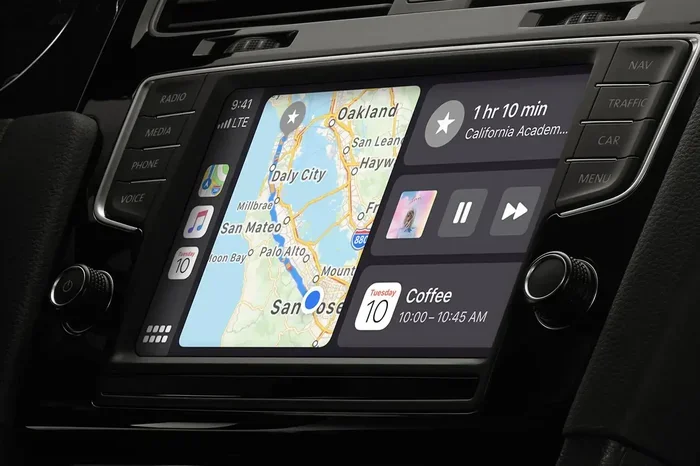
Apple CarPlay is a smart system that mirrors your iPhone onto your car’s infotainment screen. It lets you access maps, music, messages, and phone calls safely while driving. The system works with both wired and wireless setups, and each one uses a different mix of technologies to keep you connected.
When you plug your iPhone into your car with a cable, you are using wired CarPlay. This connection sends audio and data through the USB cable. It is fast, stable, and does not depend on Wi-Fi or Bluetooth at all. Most cars built after 2016 support wired CarPlay, and it remains the most popular option.
Wireless CarPlay, on the other hand, does not need a cable. It uses Bluetooth to pair your iPhone with the car first. Then it switches to Wi-Fi for the actual data transfer. This two-step process is important to understand. Bluetooth handles the initial handshake, while Wi-Fi takes over for everything else. So when someone asks does CarPlay use Bluetooth or Wi-Fi, the honest answer is both, depending on the stage of the connection.
Wired vs Wireless CarPlay at a Glance
Here is a quick look at how the two main types of CarPlay connections differ.
- Wired CarPlay: Uses a USB cable. No Bluetooth or Wi-Fi needed. Offers the most stable connection.
- Wireless CarPlay: Uses Bluetooth for pairing and Wi-Fi for data. More convenient but can be affected by signal strength.
- Bluetooth-only mode: Some older systems use Bluetooth alone for calls and basic audio without full CarPlay features.
Does CarPlay Use Bluetooth for Calls and Audio?
The short answer is yes. Bluetooth plays a big role in CarPlay, especially when it comes to phone calls. When you make or receive a call through CarPlay, your iPhone sends the voice data over Bluetooth. This is the same technology your car uses for regular hands-free calling. It has been around for years and works reliably in almost every vehicle.
Bluetooth handles the audio routing for calls very well. Your voice travels from the car’s microphone to your iPhone, and the caller’s voice comes back through the car’s speakers. The connection is stable and uses very little power compared to Wi-Fi. This is why calls over Bluetooth through CarPlay rarely drop or glitch.
For music, Bluetooth can also work, but with limitations. Standard Bluetooth audio uses a codec called SBC, which delivers decent quality. However, it does not match the quality you get from a wired connection or Wi-Fi streaming. If you are someone who cares about sound quality, Bluetooth alone may not be enough for your favorite playlists.
Bluetooth Audio Codecs in CarPlay
Bluetooth supports several audio codecs that affect sound quality. Here is a quick breakdown.
- SBC: The default codec. Good enough for most calls and casual music listening.
- AAC: Apple’s preferred codec. Offers better quality than SBC and is widely supported.
- aptX and LDAC: Higher-quality codecs found in some aftermarket car stereos. They deliver near-lossless audio over Bluetooth.
If your car stereo supports AAC or aptX, your Bluetooth CarPlay audio will sound noticeably better. This is something worth checking if you are unhappy with the sound quality from your current setup.
Does CarPlay Use Wi-Fi for Music and Streaming?
Yes, Wi-Fi is the backbone of wireless CarPlay. When you use wireless CarPlay, your iPhone connects to your car’s Wi-Fi network after the initial Bluetooth pairing. This Wi-Fi connection is what allows you to stream music from apps like Spotify, Apple Music, and YouTube Music without any lag.
Wi-Fi offers much faster data speeds than Bluetooth. This means maps load quicker, apps respond faster, and music streams without buffering. If you have ever used Bluetooth-only streaming and noticed delays or low-quality audio, Wi-Fi CarPlay fixes most of those issues. The difference is especially noticeable when you are switching between apps or using navigation while playing music.
One thing to keep in mind is that Wi-Fi uses more battery than Bluetooth. If you are on a long drive and your iPhone is not plugged in, wireless CarPlay can drain your battery faster. This is a trade-off for the convenience and speed that Wi-Fi provides.
How Wi-Fi Improves the CarPlay Experience
Here are some specific ways Wi-Fi enhances your CarPlay sessions.
- Faster app loading: Maps and media apps open almost instantly over Wi-Fi.
- Smoother music streaming: No buffering or pauses, even on complex playlists.
- Better map detail: Map tiles load with higher resolution over Wi-Fi compared to Bluetooth.
- Siri responses are faster: Voice commands process more quickly when connected via Wi-Fi.
- Seamless switching: Jumping between music, calls, and navigation feels smoother on Wi-Fi.
If you have ever wondered why wireless CarPlay feels so much snappier than Bluetooth-only connections, this is why. Wi-Fi gives CarPlay the bandwidth it needs to deliver a premium experience.
Wired CarPlay: The Connection That Uses Neither
Here is something many people do not realize. When you use wired CarPlay with a USB cable, your connection does not rely on Bluetooth or Wi-Fi at all. The cable carries all the data and audio directly between your iPhone and the car’s system. This is the most reliable way to use CarPlay, and it is why many people prefer it.
Wired CarPlay gives you the best audio quality because the connection is not compressed through wireless protocols. You also do not have to worry about Wi-Fi signal drops or Bluetooth interference. As long as your cable is good and your iPhone is charged, the connection stays solid.
The downside is the cable itself. It can be annoying to plug and unplug your phone every time you get in and out of the car. Cables can also wear out over time, leading to connection issues. But for pure reliability and sound quality, nothing beats a wired connection.
Which Cable Should You Use for CarPlay?
Not all cables are created equal. Here are some tips for choosing the right one.
- Use an Apple-certified Lightning or USB-C cable: These cables meet Apple’s standards for data transfer and charging.
- Avoid cheap, uncertified cables: They may not support the data speeds needed for CarPlay.
- Go for a shorter cable: Longer cables can cause signal loss and slower charging.
- Check for damage regularly: Frayed or bent cables can cause intermittent connection problems.
A good cable is a small investment that pays off in a more reliable CarPlay experience. If you are tired of connection drops, swapping your cable might be the easiest fix.
Wireless CarPlay: How Bluetooth and Wi-Fi Work Together
Wireless CarPlay is the most convenient option, but it relies on a clever two-step connection process. First, your iPhone and your car use Bluetooth to find each other and pair. This is the same process you use to connect a Bluetooth headset or speaker. Once paired, the system switches to Wi-Fi for the actual data transfer.
This design is smart because Bluetooth uses very little energy for the initial handshake. Then Wi-Fi takes over for the heavy lifting. The result is a connection that feels instant and delivers fast performance. But it also means that both Bluetooth and Wi-Fi need to be working properly for wireless CarPlay to function.
If either Bluetooth or Wi-Fi has issues, your CarPlay experience will suffer. A weak Wi-Fi signal can cause lag in maps and music. A Bluetooth problem can prevent the initial connection from forming. This is why troubleshooting wireless CarPlay often starts with checking both of these connections.
Common Wireless CarPlay Connection Issues
Here are some problems you might run into and what causes them.
- CarPlay does not connect automatically: Often caused by Bluetooth or Wi-Fi being turned off on either device.
- Audio cuts out during calls: Usually a Bluetooth signal issue or interference from other devices.
- Maps load slowly: A weak Wi-Fi signal between your iPhone and car.
- Music skips or buffers: Wi-Fi bandwidth is not enough, especially if other devices are on the same network.
- CarPlay disconnects randomly: Could be a cable issue (for wired) or a Wi-Fi drop (for wireless).
Most of these issues can be fixed by restarting Bluetooth and Wi-Fi on your iPhone, or by resetting your car’s infotainment system. A simple restart of both devices solves the majority of CarPlay connection problems.
Bluetooth vs Wi-Fi for CarPlay: Which Is Better?
This is a question many people ask, and the answer depends on what you value most. Bluetooth is reliable, uses less battery, and handles calls perfectly. Wi-Fi is faster, supports better audio quality, and makes the overall CarPlay experience smoother. Neither is objectively better. They simply serve different purposes.
If you mostly use CarPlay for phone calls and podcasts, Bluetooth is more than enough. If you stream music, use navigation daily, and want the fastest experience, Wi-Fi through wireless CarPlay is the way to go. And if you want the best of both worlds without worrying about connections, a wired CarPlay setup is hard to beat.
Quick Comparison Table
Here is a side-by-side look at how each connection type performs.
- Connection Type: Wired (USB) | Bluetooth Only | Wireless (Bluetooth + Wi-Fi)
- Audio Quality: Best | Good | Very Good
- Call Quality: Excellent | Excellent | Excellent
- Map and App Speed: Fast | Slow | Fast
- Battery Impact: Charges phone | Low drain | Higher drain
- Convenience: Low (cable) | High | Highest
- Reliability: Most Reliable | Reliable | Good (depends on signal)
Use this comparison to decide which setup fits your driving habits. There is no one-size-fits-all answer. The best connection is the one that matches your needs.
How to Optimize Your CarPlay Connection
Getting the most out of your CarPlay setup is easier than you think. A few simple steps can improve your connection quality, audio performance, and overall experience. Whether you use Bluetooth, Wi-Fi, or a wired connection, these tips will help.
First, keep your iPhone and car software up to date. Apple regularly releases updates that improve CarPlay performance and fix connection bugs. Second, restart your phone and car infotainment system regularly. This clears out temporary glitches that can affect your connection. Third, if you use wireless CarPlay, make sure nothing is blocking the Wi-Fi signal between your phone and car.
Here are some extra tips to keep your CarPlay running smoothly.
- Turn off unused Bluetooth devices: Other connected devices can interfere with your CarPlay connection.
- Delete old CarPlay connections: Go to your iPhone Bluetooth settings and remove unused car profiles.
- Use a short, high-quality cable: If you go wired, a good cable makes a big difference.
- Reset network settings: This fixes most Wi-Fi and Bluetooth issues on your iPhone.
- Keep your car’s firmware updated: Car manufacturers release updates that improve CarPlay compatibility.
These small steps add up to a much better CarPlay experience. You will notice fewer disconnections, faster loading times, and clearer call quality.
Does CarPlay Use Bluetooth or Wi-Fi on Older Cars?
If your car was made before 2017, it might not support wireless CarPlay at all. Many older vehicles only have a USB port for wired CarPlay. In these cases, your connection is entirely through the USB cable, and neither Bluetooth nor Wi-Fi is involved. Your calls and music still work, but you lose the convenience of going wireless.
Some older cars offer Bluetooth audio streaming but not full CarPlay. This means you can play music from your phone, but you do not get the CarPlay interface, Siri integration, or app support. To get full CarPlay on an older car, you may need an aftermarket CarPlay adapter. These devices plug into your car’s USB port and add wireless CarPlay support through Wi-Fi.
Aftermarket adapters are a great option if your car does not natively support wireless CarPlay. They range in price and quality, so it is worth reading reviews before buying one. Popular brands include Carlinkit, Autool, and AAWireless. These adapters use Bluetooth for pairing and Wi-Fi for data, just like factory wireless CarPlay systems.
Checking Your Car’s CarPlay Compatibility
Here is how to find out what your car supports.
- Check your car’s manual: Look for the CarPlay or smartphone integration section.
- Look for a USB port labeled CarPlay: This usually indicates wired CarPlay support.
- Check the infotainment menu: Go to Settings and look for CarPlay or Smartphone options.
- Search online: Enter your car model and year plus “CarPlay support” to find compatibility details.
Knowing what your car supports helps you set realistic expectations. You will know whether you need a wired connection, an adapter, or if your car already has full wireless CarPlay built in.
Expert Tips for Better CarPlay Audio Quality
Audio quality is one of the biggest reasons people care about how CarPlay connects. If your music sounds flat or muffled, the connection type might be to blame. Here are some expert tips to improve your CarPlay audio experience.
If you are using Bluetooth CarPlay, make sure your car stereo supports the AAC codec. This is Apple’s preferred Bluetooth audio format and it delivers much better sound than the default SBC codec. You can usually find this information in your car’s manual or by contacting the manufacturer.
For wireless CarPlay users, Wi-Fi quality directly affects audio streaming. If your car is far from your router at home, the initial CarPlay setup might take longer. But once you are driving, the Wi-Fi connection is between your phone and car, not your router, so range is less of an issue. The real factor is how well your car’s Wi-Fi antenna is designed.
Wired CarPlay users get the best audio quality by default. The USB connection bypasses Bluetooth compression entirely. If you are an audiophile who wants the cleanest sound possible, a wired connection is the way to go. Pair it with high-quality music files or a streaming service that offers lossless audio for the best results.
Key Takeaways
- Bluetooth handles calls and basic audio: It is the default connection for phone calls and standard music playback through CarPlay.
- Wi-Fi enables wireless CarPlay: It provides faster data speeds for streaming apps, maps, and smoother overall performance.
- Wired CarPlay uses USB only: A Lightning or USB-C cable gives you the most stable connection for both calls and music.
- Wireless CarPlay still uses Bluetooth initially: The two devices pair via Bluetooth first, then switch to Wi-Fi for data transfer.
- Your car and iPhone model matter: Not all vehicles support wireless CarPlay, and older iPhones may have limited Wi-Fi capabilities.
- Battery drain differs by connection type: Wireless CarPlay uses more battery than wired or Bluetooth-only connections.
- Troubleshooting starts with the connection type: Knowing whether your CarPlay uses Bluetooth or Wi-Fi helps you fix common issues faster.
Conclusion
So, does CarPlay use Bluetooth or Wi-Fi? The answer is that it uses both, and the connection type depends on how you set up your system. Bluetooth handles calls and basic audio streaming. Wi-Fi powers the wireless experience for fast app loading, music streaming, and smooth navigation. And a wired USB connection bypasses both entirely for the most reliable experience.
Understanding how these connections work together helps you get the most from your CarPlay setup. Whether you prefer the convenience of wireless CarPlay or the reliability of a wired connection, knowing what each technology does makes you a smarter user. Keep your software updated, use quality cables, and troubleshoot connection issues early to enjoy a seamless experience every time you get behind the wheel.
The next time someone asks you about CarPlay connections, you will know exactly what to tell them. Bluetooth for calls, Wi-Fi for speed, and USB for reliability. With this knowledge, you can set up your CarPlay the way that works best for your driving style and enjoy a safer, more connected experience on every trip.
Frequently Asked Questions
Does wireless CarPlay use Bluetooth or Wi-Fi?
Wireless CarPlay uses both. Bluetooth handles the initial pairing between your iPhone and car, and then Wi-Fi takes over for data transfer. This two-step process is what makes wireless CarPlay work.
Can I use CarPlay for calls without Bluetooth?
No, Bluetooth is required for calls through CarPlay. Even wireless CarPlay uses Bluetooth for the initial connection and call audio routing. Without Bluetooth, your calls will not work through the CarPlay interface.
Why does my CarPlay disconnect when I make a call?
This usually happens when the Bluetooth connection is weak or unstable. It can also occur if your car’s infotainment system struggles to manage both Bluetooth calls and Wi-Fi data at the same time. Restarting both devices often fixes this issue.
Does using Wi-Fi for CarPlay drain my iPhone battery faster?
Yes, wireless CarPlay uses more battery than wired or Bluetooth-only connections because Wi-Fi consumes more power. If you are concerned about battery drain, use a wired connection or keep your phone plugged in while driving.
Can I use CarPlay music without Wi-Fi?
Yes, you can. If you use a wired connection or Bluetooth-only mode, you can still play music from your iPhone. However, streaming services may buffer more, and app performance will be slower compared to Wi-Fi-connected CarPlay.
Is wired CarPlay better than wireless CarPlay for audio quality?
Wired CarPlay generally offers better audio quality because the USB connection does not compress audio like Bluetooth or Wi-Fi does. If sound quality is your top priority, a wired connection is the best choice.