Why Is My Bluetooth Not Connecting to My Car Right Now
When your Bluetooth won’t connect to your car, it’s usually a simple fix like a reset, a settings check, or a software update. This guide walks you through every common cause and proven solution step by step. You’ll learn how to troubleshoot pairing problems, update firmware, clear Bluetooth cache, and prevent connection issues from coming back.
There’s nothing more frustrating than hopping in your car, ready to hit the road, and discovering that your Bluetooth not connecting to car setup has decided to quit on you. You try pairing again. Nothing happens. You restart your phone. Still nothing. It’s a problem millions of drivers face every single day, and it can turn a simple commute into a headache.
The good news? Most Bluetooth connection problems have straightforward solutions. Whether it’s a quick restart, a settings tweak, or a software update, you can usually get things working again in just a few minutes. This guide covers every major reason your wireless connection might be failing and gives you the exact steps to fix each one.
We’ll walk through basic troubleshooting, deeper fixes, and even ways to prevent the problem from coming back. By the end, you’ll know exactly what to do when your Bluetooth pairing problem strikes. No guesswork. No frustration. Just clear, actionable steps that work.
Let’s get your audio streaming and hands-free calling back up and running. Here’s everything you need to know about fixing Bluetooth connectivity issues in your vehicle.
Key Takeaways
- Restart Both Devices: A simple reboot fixes most Bluetooth pairing problems instantly.
- Check Bluetooth Settings: Make sure Bluetooth is on, visible, and not connected to another device.
- Update Software: Outdated firmware on your phone or car system causes many connectivity issues.
- Clear Paired Devices List: Removing old pairings frees up slots and resolves conflicts.
- Distance and Interference Matter: Keep your phone close and away from other wireless signals.
- Factory Reset as Last Resort: A full reset on your car’s infotainment system solves stubborn problems.
📑 Table of Contents
- Why Your Bluetooth Won’t Connect to Your Car
- Step-by-Step Fixes for Bluetooth Connection Problems
- How to Prevent Bluetooth Connection Issues in the Future
- When to Seek Professional Help
- Quick Tips for Faster Bluetooth Pairing
- Common Mistakes People Make When Fixing Bluetooth Problems
- Expert Insight: Why Bluetooth Problems Are More Common in Older Cars
- Key Takeaways
- Conclusion
Why Your Bluetooth Won’t Connect to Your Car
Before you start trying random fixes, it helps to understand what’s actually going wrong. Bluetooth connectivity issues can come from many different places. Sometimes it’s your phone. Sometimes it’s your car’s car infotainment system. And sometimes it’s something completely unexpected.
Here are the most common reasons your Bluetooth not connecting to car problem happens:
Your Phone’s Bluetooth Is Turned Off or in the Wrong Mode
This sounds obvious, but it’s the number one cause people overlook. If Bluetooth settings are disabled, your phone can’t find your car — and your car can’t find your phone. Also, some phones have different Bluetooth modes. If your phone is in a battery-saving mode, it may limit wireless connection features.
Your Car’s Infotainment System Needs a Restart
Your car’s car audio system is basically a small computer. Like any computer, it can freeze, glitch, or hang. When that happens, Bluetooth troubleshooting often starts with a simple restart of the infotainment unit. This clears temporary errors and refreshes the system’s ability to find and pair with devices.
You’ve Hit the Paired Devices Limit
Most car systems can only store a certain number of paired devices. If your list is full, your phone might not be able to connect. This is a common reason for Bluetooth not found errors, especially in older car models with limited memory.
Software Is Outdated
Both your phone and your car’s system run on software. When either one falls behind, device compatibility problems can appear. A phone running the latest operating system might not pair properly with an outdated car system — and vice versa. Keeping everything updated is one of the best ways to avoid connectivity issues.
Signal Interference Is Blocking the Connection
Bluetooth range is limited to about 30 feet under ideal conditions. But real life isn’t always ideal. Other wireless devices, metal objects, and even certain apps can create signal interference that weakens or blocks the wireless connection between your phone and your car.
The Bluetooth Cache Is Corrupted
Over time, your phone stores data from previous Bluetooth pairing sessions. Sometimes this cached data becomes corrupted. When that happens, your phone tries to reconnect using broken information, and the connection fails. Clearing the Bluetooth cache is one of the most effective fixes for recurring problems.
Step-by-Step Fixes for Bluetooth Connection Problems
Now that you know the most common causes, let’s get into the fixes. Try these steps in order. Most people solve their Bluetooth pairing problem within the first few steps.
Step 1: Turn Bluetooth Off and On Again
Start with the simplest fix first. Go to your phone’s Bluetooth settings and turn Bluetooth off. Wait about 10 seconds. Then turn it back on. This refreshes the connection and forces your phone to search for available devices again.
Do the same on your car’s infotainment system if it has a Bluetooth toggle. A quick on-and-off cycle resolves many temporary connectivity issues without any real effort.
Step 2: Restart Both Your Phone and Your Car
If toggling Bluetooth didn’t work, the next step is a full restart. For your phone, power it off completely and wait 15 seconds before turning it back on. For your car, turn the ignition off, exit the vehicle, and wait at least 30 seconds before restarting.
This clears temporary glitches from both devices. Think of it as giving your car audio system and your phone a fresh start. Many drivers are surprised how often this simple step solves the problem entirely.
Step 3: Remove Old Pairings and Re-Pair
Go to your phone’s paired devices list and find your car. Delete or forget that connection. Then do the same on your car’s infotainment system. After both devices are cleared, start the pairing process fresh.
This works because it removes any corrupted pairing data that might be causing the conflict. It also frees up space if your car’s system was full of old connections. Make sure no other devices are currently connected to either your phone or your car during this process.
Step 4: Check for Software Updates
Open your phone’s settings and look for system updates. Install any that are available. Then check your car’s infotainment system for updates too. Many newer vehicles support over-the-air updates. If yours doesn’t, you may need to visit a dealership for a firmware update.
Software updates often include fixes for Bluetooth version compatibility issues and known bugs. Keeping both devices current is one of the best long-term solutions for a reliable wireless connection.
Step 5: Clear Your Phone’s Bluetooth Cache
On Android phones, go to Settings > Apps > Show System Apps > Bluetooth > Storage > Clear Cache. On iPhones, you’ll need to unpair and re-pair your device, which effectively resets the cached pairing data.
Clearing the cache removes old, potentially corrupted data that your phone uses to connect to your car. After doing this, go back to Bluetooth settings and pair your device again. This fix is especially helpful if your Bluetooth keeps disconnecting after connecting successfully.
Step 6: Reset Network Settings
If none of the above steps worked, resetting your phone’s network settings can help. This clears all saved Wi-Fi networks, cellular settings, and Bluetooth pairings. You’ll need to reconnect to your Wi-Fi and re-pair your devices afterward.
On iPhone, go to Settings > General > Transfer or Reset iPhone > Reset > Reset Network Settings. On Android, go to Settings > System > Reset Options > Reset Wi-Fi, Mobile and Bluetooth.
This is a more aggressive fix, but it works when nothing else does. It eliminates deep-rooted configuration problems that block Bluetooth troubleshooting efforts.
How to Prevent Bluetooth Connection Issues in the Future
Once you get your Bluetooth not connecting to car problem fixed, you probably want to keep it that way. The good news is that a few simple habits can prevent most problems from coming back.
Keep Your Software Updated
Make it a habit to check for updates regularly. Set your phone to install updates automatically when available. For your car, check the manufacturer’s app or visit your dealer during routine service visits. Updated software means better device compatibility and fewer connectivity issues.
Don’t Overload Your Paired Devices List
Periodically go through your car’s paired devices list and delete devices you no longer use. This keeps your car’s system running smoothly and ensures there’s always room for your current phone. Most systems support between three and ten paired devices, depending on the model.
Keep Your Phone Close When Starting the Car
Bluetooth range is limited. When you first start your car, keep your phone in the center console or on the passenger seat. This gives the wireless connection the best possible start. Once paired, you can move your phone around the cabin without issues.
Avoid Signal Interference
Remove unnecessary wireless devices from your car’s center console. Devices like portable speakers, tablets, and smartwatches can create signal interference that weakens the Bluetooth signal. If you notice connection problems, try moving these devices away from your phone and car system.
Restart Your System Monthly
Just like your phone benefits from an occasional restart, your car’s infotainment system does too. Once a month, turn your car off completely, wait a minute, and restart. This clears temporary files and keeps your car audio system running at its best.
When to Seek Professional Help
Most Bluetooth troubleshooting can be done at home. But sometimes the problem is bigger than a simple reset or settings change. Here’s when you should consider getting professional help.
Your Car’s Bluetooth System Won’t Turn On At All
If the Bluetooth function on your car’s infotainment system won’t activate, even after a full restart, there could be a hardware issue. The Bluetooth module inside your car infotainment system may have failed. A technician can diagnose this and recommend a repair or replacement.
You’ve Tried Everything and Still Have Issues
If you’ve gone through every fix in this guide and your wireless connection still won’t work, it’s time to visit a professional. A dealership or qualified auto electronics shop can run diagnostic tests on your car’s system. They can identify hardware failures, software conflicts, or wiring problems that aren’t visible from the surface.
Your Car Is Under Warranty
If your vehicle is still under warranty, Bluetooth problems may be covered. Check with your dealer before paying for repairs. Many Bluetooth connectivity issues related to the factory system are considered warranty-covered defects, especially in newer vehicles.
Quick Tips for Faster Bluetooth Pairing
Want to make the pairing process smoother every time? Try these quick tips:
- Turn off other Bluetooth devices in your car before pairing. This reduces competition for the connection and speeds things up.
- Make sure your phone screen is unlocked during pairing. A locked phone can sometimes block the pairing request.
- Set your car to discoverable mode before searching from your phone. This tells your car to actively look for new devices.
- Use the correct pairing code if prompted. Most systems use a default code like 0000 or 1234.
- Keep your phone charged. A low battery can cause your phone to limit Bluetooth settings and weaken the wireless connection.
Common Mistakes People Make When Fixing Bluetooth Problems
Even when people try to fix their Bluetooth not connecting to car issue, they sometimes make things worse. Here are the mistakes to avoid:
- Skipping the restart: Many people jump straight to complex fixes without trying a simple reboot first. Always restart both devices before trying anything else.
- Ignoring updates: Outdated software is one of the top causes of connectivity issues. Always check for updates before assuming the hardware is broken.
- Pairing too many devices: Trying to pair multiple phones at once can confuse your car’s system. Stick to one primary device for the best experience.
- Not clearing old pairings: Holding onto devices you no longer use clutters your system and can cause Bluetooth pairing problems with your current phone.
- Moving the phone too far away: During initial pairing, keep your phone within 3 feet of the car’s system. Bluetooth range is short, and distance is a common reason for failed connections.
Expert Insight: Why Bluetooth Problems Are More Common in Older Cars
If you drive an older vehicle, you might notice that Bluetooth connectivity issues happen more often than in newer cars. There’s a good reason for this. Older car infotainment systems were designed with earlier versions of Bluetooth technology. These older Bluetooth versions have slower processing speeds and less memory than modern systems.
When a newer phone tries to connect to an older car system, device compatibility issues can arise. The phone may use features or protocols that the car’s system doesn’t fully support. This doesn’t mean you need a new car, but it does mean you might need to take a few extra steps to maintain a stable wireless connection.
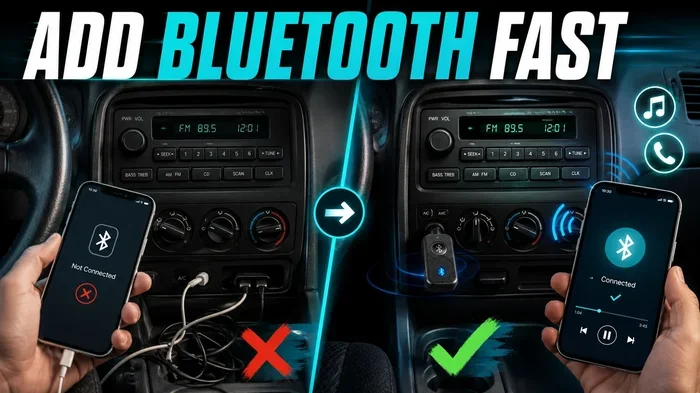
One of the best upgrades you can make for an older car is a Bluetooth adapter or receiver. These small devices plug into your car’s audio input and provide modern Bluetooth capabilities. They’re affordable, easy to install, and they solve many Bluetooth pairing problems that come with aging car systems.
Also, keep in mind that your phone’s Bluetooth version matters too. A phone with Bluetooth 5.0 or newer will generally have a stronger and more stable wireless connection than an older phone. If you’re using a very old phone with a new car — or vice versa — expect some connectivity issues and plan your troubleshooting accordingly.
Key Takeaways
- Start Simple: Always try restarting both devices before moving to advanced fixes.
- Clear Old Pairings: A clean paired devices list prevents conflicts and keeps connections stable.
- Update Everything: Software updates fix bugs that cause Bluetooth connectivity issues.
- Prevent Interference: Keep your phone close and remove competing wireless devices during pairing.
- Know When to Get Help: Hardware failures need professional diagnosis, not more troubleshooting.
- Maintain Your System: Regular restarts and software updates prevent most problems before they start.
Conclusion
Dealing with Bluetooth not connecting to car issues is incredibly common, but it’s almost always fixable. The key is to work through the steps systematically. Start with a simple restart, move to clearing old pairings, and work your way up to software updates and cache clearing. Most drivers find that their wireless connection is restored within minutes using these methods.
Remember that prevention is just as important as fixing. Keep your software updated, manage your paired devices list, and restart your car’s system regularly. These small habits go a long way toward keeping your Bluetooth pairing smooth and reliable every time you get behind the wheel.
If you’ve tried everything in this guide and your Bluetooth not connecting to car problem persists, don’t hesitate to seek professional help. A qualified technician can diagnose deeper issues and get you back on the road with a working hands-free calling and audio streaming setup. You deserve a hassle-free driving experience, and now you have all the tools to make it happen.
Frequently Asked Questions
Why does my Bluetooth connect to my car but there’s no sound?
This usually happens when the audio profile isn’t selected after pairing. Go to your car’s Bluetooth settings and make sure the media audio option is turned on. You may also need to check your phone’s audio output and select the car as the playback device.
Can too many paired devices cause Bluetooth connection problems?
Yes, absolutely. Most car systems have a limit on how many paired devices they can store. When that limit is reached, new pairings may fail or existing connections may drop. Delete devices you no longer use to keep your list clean.
Does a phone case interfere with Bluetooth connectivity?
Some thick or metal phone cases can weaken the wireless connection. If you notice problems, try removing the case and pairing again. This is an easy test that often resolves Bluetooth pairing problems without any other changes.
How do I know if my car’s Bluetooth system needs a firmware update?
Check your car’s infotainment system for a software or firmware update option in the settings menu. If your vehicle supports over-the-air updates, you’ll find them there. If not, contact your dealer. They can check for updates and install them during a service visit.
Why does my Bluetooth keep disconnecting while driving?
Frequent disconnections are often caused by signal interference or a low phone battery. Move your phone closer to the car’s system and make sure it’s charged above 20%. If the problem continues, clear your Bluetooth cache and re-pair the devices.
Is it possible to connect two phones to one car’s Bluetooth system?
Yes, most modern car systems support multiple paired devices. However, only one phone can stream audio at a time. If you’re having connectivity issues with a second phone, make sure it’s not trying to stream audio while another device is already connected.
=== END ===