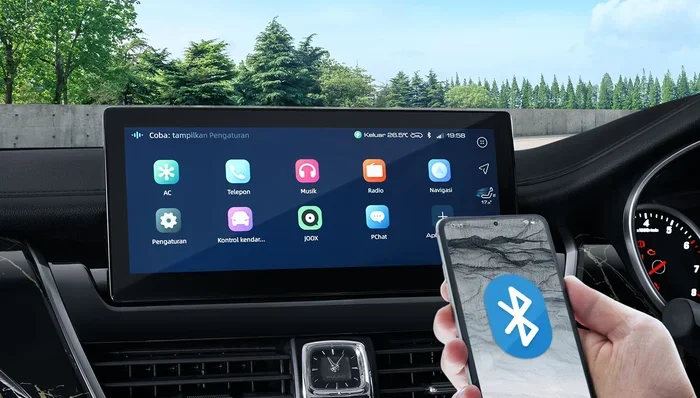
How Do I Sync My Phone to My Car System For Beginners
Syncing your phone to your car system is easier than you think. Whether you use Bluetooth, USB, Apple CarPlay, or Android Auto, this guide walks you through every method. You will learn how to connect your phone safely and enjoy hands-free calling, music streaming, and navigation on the road.
Have you ever climbed into your car and wished your phone would just work with the stereo already? You are not alone. Millions of drivers want to know how do I sync my phone to my car system without pulling their hair out. The good news is that connecting your phone to your vehicle is simpler than it seems.
Whether you drive a brand-new sedan or a trusty older model, there is a way to link your phone and your car audio system. You can stream music, take calls, and even use navigation apps — all without taking your eyes off the road. This guide breaks down every method in plain, simple language. Syncing your phone to your car is a skill every driver should have, and by the end of this article, you will feel confident doing it yourself.
Let us start with the basics and work our way through Bluetooth, wired connections, and smart phone integration systems. By the time you finish reading, you will know exactly which method works best for your car and your phone.
Key Takeaways
- Bluetooth pairing is the most common and wireless way to sync your phone to your car system.
- Apple CarPlay and Android Auto offer deeper integration with your smartphone for maps, music, and messages.
- A USB cable connection provides a reliable wired alternative when Bluetooth is not available.
- Troubleshooting steps like restarting devices and clearing paired devices can fix most syncing issues.
- Keeping your phone and car software updated ensures the best compatibility and performance.
- Hands-free calling and voice commands help you stay safe and focused while driving.
📑 Table of Contents
- What Is Phone-to-Car Syncing and Why Does It Matter?
- How to Sync Your Phone to Your Car System Using Bluetooth
- Apple CarPlay and Android Auto Setup Guide
- USB Wired Connection Options for Phone-to-Car Sync
- Troubleshooting Common Syncing Problems
- Tips for a Seamless Phone-to-Car Sync Experience
- Common Mistakes People Make When Syncing Their Phone
- Expert Insights on Phone-to-Car Syncing
- Key Takeaways
- Conclusion
What Is Phone-to-Car Syncing and Why Does It Matter?
Phone-to-car syncing means linking your smartphone to your vehicle’s infotainment system. Once connected, your phone and car share data wirelessly or through a cable. This lets you play music, make calls, and use apps right from your dashboard.
The most popular way to sync is through Bluetooth pairing. Bluetooth is a short-range wireless technology that sends data between devices. Most cars made after 2012 support Bluetooth. If your car has a touchscreen or audio controls on the steering wheel, there is a very good chance it can sync with your phone.
Beyond Bluetooth, modern cars also support Apple CarPlay and Android Auto. These are smart phone integration platforms built by Apple and Google. They turn your car screen into a safe, driver-friendly version of your phone. You get access to maps, music, messages, and more — all with simple voice commands.
Smartphone integration matters because it keeps you connected without being distracted. Instead of holding your phone while driving, you can use your car’s screen and buttons. This means safer driving and a better experience every time you hit the road.
Why Syncing Is More Than Just Playing Music
Many people think syncing is only about streaming Spotify or Apple Music. But car phone connection goes much deeper than that. When your phone is synced, you can:
- Answer and make calls using your car’s microphone and speakers
- Use voice assistants like Siri or Google Assistant
- Get turn-by-turn directions on your car’s display
- Send and receive text messages hands-free
- Control your phone’s media with steering wheel buttons
- Charge your phone while driving through a USB connection
All of these features make in-car entertainment more enjoyable and safer. The goal is to keep your hands on the wheel and your eyes on the road. A good sync setup makes that possible.
How to Sync Your Phone to Your Car System Using Bluetooth
Bluetooth pairing is the go-to method for most drivers. It is wireless, fast, and works with almost every phone and car made in the last decade. Here is how to do it step by step.
Step 1: Turn on Bluetooth on Your Phone
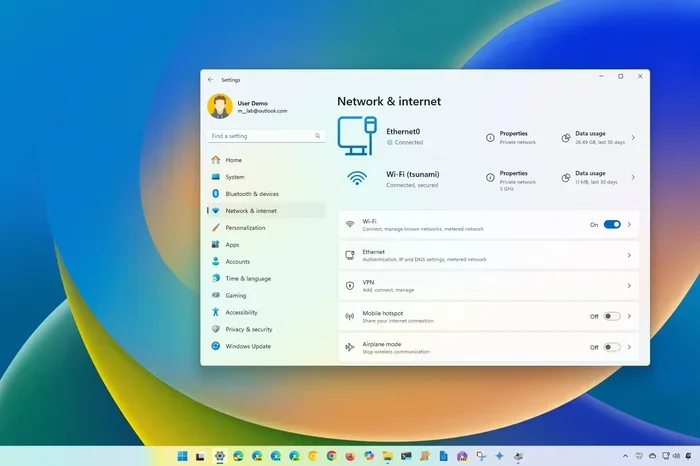
Open your phone’s settings. Look for the Bluetooth option and tap it to turn it on. Your phone will start searching for nearby devices. Make sure your phone is visible to other devices. On most phones, you will see a toggle for “Visible” or “Discoverable.” Turn that on.
Step 2: Put Your Car in Pairing Mode
Go to your car’s infotainment system. Look for the Bluetooth or Settings menu. Select the option to “Pair New Device” or “Add Device.” Your car will now broadcast a signal that your phone can detect.
Every car is a little different. In some vehicles, you may need to press a “Phone” or “Connect” button on the steering wheel. Check your car’s manual if you are unsure. The pairing process usually takes less than a minute.
Step 3: Select Your Car from the Phone’s Device List
On your phone, you should see your car’s name appear in the list of available devices. Tap on it. Your car’s screen may ask you to confirm a pairing code. If the codes match, tap “Pair” or “Connect.”
Once paired, your phone and car will automatically reconnect whenever you get in the car. This is one of the best things about wireless syncing. You do not have to do anything every time you drive.
Step 4: Test Your Connection
Play some music on your phone and see if it comes through your car speakers. Try making a call and check if the car’s microphone picks up your voice. If everything works, you are all set!
Here are some quick tips for a smooth Bluetooth pairing experience:
- Keep your phone within a few feet of the car’s infotainment unit during pairing
- Make sure your car is parked and stationary before starting
- Turn off other Bluetooth devices that might interfere
- Restart both your phone and car system if the connection fails
Apple CarPlay and Android Auto Setup Guide
If you want a deeper connection between your phone and car, Apple CarPlay and Android Auto are the way to go. These platforms do more than just play audio. They give you access to your phone’s apps right on your car’s screen.
Setting Up Apple CarPlay
Apple CarPlay works with iPhones. If your car supports CarPlay, you can connect using a USB cable or wirelessly (on newer models). Here is how to set it up:
- Plug your iPhone into the car’s USB port using a Lightning cable
- If your car supports wireless CarPlay, go to the car’s Bluetooth settings and select your iPhone
- Your car screen will show the CarPlay interface
- Use the car’s touchscreen or voice commands to access Maps, Music, Messages, and more
CarPlay is designed to be safe and simple. It limits what you can see on screen while driving. You get big buttons for calls, music, and navigation. Phone mirroring through CarPlay keeps things clean and distraction-free.
Setting Up Android Auto
Android Auto works with Android phones. The setup is very similar to CarPlay. Here is what to do:
- Download the Android Auto app from the Google Play Store
- Connect your phone to the car using a USB cable
- Some cars support wireless Android Auto — check your car’s settings
- The Android Auto interface will appear on your car’s screen
Android Auto gives you access to Google Maps, Spotify, podcasts, and messages. You can also use Google Assistant for voice commands. Smartphone integration through Android Auto is one of the best ways to stay connected on the road.
CarPlay vs. Android Auto: Which Is Better?
Both platforms are excellent. Here is a quick comparison to help you decide:
| Feature | Apple CarPlay | Android Auto |
|---|---|---|
| Works With | iPhone only | Android phones only |
| Wireless Support | Yes (newer cars) | Yes (newer cars) |
| Navigation | Apple Maps, Google Maps | Google Maps, Waze |
| Voice Assistant | Siri | Google Assistant |
| App Availability | Limited but curated | Wide range of apps |
| Setup Difficulty | Very easy | Very easy |
Both systems are designed to keep you safe. They use large buttons, voice commands, and simplified interfaces. You do not need to be a tech expert to use either one. Phone syncing with CarPlay or Android Auto is truly beginner-friendly.
USB Wired Connection Options for Phone-to-Car Sync
Not every car has Bluetooth. And sometimes Bluetooth just does not work right. That is where a USB connection comes in handy. A USB cable connects your phone directly to your car’s audio system. This gives you a stable, reliable link for music and charging.
When to Use a USB Connection
USB connections are great for older cars that do not have Bluetooth. They are also useful when Bluetooth is acting up. Some drivers prefer USB because it charges their phone at the same time. If you are on a long road trip, keeping your phone charged is a big deal.
Here is how to sync using a USB cable:
- Find the USB port in your car. It may be in the center console, armrest, or dashboard
- Plug one end of the USB cable into your phone
- Plug the other end into the car’s USB port
- Your car should recognize the phone and display options on screen
- Select “USB” or “Phone” as the audio source on your car stereo
Not all USB cables are the same. Use a high-quality cable that supports data transfer. Some cheap cables only charge your phone and do not sync data. If your car does not recognize your phone, try a different cable.
USB vs. Bluetooth: Which Is Better?
Both methods have their strengths. Here is a side-by-side look:
- Bluetooth is wireless and convenient. You do not need to plug anything in. But it can sometimes have connection issues or audio delays.
- USB gives you a direct, stable connection. Audio quality is often better through USB. But you need to keep your phone plugged in, which limits mobility.
Many drivers use both. They use Bluetooth for daily driving and USB for long trips or when they need the best audio quality. Car audio system compatibility varies, so experiment to find what works best for your setup.
Using a Phone Dock or Mount with USB
If you want a clean setup, consider a phone dock or mount with a built-in USB connection. These hold your phone in place and charge it at the same time. You can find mounts that attach to your dashboard, air vent, or windshield. A good dock keeps your phone visible and secure while driving.
Troubleshooting Common Syncing Problems
Even when you follow all the steps, things can go wrong. Bluetooth troubleshooting is a normal part of the process. Do not worry — most syncing problems have simple fixes.
Problem: Phone Does Not Connect to Car
If your phone does not find your car or vice versa, try these steps:
- Turn Bluetooth off and back on both devices
- Make sure your car is in pairing mode
- Restart your phone and your car’s infotainment system
- Check if your phone is too far from the car
- Remove old paired devices that might be causing conflicts
Problem: Audio Cuts Out or Sounds Scratchy
Bad audio quality is a common complaint. Here is what to do:
- Move your phone closer to the car’s infotainment unit
- Check for interference from other Bluetooth devices
- Switch from Bluetooth to USB if possible
- Update your phone’s software and your car’s firmware
Problem: Phone Connects but Does Not Sync Contacts or Music
Sometimes the connection works but certain features do not. This usually happens because of permission settings:
- Go to your phone’s Bluetooth settings
- Find your car in the list of paired devices
- Tap the settings icon next to it
- Make sure “Contacts,” “Media,” and “Calls” are enabled
Problem: CarPlay or Android Auto Keeps Disconnecting
If your smart phone integration keeps dropping, try these fixes:
- Use a different USB cable or port
- Clear the cache on the Android Auto app (for Android users)
- Restart both your phone and your car system
- Update the Android Auto or CarPlay app to the latest version
Most syncing issues come down to software glitches or outdated settings. A simple restart often fixes everything. If problems persist, check for software updates on both your phone and your car.
Tips for a Seamless Phone-to-Car Sync Experience
Once you get your phone connected, you want it to stay connected smoothly. Here are some tips to make phone syncing effortless every time you drive.
Keep Your Software Updated
Phone and car manufacturers release updates that fix bugs and improve compatibility. Check for updates on your phone regularly. Some cars also have over-the-air updates. Keeping everything current is one of the best ways to avoid syncing problems.
Use Voice Commands While Driving
One of the biggest benefits of syncing is hands-free control. Use Siri, Google Assistant, or your car’s built-in voice assistant to make calls, send texts, and change music. Hands-free calling keeps your eyes on the road and your hands on the wheel.
Set Up Your Sync Settings Before You Drive
Do not fiddle with settings while you are on the road. Before you start driving, go into your car’s Bluetooth or infotainment settings. Make sure your phone is set as the default audio source. Choose which apps you want to appear on your car screen. This small step saves a lot of frustration later.
Clean Your USB Ports and Bluetooth Cache
Dust and debris can block USB connections. Use a compressed air can to clean your car’s USB ports. On your phone, clear the Bluetooth cache regularly to prevent connection errors. These small habits keep everything running smoothly.
Consider an Aftermarket Bluetooth Adapter
If your older car does not have Bluetooth, you can add it. Aftermarket Bluetooth adapters plug into your car’s AUX port or cigarette lighter. They add wireless syncing capability to almost any vehicle. These adapters are affordable and easy to install. They are a great option if you want wireless syncing without upgrading your whole car.
Explore MirrorLink for Older Phones
MirrorLink is an older standard for phone-to-car integration. It is not as popular as CarPlay or Android Auto, but it still works on some cars and phones. If you have an older device, check if MirrorLink is supported by your car’s manufacturer. It can be a useful backup option.
Common Mistakes People Make When Syncing Their Phone
Avoid these common mistakes to save time and frustration:
- Not checking compatibility first. Make sure your phone and car support the same sync method before you start.
- Using a low-quality USB cable. Cheap cables often fail to transfer data. Invest in a good cable.
- Ignoring software updates. Outdated software is the number one cause of syncing failures.
- Leaving too many paired devices. Old paired devices can confuse your car’s system. Delete devices you no longer use.
- Forgetting to grant permissions. Your phone may block access to contacts or media. Check your privacy settings.
- Trying to sync while driving. Always set up your connection when the car is parked.
These mistakes are easy to avoid. A little preparation goes a long way toward a smooth car phone connection every time.
Expert Insights on Phone-to-Car Syncing
Automotive experts agree that smartphone integration has changed the driving experience. According to industry reports, over 80 percent of new cars sold today support either Apple CarPlay, Android Auto, or both. This shows how important phone-to-car connectivity has become.
Experts also recommend testing your sync setup before a long trip. Spend a few minutes at home making sure everything works. Check your audio quality, test your voice commands, and confirm that navigation apps load properly. This small habit can prevent headaches on the road.
Another expert tip is to use a dedicated phone mount. A mount holds your phone steady and keeps it at eye level. This is especially helpful if you use navigation apps frequently. A phone dock or mount also reduces glare and makes it easier to interact with your car’s screen.
Finally, experts stress the importance of staying safe. Syncing should make driving easier, not more distracting. If you find yourself constantly fiddling with your phone settings while driving, take a step back. Pull over and adjust your settings. Safety always comes first.
Key Takeaways
- Bluetooth pairing is the most common and wireless way to sync your phone to your car system.
- Apple CarPlay and Android Auto offer deeper integration with your smartphone for maps, music, and messages.
- A USB cable connection provides a reliable wired alternative when Bluetooth is not available.
- Troubleshooting steps like restarting devices and clearing paired devices can fix most syncing issues.
- Keeping your phone and car software updated ensures the best compatibility and performance.
- Hands-free calling and voice commands help you stay safe and focused while driving.
Conclusion
How do I sync my phone to my car system is a question with a very manageable answer. You have Bluetooth for wireless convenience, USB for stable wired connections, and CarPlay or Android Auto for smart phone integration. Each method has its strengths, and the best choice depends on your car and your phone.
Start with Bluetooth if you want a quick, wireless setup. Try CarPlay or Android Auto if you want a richer experience with apps and navigation. Use a USB cable if you need reliability or have an older car. And always keep your software updated to avoid problems.
Syncing your phone to your car is not just about convenience. It is about safety, entertainment, and staying connected on the road. With the steps in this guide, you can set up your connection in minutes. Do not let technology intimidate you. Phone-to-car syncing is designed for everyone, and once you set it up, you will wonder how you ever drove without it.
Take a few minutes today to connect your phone and your car. You will enjoy a better driving experience from your very next trip. Safe travels and happy syncing!
Frequently Asked Questions
Can I sync my phone to any car?
Most cars made after 2012 support Bluetooth syncing. For Apple CarPlay or Android Auto, you need a car that specifically supports those platforms. Check your car’s manual or the manufacturer’s website to confirm compatibility.
Why does my phone keep disconnecting from my car Bluetooth?
Disconnections often happen due to outdated software, interference from other devices, or too many paired devices. Try restarting both your phone and your car system, and make sure your Bluetooth is up to date. Clearing old paired devices can also help.
Is it safe to use my phone while driving if it is synced?
Yes, syncing makes it safer because you can use hands-free calling and voice commands. You do not need to hold your phone or look at it. However, it is still best to minimize distractions and keep your eyes on the road.
Do I need a special cable to sync my phone via USB?
You need a standard USB cable that supports data transfer, not just charging. Most modern phones use USB-C or Lightning cables. A high-quality cable ensures a stable connection and faster data syncing.
Can I use Apple CarPlay and Android Auto on the same car?
Some cars support both CarPlay and Android Auto. You can switch between them depending on which phone you are using. Check your car’s infotainment settings to see if both options are available.
What is the difference between Bluetooth syncing and CarPlay or Android Auto?
Bluetooth syncing mainly handles calls, music, and basic audio. CarPlay and Android Auto offer a full phone-like experience on your car screen, including navigation apps, messaging, and more interactive features. They provide a deeper level of smartphone integration compared to standard Bluetooth.