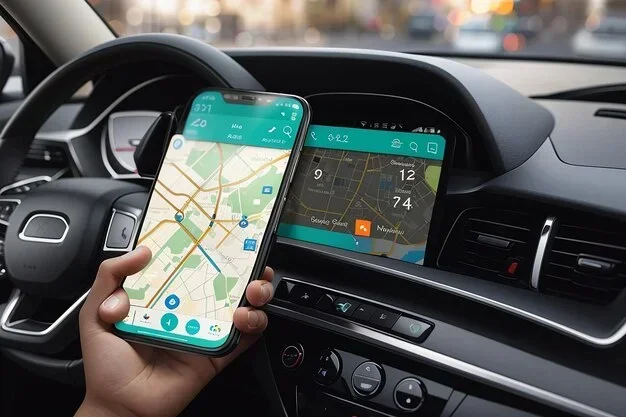
How Do I Connect My Apps to My Car and Make It Smarter
Connecting your apps to your car is easier than you think, and it transforms every drive into a smarter, safer experience. Whether you use Apple CarPlay, Android Auto, or Bluetooth pairing, this guide walks you through every method step by step. You will learn how to stream music, get directions, make hands-free calls, and unlock advanced smart car features without touching your phone.
Have you ever wished your car felt like an extension of your phone? The good news is that connecting your apps to your car is not just a luxury anymore. It is a practical, everyday upgrade that makes driving safer, more entertaining, and way more convenient. Whether you are commuting to work or taking a long road trip, having your favorite apps right on the dashboard changes everything.
So, how do you actually do it? The process depends on your car model, your phone type, and the connection method you choose. This guide breaks it all down in simple terms. By the end, you will know exactly how to connect your apps to your car and make the most of modern car connectivity technology.
We will cover everything from basic Bluetooth pairing to advanced smart car features like wireless mirroring and OBD2 adapters. You do not need to be a tech expert. Just follow along, and you will have a smarter car in no time.
Key Takeaways
- Multiple Connection Methods: You can connect apps via USB, Bluetooth, wireless CarPlay, or Android Auto depending on your car and phone.
- Apple CarPlay and Android Auto Lead the Way: These two platforms offer the most seamless smartphone-to-car integration for navigation, music, and messaging.
- Bluetooth Pairing Is Universal: Almost every car made after 2015 supports Bluetooth, making it the easiest wireless option for hands-free calling and audio streaming.
- OBD2 Adapters Unlock Extra Features: These small devices connect to your car’s diagnostic port and let you monitor performance, fuel economy, and more through apps.
- Smart Car Features Work Best When Everything Is Set Up Right: Proper configuration ensures voice commands, navigation, and music streaming work flawlessly while you drive.
- Compatibility Matters: Not all cars and phones work the same way, so checking your vehicle and device specs before buying any accessory saves time and money.
📑 Table of Contents
- Why Connecting Apps to Your Car Matters
- Method 1: Use Apple CarPlay for iPhone Users
- Method 2: Use Android Auto for Android Users
- Method 3: Bluetooth Pairing for Wireless Connection
- Method 4: Use an OBD2 Adapter for Advanced Features
- Method 5: Use Wi-Fi and Hotspot Connections
- Common Mistakes to Avoid When Connecting Apps
- Expert Tips to Get the Most Out of Your Connected Car
- How to Choose the Right Connection Method for You
- Conclusion
Why Connecting Apps to Your Car Matters
Most of us spend hours in our cars every week. That time adds up fast. When you connect apps to your car, you turn dead time into productive or enjoyable time. Instead of fumbling with your phone while driving, everything stays right where you can see it safely.
Here is why this matters so much. First, it keeps your eyes on the road. Navigation, music, and calls all work through your car’s screen or voice commands. Second, it reduces distractions. You do not need to hold your phone or look at a small screen. Third, it adds real value to your vehicle. Even older cars can gain modern features through simple app integration tools.
The bottom line is simple. A connected car is a smarter car. And setting it up is way easier than most people think.
Method 1: Use Apple CarPlay for iPhone Users
What Is Apple CarPlay?
Apple CarPlay is Apple’s built-in system for mirroring your iPhone on your car’s display. It gives you access to your most-used apps right on the dashboard. You get Maps, Music, Messages, Phone, and more, all with a car-friendly interface. It is one of the most popular smartphone mirroring tools available today.
CarPlay works with most cars made after 2016. Many newer models support it wirelessly, which means no cables at all. Older cars might need a USB cable, but the setup is still straightforward.
How to Set Up Apple CarPlay
Setting up Apple CarPlay takes just a few minutes. Here is what you need to do:
- Make sure your iPhone is updated to the latest iOS version.
- Plug a Lightning or USB-C cable into your iPhone and your car’s USB port.
- On your car’s infotainment screen, select the CarPlay option.
- Follow the on-screen prompts to pair and trust the connection.
- Once connected, your apps will appear on the car screen.
For wireless CarPlay, go to your iPhone settings, tap General, then CarPlay, and select your car. The phone and car will pair automatically going forward.
Best Apps for Apple CarPlay
Not all apps work with CarPlay, but the most popular ones do. Here are some top picks:
- Google Maps or Apple Maps: Reliable navigation with voice-guided directions.
- Spotify or Apple Music: Stream your playlists and podcasts hands-free.
- WhatsApp or Messages: Send and receive texts using voice or steering wheel controls.
- Podcast apps: Keep up with your favorite shows during your commute.
- Waze: Real-time traffic updates and community-reported road hazards.
These apps are designed with large buttons and simple menus. They are built for hands-free driving, so you stay focused on the road.
Method 2: Use Android Auto for Android Users
What Is Android Auto?
Android Auto is Google’s answer to CarPlay. It mirrors your Android phone onto your car’s display and gives you a clean, driver-friendly interface. Like CarPlay, it supports navigation, music, messaging, and calls. It works with a huge range of cars and is one of the best car infotainment system tools available.
Android Auto supports both wired and wireless connections. Wireless works through Wi-Fi or Bluetooth, depending on your car and phone model. The setup is simple and does not require any extra hardware in most cases.
How to Set Up Android Auto
Getting started with Android Auto is quick and easy. Follow these steps:
- Download the Android Auto app from the Google Play Store.
- Make sure your phone runs Android 10 or newer for wireless support.
- Connect your phone to your car using a USB cable or wirelessly.
- Follow the prompts on both your phone and car screen to complete pairing.
- Once connected, swipe through the app launcher to access your favorites.
For wireless setup, make sure both Bluetooth and Wi-Fi are turned on. Some cars require you to enable wireless Android Auto in the car’s settings first. Check your vehicle’s manual if you run into trouble.
Top Android Auto Compatible Apps
Android Auto supports a wide range of apps. Here are the most useful ones:
- Google Maps or Waze: Both offer excellent turn-by-turn navigation.
- Spotify, YouTube Music, or Pandora: Stream music and podcasts effortlessly.
- WhatsApp, Telegram, or SMS apps: Read and reply to messages using voice.
- Audible or Libby: Listen to audiobooks during long drives.
- Smart home apps: Some models let you control Google Home devices from your car.
These apps are optimized for the road. They use large touch targets and voice controls to keep you safe.
Method 3: Bluetooth Pairing for Wireless Connection
What Is Bluetooth Car Pairing?
Bluetooth pairing is the most universal way to connect your phone to your car. Almost every vehicle made in the last decade supports Bluetooth. It lets you make hands-free calls, stream music, and sometimes even access basic contacts and messages. It is the easiest car connectivity method because it requires no cables or extra equipment.
Bluetooth works through short-range wireless signals. The typical range is about 30 feet, which is more than enough for a car cabin. Once paired, your phone connects automatically when you get in the car.
How to Pair Your Phone via Bluetooth
Pairing your phone over Bluetooth is a simple process. Here is how to do it:
- Turn on your car and go to the infotainment or settings menu.
- Select Bluetooth and set it to “Discoverable” or “Search for Devices.”
- On your phone, go to Settings, then Bluetooth, and turn it on.
- Find your car in the list of available devices and tap to pair.
- Enter the PIN if prompted (usually 0000 or 1234).
- Accept the connection on both devices.
Once paired, you can enable hands-free calling and audio streaming in your phone’s Bluetooth settings. Most cars also let you control volume, skip tracks, and answer calls using the steering wheel buttons.
Tips for Better Bluetooth Performance
Bluetooth is reliable, but sometimes you need a little troubleshooting. Here are some quick tips:
- Keep your phone and car software updated for the best performance.
- Delete old pairings from both devices if you experience connection issues.
- Turn off Bluetooth on other nearby devices to avoid interference.
- Restart both your phone and car infotainment system if the connection drops.
- Place your phone in a central location in the car for a stronger signal.
Method 4: Use an OBD2 Adapter for Advanced Features
What Is an OBD2 Adapter?
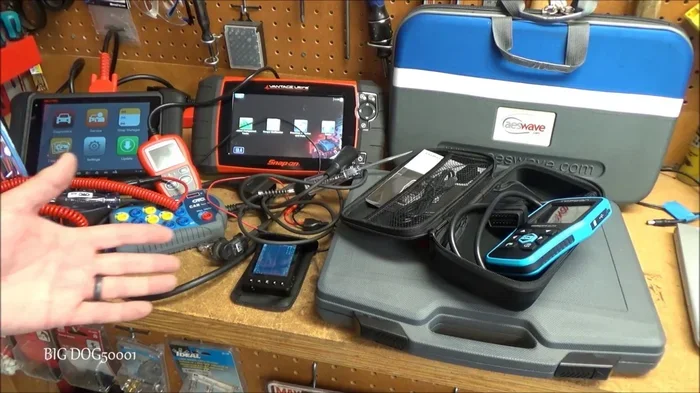
An OBD2 adapter is a small device that plugs into your car’s diagnostic port. This port is usually located under the dashboard near the steering column. The adapter connects to your phone through Bluetooth or Wi-Fi and opens up a whole world of car dashboard apps.
OBD2 adapters are incredibly useful. They read data directly from your car’s computer. You can check engine codes, monitor fuel economy, track driving habits, and even diagnose problems before they become expensive repairs. It is one of the best ways to add real intelligence to any vehicle.
Popular OBD2 Adapter Apps
Several apps work great with OBD2 adapters. Here are some top choices:
- Torque Pro: A powerful app for reading diagnostic codes and monitoring engine performance.
- DashCommand: Displays real-time data like speed, RPM, fuel consumption, and more.
- Automatic: A user-friendly app that tracks trips, driving scores, and vehicle health.
- Car Scanner: Great for beginners who want simple, clear diagnostics.
These apps turn your phone into a professional-grade diagnostic tool. They are especially helpful for older cars that do not have modern smart car features built in.
Method 5: Use Wi-Fi and Hotspot Connections
Can Your Car Connect to Wi-Fi?
Many modern cars now come with built-in Wi-Fi hotspots. These hotspots use a cellular data connection to keep your car online even when your phone is not nearby. This is great for streaming apps, real-time traffic updates, and over-the-air software updates.
If your car does not have built-in Wi-Fi, you can still connect by tethering your phone’s mobile hotspot. Just be aware that this uses your phone’s data plan and can drain your battery faster. It works best for short trips or when you need a quick connection.
How to Connect to Your Car’s Wi-Fi
Connecting to a car Wi-Fi network is just like connecting to any other network. Here is what to do:
- Turn on your car’s Wi-Fi hotspot feature in the settings menu.
- Note the network name and password displayed on the car screen.
- On your phone, go to Wi-Fi settings and find the car’s network.
- Enter the password and connect.
- Open your apps and enjoy the connection.
Some cars also support wireless Apple CarPlay and wireless Android Auto over Wi-Fi, which gives you a cable-free experience with full app access.
Common Mistakes to Avoid When Connecting Apps
Skipping Software Updates
One of the biggest mistakes people make is ignoring updates. Both your phone and your car’s infotainment system need to be up to date for the best app integration. Updates fix bugs, add new features, and improve compatibility. Always check for updates before setting up a new connection.
Using the Wrong Cable
Not all USB cables are created equal. Cheap or damaged cables can cause connection problems, slow data transfer, or fail to charge your phone. Use high-quality, certified cables for the best results. If you use wireless smartphone mirroring, make sure your car and phone both support it.
Ignoring Compatibility
Not every app works with every car or phone. Before you buy an adapter or download an app, check the compatibility list. Some car connectivity tools only work with specific car brands or phone models. A quick check saves a lot of frustration.
Overloading Your Car’s System
Running too many apps at once can slow down your car’s infotainment system. Keep only the apps you actually use while driving. This keeps things fast and responsive. It also reduces distractions, which is the whole point of connecting apps in the first place.
Expert Tips to Get the Most Out of Your Connected Car
Want to take your car connectivity to the next level? Here are some expert tips that make a real difference:
- Set up voice commands before you drive. Both CarPlay and Android Auto support Siri and Google Assistant. Use them to make calls, send texts, and get directions without lifting a finger.
- Create a driving profile. Some cars let you save preferences like favorite apps, music stations, and navigation settings. Set yours up once and it works every time.
- Use a mount for your phone. Even with CarPlay or Android Auto, having your phone mounted at eye level helps with quick checks and touchscreen use.
- Enable do-not-disturb while driving. This blocks notifications and auto-replies to messages, keeping your focus on the road.
- Keep a backup USB cable in your car. Cables get lost, damaged, or forgotten. Having a spare means you are never stuck without a connection.
How to Choose the Right Connection Method for You
With so many options available, choosing the right one can feel overwhelming. Here is a simple way to decide:
- If you have an iPhone and a newer car, Apple CarPlay is your best bet.
- If you have an Android phone, Android Auto gives you the most features.
- If you just need hands-free calls and basic audio, Bluetooth is all you need.
- If you want deep car diagnostics, grab an OBD2 adapter.
- If your car has built-in Wi-Fi, use it for streaming and real-time updates.
You can also combine methods. For example, use Bluetooth for calls and CarPlay for navigation and music. The best setup is the one that fits your daily routine and keeps you safe on the road.
Conclusion
Connecting your apps to your car is one of the simplest upgrades you can make. It makes every drive more enjoyable, more productive, and safer too. Whether you choose Apple CarPlay, Android Auto, Bluetooth, an OBD2 adapter, or a combination of them all, the process is straightforward and the results are fantastic.
Start with the method that fits your phone and car. Follow the steps in this guide, and you will be up and running in minutes. Do not let technology intimidate you. The whole point is to make your life easier, not harder.
Now that you know how to connect your apps to your car, there is no reason to wait. Try it today and experience what a truly smart car feels like. Your drives will never be the same again.
Frequently Asked Questions
Can I connect apps to any car?
Most cars made after 2015 support at least Bluetooth connectivity. For Apple CarPlay or Android Auto, you need a car with a compatible infotainment system. Check your car’s manual or the manufacturer’s website to confirm support.
Do I need any special equipment to connect apps to my car?
It depends on the method. Bluetooth requires no extra equipment. CarPlay and Android Auto need a USB cable or a wireless-compatible car. OBD2 adapters are inexpensive and easy to find online. Most people already have everything they need.
Is it safe to use apps while driving?
Yes, as long as you use hands-free features. CarPlay and Android Auto are designed for safety. They use large buttons, voice commands, and steering wheel controls so you keep your eyes on the road. Never type or tap your phone while driving.
Can I use multiple apps at the same time?
You can switch between apps easily, but running too many at once can slow down your car’s system. Stick to your essentials like navigation and music. Most infotainment systems let you quickly swap between apps with a tap or voice command.
What if my car does not support CarPlay or Android Auto?
You have options. Bluetooth still lets you make calls and stream music. You can also buy an aftermarket CarPlay or Android Auto receiver. These devices replace your car’s old stereo and add modern smart features for a reasonable price.
How do I disconnect my phone from my car safely?
To disconnect, go to your car’s Bluetooth or infotainment settings and unpair your phone. On your phone, forget the car’s Bluetooth device as well. This prevents automatic reconnections when you are not in the car and keeps your data secure.
=== META TITLE ===
How Do I Connect My Apps to My Car and Make It Smarter
=== SEO TITLE ===
How Do I Connect My Apps to My Car and Make It Smarter
=== URL SLUG ===
how-to-connect-apps-to-car
=== OPENING SUMMARY ===
Connecting your apps to your car is one of the easiest ways to make every drive smarter and safer. Whether you use Apple CarPlay, Android Auto, or simple Bluetooth pairing, this guide shows you exactly how to connect your apps to your car in just a few minutes. You will learn the best methods, top compatible apps, and expert tips to avoid common setup mistakes. By the end, you will know how to turn any vehicle into a connected, smart ride with hands-free navigation, music, and messaging. Let us get started and make your car work smarter for you.