How Do I Change the Time on My Control Panel Settings
Changing the time on your control panel settings is a simple process that every driver should know. Whether your car clock is off after a battery swap or you just moved to a new time zone, this guide walks you through it. You will learn how to adjust the time on different vehicle types, fix common issues, and set up your clock for accuracy.
Have you ever glanced at your dashboard and realized your car clock is wrong? It happens to the best of us. Maybe you just replaced your battery, crossed time zones, or simply never got around to setting it right.
Whatever the reason, learning how to change the time on my control panel settings is a useful skill every driver should have. The good news is that it is usually quick and straightforward. You do not need to be a mechanic or a tech expert. In this guide, we will walk you through every step. We will cover different vehicle types, common problems, and pro tips to keep your car clock accurate.
Your vehicle’s control panel is more than just a speedometer and fuel gauge. It is the central hub for many settings, including your clock. Modern cars have digital dashboards, touchscreens, and even smartphone integration. Each system has its own way of handling time settings. But the core idea is the same across all of them. You find the settings menu, locate the clock option, and make your adjustment. Let us dive in and make it easy for you.
Key Takeaways
- Easy Process: Changing the time on your control panel settings takes just a few minutes in most vehicles.
- Multiple Methods: Different cars use different buttons, touchscreens, or apps to adjust the clock.
- Common Issues: A dead battery or incorrect time zone settings are the top reasons car clocks show the wrong time.
- 24-Hour Format Option: Most vehicles let you switch between 12-hour and 24-hour time formats.
- Automatic Time Sync: Many newer cars sync their clocks with GPS or satellite signals for perfect accuracy.
- Quick Tips Save Time: Knowing your vehicle’s specific steps prevents frustration and saves effort.
📑 Table of Contents
- Why Your Car Clock Shows the Wrong Time
- How to Change the Time on My Control Panel Settings: Step-by-Step
- Understanding Time Format: 12-Hour vs 24-Hour Clock
- Common Problems When Changing the Car Clock
- Expert Tips to Keep Your Car Clock Accurate
- How Different Vehicle Brands Handle Clock Settings
- When to Seek Professional Help
- Frequently Asked Questions
- Conclusion
Why Your Car Clock Shows the Wrong Time
Before you change the time, it helps to understand why it might be wrong in the first place. Several common reasons can throw off your vehicle clock. Knowing the cause makes the fix much easier.
Battery Replacement or Drain
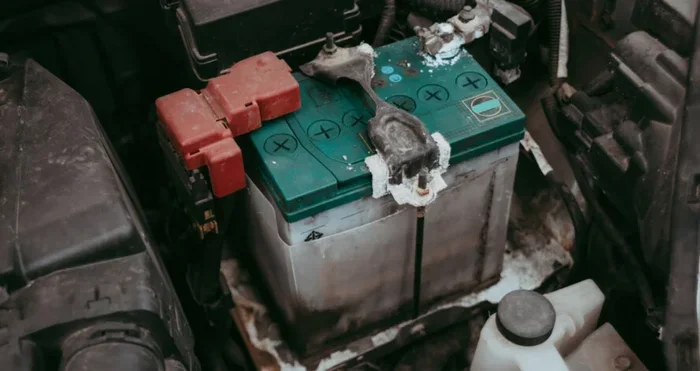
The most common reason for a wrong car clock is a battery change or a dead battery. When you disconnect or replace your car battery, the clock resets. It usually goes back to a default time like 12:00 or midnight. This is normal and expected. Your vehicle loses power to the memory systems when the battery is removed.
Time Zone Changes
If you have recently traveled or moved, your car clock may still be set to the old time zone. Some vehicles auto-detect time zones through GPS. Others need a manual update. Either way, the result is the same. Your dashboard shows a time that does not match your current location.
System Glitches or Software Updates
Modern cars run on software. Sometimes a glitch or a software update can reset your clock. Infotainment systems may restart after an update. During this process, the time setting can revert to a default value. This is rare but does happen, especially in newer model vehicles.
Daylight Saving Time Shifts
Twice a year, daylight saving time changes. Some cars adjust automatically for this. Others do not. If your vehicle does not sync with daylight saving changes, your clock will be off by one hour. This is an easy fix once you know where to look in your settings.
How to Change the Time on My Control Panel Settings: Step-by-Step
Now let us get to the main part. Changing the time on your control panel settings depends on your vehicle type. Below, we cover the most common systems you will encounter. Follow the steps that match your car.
For Vehicles with Physical Buttons and Knobs
Older cars and some base models still use physical buttons. Here is how to adjust the clock on these systems:
- Locate the Settings Button. Look for a button labeled “Menu,” “Setup,” “Settings,” or “Clock.” It is often on the left side of the dashboard or near the steering wheel.
- Press the Button. A menu should appear on your dashboard display.
- Navigate to the Clock Option. Use the arrow buttons or tune knob to scroll to the clock or time settings.
- Select the Time. Press the button to enter the time adjustment mode.
- Adjust Hours and Minutes. Use the up/down or plus/minus buttons to set the correct time.
- Save and Exit. Press “Set,” “OK,” or “Save” to confirm your changes.
For Vehicles with Touchscreen Infotainment Systems
Most modern cars have touchscreen displays. These systems make clock adjustment simple:
- Tap the Settings Icon. Look for a gear icon on your home screen. It usually sits in the bottom corner or top menu bar.
- Find the Clock or Date/Time Section. Scroll through the settings menu. The clock option may be under “Vehicle Settings,” “Display,” or “System.”
- Tap the Time Field. This brings up the hour and minute adjusters.
- Set the Correct Time. Use the on-screen arrows or tap the numbers directly.
- Choose AM or PM. If your system uses a 12-hour format, make sure to select the correct period.
- Tap Save or Back. The system will automatically save your new time setting.
For Vehicles with Voice Command Systems
Some newer vehicles let you change the clock using voice commands:
- Press the Voice Command Button. This is usually located on the steering wheel.
- Say “Change Clock” or “Set Time.” The system will prompt you to speak the new time.
- Speak the Time Clearly. For example, say “Set the time to 3:30 PM.”
- Confirm the Change. The system will repeat the new time back to you for confirmation.
For Vehicles Connected to a Smartphone App
Many modern cars connect to a smartphone app. Brands like Ford, BMW, Tesla, and Chevrolet offer app-based controls:
- Open the Car’s App on Your Phone. Make sure your phone is connected to the vehicle.
- Go to Vehicle Settings. Look for a “Climate,” “Clock,” or “Vehicle Status” section.
- Adjust the Time. Some apps let you change the clock remotely. This is handy if you want the car ready before you get in.
Understanding Time Format: 12-Hour vs 24-Hour Clock
When you adjust your car clock, you will often see a setting for time format. This is a simple but important choice.
12-Hour Format
The 12-hour format is the most common in the United States. It shows times from 1:00 AM to 12:59 PM and then 1:00 PM to 12:59 AM. Most drivers are familiar with this format. It uses AM and PM to distinguish between morning and evening hours.
24-Hour Format
The 24-hour format runs from 00:00 to 23:59. It is popular in Europe, military use, and many other parts of the world. Some drivers prefer it because it removes the AM/PM confusion. If you travel internationally, the 24-hour format can be very helpful.
Most vehicles let you switch between these two formats in the clock settings. Look for a “Format,” “Mode,” or “12/24” option in your menu. Changing it is usually a single tap or button press.
Common Problems When Changing the Car Clock
Sometimes, adjusting the clock does not go smoothly. Here are the most common problems drivers face and how to fix them.
The Clock Resets After Turning Off the Car
If your clock keeps resetting every time you turn off the vehicle, the problem is likely a weak battery. The clock needs a small amount of power to hold its memory. When the battery is low, it loses this power. Try testing your battery voltage. A healthy car battery should read around 12.6 volts when the engine is off. If it is below 12.0 volts, you may need a replacement.
The Clock Won’t Change at All
In some cases, the clock settings may be locked or grayed out. This can happen if the vehicle is in accessory mode rather than running mode. Try starting the engine first. Many clock adjustment features only work when the ignition is on. If the problem persists, check your owner’s manual. Some vehicles require you to hold a button for several seconds to unlock the settings.
The Time Zone Is Wrong
If your clock is off by exactly one or more hours, the time zone setting may be incorrect. Go into your infotainment system and look for a “Time Zone” or “Location” option. Select your current time zone. On some vehicles, the system can auto-detect your time zone using GPS. Make sure this feature is enabled if available.
The Clock Display Is Dim or Not Visible
Sometimes the clock is set correctly, but you cannot see it. This is usually a display brightness issue. Go to your display settings and increase the brightness. You can also check if the dashboard dimming feature is turned on. Some vehicles automatically dim the dashboard at night, which can make the clock hard to read.
Expert Tips to Keep Your Car Clock Accurate
Keeping your car clock accurate is easier than you think. Here are some expert tips that make a big difference:
- Sync with GPS Time: Many newer vehicles sync their clocks with GPS satellites. This keeps the time accurate automatically. Check your settings to make sure this feature is turned on.
- Check After Battery Replacement: Always verify your clock after replacing the car battery. Make it a habit to reset it right away.
- Update Your Infotainment Software: Software updates can fix clock bugs and improve accuracy. Check for updates through your dealer or the manufacturer app.
- Use the 24-Hour Format for Travel: If you travel across time zones often, the 24-hour format reduces confusion.
- Keep Your Owner’s Manual Handy: Every vehicle is different. Your manual has the exact steps for your specific model. Keep it in the glove box for quick reference.
- Set a Monthly Reminder: A quick monthly check ensures your clock stays accurate year-round. It only takes a few seconds.
How Different Vehicle Brands Handle Clock Settings
Every car brand has its own way of adjusting the clock. Here is a quick look at how some popular brands handle it:
Ford: Most Ford vehicles let you adjust the clock through the infotainment touchscreen. Go to Settings > General > Clock. Use the on-screen controls to set the time and format.
Toyota: Toyota vehicles often have a dedicated “Clock” button on the dashboard. Press it, use the arrow buttons to adjust, and press “Set” to save.
Chevrolet: Chevrolet infotainment systems use a touchscreen. Navigate to Vehicle Settings > Clock. Adjust the time and choose your preferred format.
BMW: BMW vehicles use the iDrive controller. Press the menu button, go to Settings, and select Time/Date. Use the controller to make changes.
Tesla: Tesla vehicles sync their clocks with your phone’s time zone automatically. You can also adjust it manually in Controls > Display > Time Zone.
Honda: Honda vehicles typically have a “Setup” or “Clock” button on the dashboard. Navigate through the menu using the tuning knob to set the time.
These are general guidelines. Always check your specific owner’s manual for exact steps. Vehicle models and years can vary significantly in how they handle clock settings.
When to Seek Professional Help
Most clock issues are easy to fix on your own. But some problems need professional attention. If your clock keeps resetting despite a healthy battery, there may be a wiring issue. If the infotainment system freezes every time you try to access the clock settings, a software reset or dealer visit may be needed. Also, if your vehicle has a complex integrated system that does not respond to any of the standard methods, a certified mechanic can help diagnose the issue.
Do not hesitate to contact your dealership or a trusted auto repair shop. They have the tools and training to handle complex electrical and software problems. Trying to force a fix on a stubborn system can sometimes cause more harm than good.
Frequently Asked Questions
How do I change the time on my control panel settings if my car has no touchscreen?
Use the physical buttons on your dashboard. Look for a “Menu,” “Setup,” or “Clock” button. Navigate using arrow buttons or a tune knob to find the clock setting. Adjust the hours and minutes, then press “Set” or “OK” to save your changes.
Why does my car clock reset every time I turn off the engine?
This usually means your car battery is weak or failing. The clock needs a small amount of constant power to remember the time. A low battery cannot supply this power. Have your battery tested at an auto parts store or mechanic. Replacement is often inexpensive and solves the problem completely.
Can I change my car clock to 24-hour format?
Yes, most vehicles allow you to switch between 12-hour and 24-hour formats. Look for a “Format” or “Mode” option in your clock settings. On touchscreen systems, it is usually a single tap. On button-based systems, you may need to scroll through a menu to find it.
Does my car clock sync with my phone automatically?
Some newer vehicles sync their clocks with your phone through Bluetooth or app connectivity. This happens automatically in many Tesla, Ford, and BMW models. Check your vehicle settings for a “Sync with Phone” or “Auto Time Zone” option. If it is available, turn it on for hassle-free accuracy.
What should I do if the clock settings are locked on my dashboard?
Try starting the engine first. Many clock adjustment features only work when the vehicle is running. If the settings are still locked, consult your owner’s manual for the unlock procedure. Some vehicles require you to hold a specific button for several seconds to access advanced settings.
How accurate are GPS-synced car clocks?
GPS-synced car clocks are extremely accurate. They receive time signals from satellites, which are calibrated to atomic clock standards. This means the time is accurate to within a fraction of a second. If your vehicle has GPS sync, you rarely need to adjust the clock manually.
Conclusion
Changing the time on your control panel settings is one of those small tasks that makes a big difference in your daily driving experience. A correct clock helps you stay on schedule, avoid late arrivals, and keep your vehicle running smoothly. Whether your car uses physical buttons, a touchscreen, voice commands, or a smartphone app, the process is straightforward once you know where to look.
We covered the most common reasons clocks go wrong, step-by-step instructions for different vehicle types, troubleshooting tips, and expert advice to keep your clock accurate. The key is to act quickly when you notice the time is off. A small delay can lead to missed appointments or rushed mornings.
Take a few minutes today to check your car clock. Follow the steps in this guide for your specific vehicle. If you run into any issues, refer back to the troubleshooting section. And remember, your owner’s manual is always your best friend when it comes to vehicle-specific instructions.
With the right knowledge, changing the time on my control panel settings becomes a quick and painless task. You will wonder why you ever waited so long to get it right. Drive safely, stay on time, and enjoy the confidence of a perfectly set car clock.