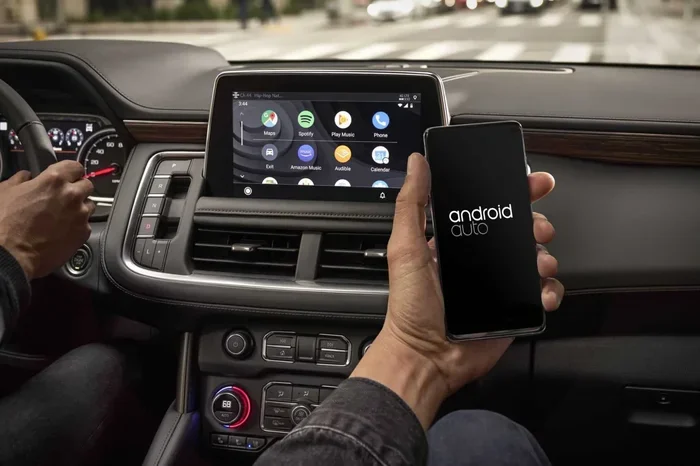
Why Cant I Turn Off Android Auto On My Phone Screen
Many users ask, “Why can’t I turn off Android Auto?” because the app tends to activate automatically when you connect your phone to your car. This guide explains the real reasons behind Android Auto keeps turning on and gives you simple, step-by-step fixes to stop Android Auto from popping up on your phone screen.
Have you ever been sitting at your desk or relaxing at home, and suddenly Android Auto pops up on your phone screen? It happens to millions of people every single day. You try to tap the back button, you swipe it away, and sometimes it just comes right back. The question everyone asks is simple: why can’t I turn off Android Auto?
The truth is, Android Auto is designed to be a helpful companion when you are driving. But when it keeps showing up at the worst times, it becomes a real annoyance. Whether you are trying to use a different app, or you just want a clean phone screen, this problem can drive anyone crazy. The good news is that you are not stuck with it forever.
In this guide, we will walk you through exactly why Android Auto keeps turning on, what triggers it, and how to stop it from taking over your phone screen. We will cover every possible fix, from simple settings changes to more advanced troubleshooting steps. By the end, you will know exactly how to turn off Android Auto on your phone screen and keep it off for good.
Key Takeaways
- Android Auto activates automatically: The app is designed to launch when your phone connects to your car via Bluetooth or USB, which is why it keeps turning on.
- Multiple settings control Android Auto behavior: You can disable Android Auto from your app settings, notification panel, and phone display preferences.
- Third-party apps may trigger Android Auto: Some apps and phone launchers interfere with Android Auto settings and cause it to reappear.
- Phone model matters: Different Android phones have slightly different steps to turn off Android Auto on your phone screen.
- Restarting your phone helps: A simple reboot can clear temporary glitches that prevent Android Auto from turning off.
- Updating the app fixes bugs: Outdated Android Auto versions often cause persistent activation issues that a simple update resolves.
- You can customize, not just disable: If you don’t want to fully turn it off, you can adjust notifications and display settings to reduce interruptions.
📑 Table of Contents
- Why Android Auto Keeps Turning On Automatically
- How to Turn Off Android Auto on Your Phone Screen
- Why Android Auto Won’t Stay Off
- Android Auto Settings You Should Check
- Phone-Specific Fixes for Popular Android Models
- Common Mistakes That Keep Android Auto Active
- Expert Tips to Prevent Android Auto From Popping Up
- When to Keep Android Auto Enabled
- Final Thoughts
Why Android Auto Keeps Turning On Automatically
Understanding why Android Auto activates on its own is the first step to fixing the problem. The app is built with a specific purpose in mind, and several triggers cause it to launch without you asking.
The Bluetooth Connection Trigger
When your phone connects to your car’s Bluetooth system, Android Auto sees this as a signal that you are driving. It automatically launches the car interface on your screen. This is the most common reason Android Auto turns on unexpectedly. Even if you are not in your car, if your phone is still paired with the car’s Bluetooth, the app may activate.
Some phones are more aggressive about this than others. For example, certain Samsung and Google Pixel models will launch Android Auto the moment they detect a paired car device. This behavior is built into the Android Auto settings by default, and many users do not even realize it is happening until the screen pops up.
The USB Cable Factor
If you plug your phone into your car’s USB port, Android Auto will almost always start. The USB connection tells your phone that it is in a car environment. Even if you only plug in your phone to charge, the app may still launch. This happens because the phone interprets the car USB connection as a driving scenario.
Some users notice that Android Auto turns on even hours after they unplug their phone. This can happen if the phone has not fully registered the disconnection from the car system. A quick restart usually fixes this temporary glitch.
Notification and Overlay Permissions
Android Auto uses special permissions to display its interface over other apps. These overlay permissions allow the car screen to appear on top of whatever you are doing. If you have granted these permissions, Android Auto can show up at any time, especially when connected to your car’s system.
The notification system also plays a role. Android Auto often sends persistent notifications that keep the app active in the background. If you do not clear these notifications or disable them, the app may continue running and pop up unexpectedly.
How to Turn Off Android Auto on Your Phone Screen
Now that you understand why Android Auto keeps appearing, let us look at how to actually turn it off. There are several methods you can try, and they work on most Android phones.
Method 1: Disable Android Auto from App Settings
The most direct way to stop Android Auto from turning on is to disable the app itself. Here is how you do it:
- Open the Settings app on your phone.
- Scroll down and tap on Apps or Applications.
- Find and tap on Android Auto in the list.
- Tap on Disable or Force Stop.
- Confirm your choice when prompted.
Once you disable the app, it will not launch automatically anymore. Keep in mind that this also means you will not be able to use Android Auto when you are actually driving unless you re-enable it.
Method 2: Turn Off the Android Auto Home Screen Launcher
Some phones use Android Auto as a default home screen launcher. If this is the case on your device, the app will appear every time you press the home button. To change this:
- Go to Settings and then Home or Default Apps.
- Look for Home App or Default Launcher.
- Select a different launcher, such as Google Now Launcher or Samsung Home.
- Exit settings and press the home button to confirm the change.
This stops Android Auto from being your default home screen. Your phone will now open your chosen launcher instead of the car interface.
Method 3: Disconnect Bluetooth When Not Driving
The simplest way to prevent Android Auto from turning on is to disconnect your phone from your car’s Bluetooth when you are not driving. You can do this manually or set up an automation.
Many phones now offer routine or mode features. For example, Google Pixel phones have Digital Wellbeing routines that can automatically disconnect Bluetooth when you leave your car. Samsung phones have Bixby Routines that do the same thing. Setting these up means you never have to think about turning off Android Auto again.
Method 4: Clear Android Auto Cache and Data
Sometimes the problem is not with your settings but with corrupted data stored by the app. Clearing the cache and data can reset Android Auto and stop it from behaving strangely.
- Go to Settings and then Apps.
- Find Android Auto and tap on it.
- Tap on Storage.
- Press Clear Cache first, then Clear Data.
- Restart your phone.
After clearing the data, Android Auto will reset to its default state. This often fixes the issue where the app keeps turning on by itself.
Why Android Auto Won’t Stay Off
You have tried turning it off, but Android Auto keeps coming back. This is a frustrating experience, but there are specific reasons why this happens.
The App Restarts in the Background
Android Auto is designed to run in the background and stay ready for use. When your phone detects a car connection, even a brief one, the app may restart automatically. Some phones treat Android Auto as a system-level app, which means it is harder to fully shut down.
This behavior is especially common on phones that have aggressive battery optimization settings. The phone may kill other apps but keep Android Auto alive because it considers the app important for driving safety.
Third-Party App Conflicts
Certain apps can interfere with your ability to turn off Android Auto. Apps that manage Bluetooth connections, car accessories, or phone launchers may trigger Android Auto to restart. For example, if you have a dashcam app or a car charging monitor, these apps might accidentally activate Android Auto when they detect a car environment.
To check for app conflicts, try booting your phone in safe mode. In safe mode, all third-party apps are disabled. If Android Auto stops turning on by itself in safe mode, you know that another app is the culprit.
System Updates Change Settings
Phone system updates can reset your Android Auto preferences. After a major Android update, the app may revert to its default behavior, which includes auto-launching when connected to your car. This catches many people off guard because they had successfully turned the app off before the update.
If this happens to you, simply repeat the steps to disable Android Auto after each major system update. It is a small inconvenience, but it keeps your phone screen clean.
Android Auto Settings You Should Check
There are several specific settings inside the Android Auto app that control how and when it appears. Checking these settings can help you fine-tune the app’s behavior.
Turn Off the Always-On Display
Android Auto has an always-on display feature that keeps the car interface visible even when your phone is locked. This feature can cause the app to stay active and show up at unexpected times. To turn it off:
- Open Android Auto on your phone.
- Go to Settings within the app.
- Look for Always Show or Always-On Display.
- Toggle this setting off.
Disabling the always-on display reduces how often Android Auto appears on your screen. It also saves battery life, which is a nice bonus.
Manage Notification Permissions
Android Auto sends notifications that keep the app active in your notification panel. These notifications can also trigger the app to open when you tap them. To manage these:
- Go to Settings and then Apps.
- Select Android Auto and tap on Notifications.
- Turn off notifications for Android Auto or limit them to essential alerts only.
Reducing notifications prevents the app from staying active in the background and popping up on your screen.
Adjust Driving Mode Settings
Many Android phones have a separate driving mode that works alongside Android Auto. This mode can activate automatically based on your location, speed, or Bluetooth connection. To adjust it:
- Open Settings and search for Driving Mode or Car Mode.
- Turn off any automatic driving mode activation.
- Disable the option to launch apps automatically when driving is detected.
Turning off driving mode ensures that Android Auto does not activate just because your phone thinks you are on the road.
Phone-Specific Fixes for Popular Android Models
Different Android phones handle Android Auto a little differently. Here are some specific fixes for popular phone brands.
Samsung Phones
Samsung devices have a feature called Android Auto for Samsung Galaxy, which is a slightly different version of the standard app. To turn it off on a Samsung phone:
- Go to Settings and then Apps.
- Find Android Auto for Samsung Galaxy and tap on it.
- Tap Disable to turn off the app.
- Also check Digital Wellbeing and set up a routine to block the app when not driving.
Samsung phones also have a feature called Car Mode that can trigger Android Auto. Disabling car mode in your phone settings helps prevent the app from launching automatically.
Google Pixel Phones
Pixel phones are closely tied to Android Auto because Google developed both the phone operating system and the app. On Pixel phones:
- Go to Settings and then Apps.
- Tap on Android Auto and select Disable.
- Check Digital Wellbeing settings and set up app timers for Android Auto.
- Use Routine features to automatically disconnect Bluetooth when you leave your car.
OnePlus and Xiaomi Phones
These phones often have aggressive battery management that can cause Android Auto to restart repeatedly. To fix this:
- Go to Settings and then Battery.
- Find Android Auto in the battery optimization list.
- Set it to Unrestricted or Optimize depending on your preference.
- Disable Autostart for Android Auto in the app management settings.
Disabling autostart prevents the app from launching on its own when your phone boots up or when certain triggers occur.
Common Mistakes That Keep Android Auto Active
Many people try to turn off Android Auto but make small mistakes that keep the app running. Here are the most common errors to avoid.
Only Force Stopping Instead of Disabling
Force stopping an app temporarily shuts it down, but it will restart when the phone detects a car connection. To fully stop Android Auto, you need to disable the app entirely through the settings. Force stop is a quick fix, not a permanent solution.
Ignoring Bluetooth Pairing
If your phone is still paired with your car’s Bluetooth system, Android Auto will keep trying to activate. Some users turn off the app but forget to unpair the Bluetooth connection. This means the app will launch again the next time you get in your car or even when the phone detects the car’s Bluetooth signal nearby.
Not Restarting After Making Changes
Android phones sometimes need a restart to fully apply changes to app permissions and settings. If you have turned off Android Auto but it still keeps appearing, try restarting your phone. This simple step often resolves the issue without any complicated troubleshooting.
Forgetting to Update the App
Outdated versions of Android Auto may have bugs that prevent the app from turning off properly. Google regularly releases updates that fix these issues. Make sure you have the latest version of Android Auto installed from the Google Play Store.
Expert Tips to Prevent Android Auto From Popping Up
Here are some expert-level tips that help keep Android Auto from appearing on your phone screen when you do not want it to.
Use Do Not Disturb Mode While Driving
Instead of completely disabling Android Auto, you can use Do Not Disturb mode when you are not driving. This mode silences all notifications and prevents apps from popping up on your screen. You can set it to turn on automatically when you leave your car or at specific times of the day.
Create a Separate User Profile
Some Android phones allow you to create a separate user profile for driving. This profile can have Android Auto enabled while your main profile keeps the app disabled. Switching between profiles takes just a few seconds and keeps your regular phone experience clean.
Use a Third-Party App Blocker
App blocker apps give you more control over which apps can launch and when. You can set rules that prevent Android Auto from opening unless you are in a specific location or connected to a specific Bluetooth device. This gives you precise control without having to manually disable the app every time.
When to Keep Android Auto Enabled
While this guide focuses on turning off Android Auto, there are times when keeping it enabled makes sense. If you use Android Auto daily for navigation and music while driving, completely disabling the app may not be the best choice. Instead, focus on adjusting the settings so it only activates when you are actually driving.
The key is finding a balance between convenience and annoyance. You want Android Auto to work when you need it, but you do not want it interrupting your other phone activities. The methods in this article help you achieve that balance.
Final Thoughts
Why can’t I turn off Android Auto? The answer comes down to how the app is designed to work with your car and your phone. Android Auto is built to be proactive, which means it activates automatically when it detects a car environment. While this is helpful when you are driving, it becomes a problem when the app keeps showing up at inconvenient times.
The good news is that you have many options to take control. From disabling the app in settings to managing Bluetooth connections and adjusting notification permissions, you can stop Android Auto from taking over your phone screen. The fixes in this guide work on most Android phones and do not require any technical expertise.
Remember that the best approach is the one that fits your lifestyle. If you drive daily, you might prefer to adjust settings rather than fully disabling the app. If you rarely use Android Auto, completely turning it off is the way to go. Either way, you now have the knowledge and tools to make Android Auto work the way you want it to.
Take a few minutes today to go through the steps in this guide. Your phone screen will thank you, and you will never have to deal with Android Auto popping up unexpectedly again.
Frequently Asked Questions
Why does Android Auto keep turning on by itself?
Android Auto activates automatically when your phone connects to your car’s Bluetooth or USB system. The app is designed to launch in car environments, which is why it keeps turning on even when you are not driving. Disabling the app or disconnecting Bluetooth when not in use stops this behavior.
Can I completely uninstall Android Auto from my phone?
Most phones do not allow you to fully uninstall Android Auto because it is a pre-installed system app. However, you can disable it through your phone’s settings, which prevents it from running or appearing on your screen. Disabling the app is just as effective as uninstalling it for most users.
Will turning off Android Auto affect my car’s infotainment system?
Turning off Android Auto on your phone does not affect your car’s built-in infotainment system. Your car’s screen will continue to work normally. You simply will not see the Android Auto interface on your phone when connected to the car.
How do I stop Android Auto from appearing on my lock screen?
Go to Settings, then Apps, and select Android Auto. Tap on Notifications and turn off lock screen notifications. You can also disable the always-on display feature within the Android Auto app settings to prevent it from showing on your lock screen.
Does turning off Android Auto save battery life?
Yes, turning off Android Auto can save battery life because the app uses resources to maintain its interface and connection to your car’s system. When disabled, your phone does not spend power keeping the app active in the background or searching for car connections.
What should I do if Android Auto still won’t turn off after trying all the fixes?
If none of the standard fixes work, try clearing the app’s cache and data, then restart your phone. You can also check for app conflicts by booting your phone in safe mode. If the problem persists, consider uninstalling Android Auto updates and reinstalling the app from the Google Play Store, or contact your phone manufacturer’s support team for device-specific help.
=== CONCLUSION ===
Why can’t I turn off Android Auto on my phone screen? The answer is that the app is designed to be persistent, but you have the power to take control. By following the steps in this guide, you can disable Android Auto, manage its settings, and prevent it from interrupting your daily phone use. Whether you use the app settings method, the Bluetooth disconnection trick, or phone-specific fixes, you now have everything you need to keep your phone screen clean and distraction-free. Start with the simplest fix and work your way through the list until you find the solution that works best for your phone and your lifestyle.