Does the 2018 Hyundai Elantra Have Apple CarPlay Now
The 2018 Hyundai Elantra does support Apple CarPlay, but only on select trims and with a wired USB connection. If you own this model, you will want to check your trim level to confirm eligibility. This guide covers everything from setup steps to aftermarket upgrade options, so you can get Apple CarPlay working in your car with confidence.
You just got behind the wheel of your 2018 Hyundai Elantra and you want to know one thing. Does the 2018 Hyundai Elantra have Apple CarPlay? It is a fair question. A lot of drivers count on Apple CarPlay to make their daily commute safer and more convenient. The good news is that the answer is not a simple yes or no. It depends on your trim level, your infotainment setup, and a few other factors that we will walk through right now.
This guide breaks down everything you need to know about Apple CarPlay in the 2018 Hyundai Elantra. We will look at which trims support it, how to set it up, what you need to know about wired connections, and even how to add CarPlay if your car does not have it out of the box. By the end, you will have a clear picture and practical steps you can take right away.
Key Takeaways
- Apple CarPlay is available on the 2018 Hyundai Elantra: but only on higher trims like SEL, Value, and Limited.
- Wired connection is required: the 2018 model does not support wireless CarPlay.
- Check your infotainment system: the 8-inch touchscreen is needed for full CarPlay functionality.
- Aftermarket head units can add CarPlay: if your trim does not come with it stock.
- Setup is simple: just plug in your iPhone with a Lightning cable and follow the on-screen prompts.
- Firmware updates matter: keeping your system updated ensures the best CarPlay performance.
- Android Auto is also available: on the same trims for Android users.
📑 Table of Contents
- What Is Apple CarPlay and Why Does It Matter?
- Does the 2018 Hyundai Elantra Have Apple CarPlay?
- Which 2018 Elantra Trims Support Apple CarPlay?
- How to Set Up Apple CarPlay in Your 2018 Elantra
- Apple CarPlay vs. Android Auto in the 2018 Elantra
- Upgrading Your 2018 Elantra for Apple CarPlay
- Common Issues and How to Fix Them
- Expert Tips for Getting the Most Out of CarPlay
- Final Thoughts
What Is Apple CarPlay and Why Does It Matter?
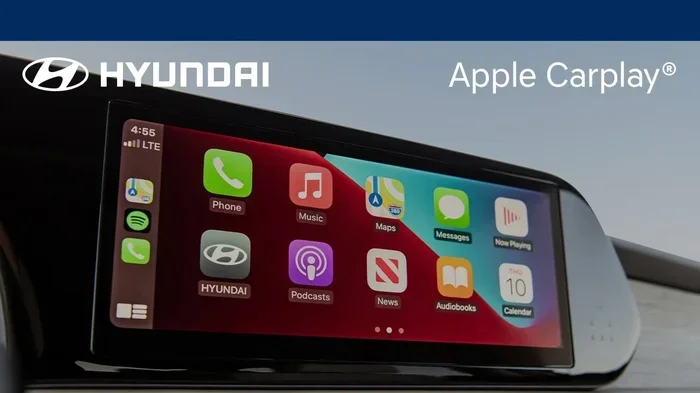
Apple CarPlay is a smart feature that connects your iPhone to your car’s infotainment system. Once connected, you can access your apps, make calls, send messages, and get directions all without touching your phone. The system mirrors the most useful parts of your iPhone onto your car’s touchscreen. This means you keep your eyes on the road and your hands on the wheel.
The feature was designed with driver safety in mind. Apple built CarPlay to work with Siri voice commands, so you can dictate texts, make calls, and get directions using just your voice. The hands-free calling and messaging capabilities make it one of the most popular smartphone integration tools on the market today.
How Does Apple CarPlay Work?
When you plug your iPhone into your car using a USB connection, the CarPlay interface appears on your touchscreen. You see a clean, simplified layout with large icons for Phone, Messages, Music, Maps, and more. You can tap the screen or use Siri voice commands to navigate. The system also supports Bluetooth connectivity for audio streaming and calls.
Most modern iPhones work with CarPlay right out of the box. You just need a Lightning cable or, in newer models, a wireless connection. The 2018 Hyundai Elantra uses the wired method, which is reliable and widely supported.
Why Drivers Love CarPlay
There are several reasons why Apple CarPlay has become a must-have feature for so many drivers. Here are the biggest benefits:
- Safer driving: You keep your phone out of your hands and eyes where they belong.
- Familiar interface: CarPlay looks and feels like your iPhone, so there is almost no learning curve.
- Navigation on the go: You can use Apple Maps or third-party apps like Google Maps and Waze for turn-by-turn directions.
- Music and podcasts: Access Spotify, Apple Music, Podcasts, and more directly through your car’s sound system.
- Seamless connection: Your phone pairs quickly and the system stays stable once connected.
Does the 2018 Hyundai Elantra Have Apple CarPlay?
The short answer is yes, but with a catch. The 2018 Hyundai Elantra does support Apple CarPlay, but it is not available on every trim level. Hyundai made CarPlay available on the higher-end trims, which means if you bought the base model, you might not have it. This is an important detail to understand before you assume your car has the feature.
The 2018 Elantra came with Hyundai’s infotainment system, which included an 8-inch touchscreen on most equipped models. This screen is CarPlay compatible and provides a clear, responsive display for navigation, music, and calls. However, older or base models with smaller screens may not support the feature at all.
What You Need for CarPlay in a 2018 Elantra
Before you try to use Apple CarPlay, make sure you have the right setup. Here is what you need:
- A compatible trim level: SEL, Value, or Limited trims typically include CarPlay support.
- The 8-inch touchscreen infotainment system: This is the display that runs the CarPlay interface.
- An iPhone 5 or newer: All iPhones from the 5 onward support CarPlay compatible devices.
- A Lightning USB cable: The 2018 Elantra uses a wired connection, so you need the right cable.
- Updated firmware: Make sure your infotainment system is running the latest software version.
If you have all of these things, you should be able to use Apple CarPlay without any problems. If your car has the touchscreen but CarPlay does not appear when you plug in your phone, check for a firmware update or try a different cable.
Which 2018 Elantra Trims Support Apple CarPlay?
Not every 2018 Hyundai Elantra trim comes with Apple CarPlay. Hyundai offered several trim levels for the 2018 Elantra, and CarPlay availability varied. Understanding which trim you have is the first step to knowing if your car supports this feature.
Trim Levels and CarPlay Availability
Here is a breakdown of the 2018 Elantra trims and their Apple CarPlay support:
- SE (Base Trim): The base SE trim typically did not come with Apple CarPlay as standard. It had a smaller display or a basic audio system without smartphone integration. However, some SE models with the optional touchscreen infotainment package may have included CarPlay.
- Value Trim: This mid-range trim usually included Apple CarPlay as part of the infotainment system package. It was one of the more popular trims for buyers who wanted smartphone integration without paying for the top-tier model.
- SEL Trim: The SEL trim almost always came with Apple CarPlay support. It featured the 8-inch touchscreen and a full suite of connectivity options.
- Limited Trim: The top-tier Limited trim included Apple CarPlay as standard. It also offered premium features like wireless charging and a navigation system that worked seamlessly with CarPlay.
How to Check Your Trim Level
If you are not sure which trim your 2018 Elantra has, there are a few easy ways to find out. You can check your owner’s manual, look at the badge on the car, or check your VIN number online. The VIN will tell you exactly what factory options your car came with, including whether it has Apple CarPlay support.
Another quick method is to simply plug in your iPhone. If the CarPlay interface appears on your screen, you are good to go. If nothing happens or you see a message saying CarPlay is not supported, your trim may not have the feature.
How to Set Up Apple CarPlay in Your 2018 Elantra
Setting up Apple CarPlay in your 2018 Hyundai Elantra is straightforward. Even if you are not very tech-savvy, you can get it working in just a few minutes. Follow these steps carefully and you will be connected in no time.
Step-by-Step Setup Process
- Start your car: Turn the ignition to the on position. You do not need to start the engine, but the infotainment system must be powered on.
- Plug in your iPhone: Use a Lightning USB cable and connect it to the USB port in your car. The port is usually located on the center console or the armrest area.
- Unlock your iPhone: Make sure your phone is unlocked and you have tapped “Trust” on the computer prompt if it appears.
- Select CarPlay: On your car’s touchscreen, look for the CarPlay icon or the smartphone integration option. Tap it to enter the CarPlay interface.
- Allow permissions: CarPlay may ask for permission to access your contacts, messages, and music. Allow these so you can use all the features.
- Use Siri or the touchscreen: You can now make calls, send messages, and use navigation apps hands-free.
Quick Tips for a Smooth Setup
- Use an Apple-certified cable: Cheap or damaged cables can cause connection issues. A certified Lightning cable ensures a stable USB connection.
- Restart both devices: If CarPlay does not appear, restart your iPhone and your car’s infotainment system. This fixes most connection problems.
- Keep your iPhone updated: Make sure you are running the latest iOS version. Updates often include CarPlay setup improvements and bug fixes.
- Clean the USB port: Dust or debris in your car’s USB port can interfere with the connection. A quick check can save you a lot of frustration.
Apple CarPlay vs. Android Auto in the 2018 Elantra
If you have an Android phone or you are comparing options, you might wonder how Apple CarPlay stacks up against Android Auto. Both are smartphone integration platforms, but they work a bit differently. The good news is that the 2018 Hyundai Elantra supports both systems on the same trims.
Key Differences
Here is a quick look at how the two systems compare in the 2018 Elantra:
- Apple CarPlay: Works with iPhones and uses Siri for voice commands. The interface is clean, with large icons and a focus on safety.
- Android Auto: Works with Android phones and uses Google Assistant. It offers similar features like navigation, messaging, and music streaming.
- Connection method: Both require a wired USB connection in the 2018 model. Neither supports wireless CarPlay or wireless Android Auto on this year.
- App compatibility: CarPlay supports Apple Maps, Google Maps, Waze, Spotify, and Apple Music. Android Auto supports Google Maps, Spotify, Pandora, and more.
Both systems are excellent for hands-free calling and navigation apps. Your choice mostly comes down to which phone you use. If you have an iPhone, Apple CarPlay is the natural choice. If you have an Android phone, Android Auto is your best bet.
Upgrading Your 2018 Elantra for Apple CarPlay
If your 2018 Hyundai Elantra does not come with Apple CarPlay from the factory, do not worry. You still have options. There are several ways to add smartphone integration to your car, even if it did not come with it stock.
Aftermarket Head Unit Upgrade
The most popular way to add CarPlay to a 2018 Elantra is by replacing the factory head unit with an aftermarket unit that supports Apple CarPlay. Aftermarket head units are widely available and come in different price ranges. Some popular brands include Pioneer, Kenwood, and Sony. These units offer wireless CarPlay, better sound quality, and modern features that the factory system may lack.
A head unit upgrade typically costs between $200 and $500 for the unit itself. Installation can be done by a professional or a handy DIYer. The process involves removing the factory unit, wiring in the new head unit, and connecting the USB connection for CarPlay. Many aftermarket units also support Android Auto, giving you the best of both worlds.
Other Upgrade Options
Besides a full head unit swap, there are a few other ways to get CarPlay working in your 2018 Elantra:
- CarPlay adapter modules: These small devices plug into your factory system and add CarPlay support. They are less invasive than a full head unit replacement but may have limited features.
- Bluetooth CarPlay dongles: Some aftermarket dongles offer a wireless CarPlay experience through Bluetooth. These are compact and easy to install.
- Firmware updates: In some cases, a firmware update from your dealer can unlock CarPlay features on compatible models. It is worth asking your dealer if your trim qualifies.
Things to Consider Before Upgrading
Before you spend money on an upgrade, consider a few things. First, check if your factory system already supports CarPlay but it is just turned off or needs a software update. Second, make sure any aftermarket unit you buy is CarPlay compatible with your specific car model. Third, think about whether you want a wired or wireless setup. Wireless Apple CarPlay is more convenient but usually costs more.
Also, keep in mind that adding an aftermarket head unit may void certain warranties or affect your car’s factory safety features. Do your research and talk to a trusted installer before making any changes.
Common Issues and How to Fix Them
Even when everything is set up correctly, you might run into problems with Apple CarPlay in your 2018 Elantra. Here are some common issues and how to solve them.
- CarPlay does not appear on the screen: Try a different USB cable or a different USB port. Restart both your iPhone and the infotainment system.
- CarPlay disconnects frequently: This is often caused by a loose cable connection. Make sure the cable is securely plugged in. A firmware update can also fix this issue.
- Siri voice commands do not work: Check that Siri is enabled on your iPhone and that your car’s microphone is not muted.
- Maps do not load: Make sure you have an active data connection and that your navigation app is up to date.
- Audio cuts out during calls: This can happen if the Bluetooth connectivity is not set up correctly. Check your audio settings in the infotainment system.
Most of these issues are easy to fix and do not require a trip to the mechanic. A simple restart or cable swap solves the problem in most cases.
Expert Tips for Getting the Most Out of CarPlay
Once you have Apple CarPlay up and running in your 2018 Hyundai Elantra, there are a few things you can do to get the most out of it. These tips come from experienced drivers who use CarPlay every day.
- Use Siri for everything: The safest way to use CarPlay is through voice commands. Say “Hey Siri” to make calls, send texts, and get directions without ever touching your phone.
- Organize your favorites: Pin your most-used apps in CarPlay for quick access. This saves time and keeps your screen uncluttered while driving.
- Keep your cable in good shape: A worn-out Lightning cable can cause intermittent connection problems. Replace it every year or so.
- Use Apple Maps for navigation: While third-party apps work great, Apple Maps is deeply integrated with CarPlay and tends to be the most stable option.
- Enable Do Not Disturb While Driving: This iPhone feature works hand-in-hand with CarPlay to reduce distractions. It silences notifications and auto-replies to texts.
Final Thoughts
So, does the 2018 Hyundai Elantra have Apple CarPlay? Yes, it does, but it depends on your trim level and infotainment setup. Higher trims like the SEL, Value, and Limited come with CarPlay compatible systems and the 8-inch touchscreen that makes the feature shine. If your car does not have it, you can always add it through an aftermarket head unit upgrade or adapter.
Setting up Apple CarPlay in your 2018 Elantra is easy and takes just a few minutes. Once connected, you will wonder how you ever drove without it. The hands-free calling, navigation apps, and smartphone integration make every drive safer and more enjoyable.
Take a few minutes today to check your trim level and try the setup process. If your car does not support CarPlay out of the box, consider the upgrade options we discussed. Either way, you will be able to enjoy the full benefits of Apple CarPlay in your 2018 Hyundai Elantra. Safe driving and happy connecting.
Frequently Asked Questions
Can I get Apple CarPlay on a base 2018 Hyundai Elantra SE trim?
The base SE trim typically did not include Apple CarPlay as standard. However, some SE models equipped with the optional touchscreen infotainment package may have CarPlay support. Check your owner’s manual or contact a Hyundai dealer with your VIN number to confirm.
Does the 2018 Elantra support wireless Apple CarPlay?
No, the 2018 Hyundai Elantra only supports wired Apple CarPlay through a USB connection. Wireless CarPlay was not available on this model year. You will need a Lightning cable to connect your iPhone.
Can I add Apple CarPlay to my 2018 Elantra if it does not have it?
Yes, you can add CarPlay through an aftermarket head unit upgrade. Popular brands like Pioneer and Kenwood offer CarPlay-compatible head units that fit the 2018 Elantra. You can also use CarPlay adapter modules for a simpler installation.
What iPhone models work with Apple CarPlay in the 2018 Elantra?
Any iPhone 5 or newer supports Apple CarPlay. This includes the iPhone 5s, iPhone 6, iPhone 7, iPhone 8, iPhone X, and all newer models. Make sure your iPhone is running the latest iOS version for the best performance.
How do I know if my 2018 Elantra has the 8-inch touchscreen?
The 8-inch touchscreen is standard on the Value, SEL, and Limited trims. If your car has a small non-touchscreen display, it likely does not support Apple CarPlay. You can also check your owner’s manual or look up your VIN on Hyundai’s website.
Is Android Auto available on the 2018 Hyundai Elantra?
Yes, the 2018 Hyundai Elantra supports Android Auto on the same trims that offer Apple CarPlay. Both systems use the same 8-inch touchscreen and require a wired USB connection. Android Auto works with Android phones and offers similar features to CarPlay.