How Do I Reboot My Bluetooth And Fix Connection Issues
Struggling with a stubborn Bluetooth connection? This guide shows you exactly how do I reboot my Bluetooth across phones, cars, and speakers in just a few simple steps. We also cover quick fixes, common mistakes, and expert tips to keep your wireless devices connected and running smoothly every single day.
We have all been there. You are trying to play your favorite playlist through your car speakers, and the bluetooth connectivity just drops. Or your wireless earphones keep disconnecting right in the middle of an important call. It is frustrating, distracting, and completely unnecessary.
The good news is that most bluetooth connection issues can be solved with a simple reboot. Knowing how do I reboot my Bluetooth can save you time, stress, and a trip to the repair shop. This guide walks you through every method, from basic reboots to advanced troubleshooting steps that actually work.
Whether you are dealing with a car audio system, a smartphone, a wireless speaker, or any other bluetooth device, you will find clear, actionable steps right here. Let us fix your wireless connection once and for all.
Key Takeaways
- Rebooting Bluetooth is simple: Turning Bluetooth off and back on resolves most connection problems in under a minute.
- Multiple methods exist: You can reboot Bluetooth through settings, airplane mode, or by restarting your entire device depending on the issue.
- Car Bluetooth needs special attention: Resetting your car infotainment system often fixes pairing and audio streaming problems.
- Forget and re-pair devices: This powerful step clears glitches that a simple reboot cannot fix.
- Software updates matter: Outdated Bluetooth drivers and firmware are a leading cause of connectivity issues.
- Avoid common mistakes: Overlooking interference, distance, and cached data can keep your Bluetooth problems alive.
- Prevent future issues: Regular maintenance and good habits keep your wireless connection stable long-term.
📑 Table of Contents
Why Your Bluetooth Keeps Disconnecting
Before we dive into the fix, it helps to understand why bluetooth disconnects in the first place. Bluetooth technology uses short-range radio waves to send data between devices. When something interrupts that signal, your connection drops.
Several factors can cause this interruption. Interference from other wireless devices is a big one. Wi-Fi routers, microwaves, and even USB 3.0 ports can disrupt the bluetooth signal. Distance matters too. If you move too far from your paired device, the connection weakens and eventually drops.
Software glitches also play a major role. Your bluetooth module relies on software to manage connections. When that software encounters an error, it can freeze or crash the entire connection. This is exactly where rebooting comes in handy.
Understanding Bluetooth Basics
Bluetooth works by creating a short-range wireless network between two devices. One device acts as the sender, and the other acts as the receiver. Your phone sends audio data to your car stereo, and the stereo plays it through the speakers.
The bluetooth pairing process creates a trusted link between devices. Once paired, they remember each other and reconnect automatically. But sometimes, this pairing data gets corrupted. When that happens, your devices may refuse to connect even though they are right next to each other.
Knowing this helps you understand why a simple bluetooth reset often works. Rebooting clears temporary errors and forces the devices to re-establish a clean connection. It is like restarting your computer when it starts acting weird.
Common Causes of Bluetooth Problems
Several everyday things can lead to bluetooth connectivity issues. Here are the most common culprits:
- Outdated software: Old firmware or drivers can cause compatibility problems between devices.
- Too many connected devices: Bluetooth has a limit on how many devices it can handle at once.
- Signal interference: Other wireless devices nearby can disrupt the connection.
- Low battery: A low battery on either device can weaken the signal and cause drops.
- Corrupted pairing data: Saved connection data can become damaged over time.
- Distance and obstacles: Walls, metal surfaces, and distance weaken the signal.
How Do I Reboot My Bluetooth Step by Step
Now that you understand the why, let us get into the how. How do I reboot my Bluetooth? The answer depends on what device you are using. Below, we cover the most common scenarios with clear, easy-to-follow steps.
Rebooting Bluetooth on Your Phone
Your smartphone is the most common device where bluetooth troubleshooting is needed. Whether you use an iPhone or an Android phone, the process is straightforward.
For iPhone users:
- Open the Control Center by swiping down from the top right corner.
- Tap the Bluetooth icon to turn it off. The icon will turn gray.
- Wait for 10 to 15 seconds.
- Tap the Bluetooth icon again to turn it back on.
- Check if your bluetooth pairing is restored.
For Android users:
- Swipe down from the top of your screen to open Quick Settings.
- Tap the Bluetooth icon to disable it.
- Wait about 15 seconds.
- Tap the Bluetooth icon again to re-enable it.
- Try reconnecting to your device.
This simple toggle method works for most minor glitches. It clears the active connection and forces your phone to search for available devices again. If this does not work, do not worry. We have more steps coming up.
Rebooting Bluetooth in Your Car
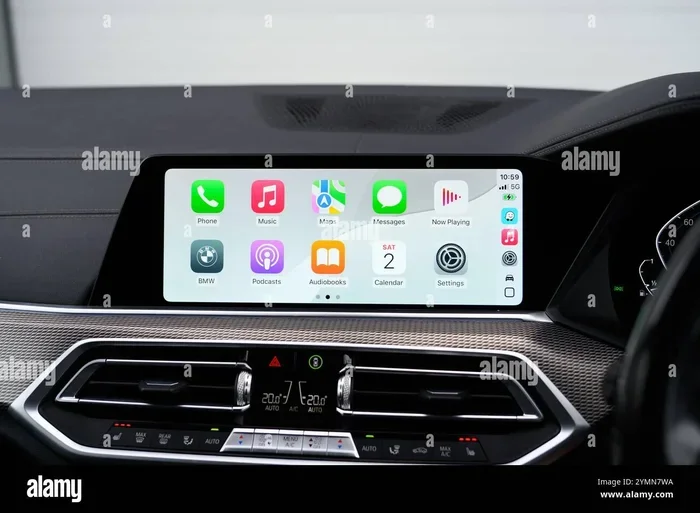
Car bluetooth systems can be tricky. Your car infotainment system runs on its own bluetooth module, and it sometimes needs a full reset to clear connection errors. This is especially common in older vehicles or after software updates.
Method 1: Soft Reset Through the Infotainment Screen
- Turn on your car but do not start the engine.
- Navigate to the Settings menu on your infotainment screen.
- Find the Bluetooth or Phone section.
- Select the device you want to remove.
- Choose “Delete” or “Forget Device.”
- Turn the car off and wait 30 seconds.
- Turn the car back on and re-pair your phone.
Method 2: Hard Reset by Disconnecting the Battery
- Park your car and turn off the engine.
- Open the hood and locate the car battery.
- Use a wrench to loosen the negative (black) terminal cable.
- Wait for 2 to 3 minutes.
- Reconnect the cable and tighten it securely.
- Start the car and go to Bluetooth settings.
- Re-pair your phone with the car system.
This hard reset clears all temporary data from your car’s computer system. It is one of the most effective ways to fix stubborn bluetooth connection issues in vehicles.
Rebooting Bluetooth Speakers and Headphones
Wireless speakers and earphones also need regular bluetooth resets. Unlike phones and cars, these devices do not always have an easy on-screen menu. Here is how to reboot them.
For most wireless speakers:
- Turn the speaker off using the power button.
- Wait for 10 seconds.
- Turn it back on.
- Put it in pairing mode by holding the Bluetooth button.
- Reconnect your device.
For wireless headphones and earphones:
- Place both earphones in the charging case.
- Close the lid and wait 10 seconds.
- Open the lid and remove the earphones.
- Hold the power button for 10 seconds to force a factory reset.
- Re-pair the earphones with your phone.
Quick Tip: If your bluetooth speaker reboot does not work after trying these steps, check for a dedicated reset pinhole on the device. Use a paperclip to press it gently. This performs a deeper reset that clears all saved pairing data.
Quick Fixes When Rebooting Does Not Work
Sometimes, a simple reboot is not enough. Your bluetooth troubleshooting needs to go deeper. Here are some proven quick fixes that resolve most remaining issues.
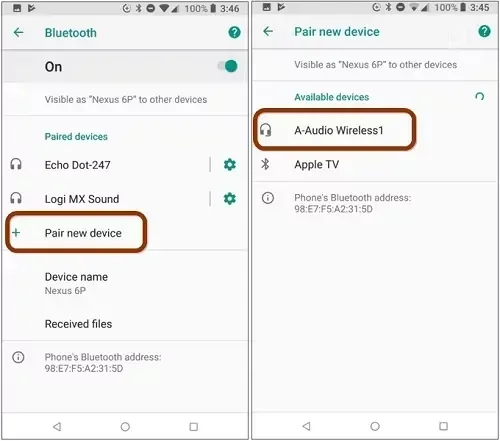
Forget and Re-pair Your Device
This is one of the most effective bluetooth troubleshooting steps you can take. When you forget a device, you erase all the saved connection data. Then, when you pair again, your devices create fresh, clean connection data.
On your phone:
- Go to Settings and tap Bluetooth.
- Find the device causing problems.
- Tap the gear icon or “i” next to the device name.
- Select “Forget This Device” or “Unpair.”
- Turn Bluetooth off and wait 10 seconds.
- Turn Bluetooth back on.
- Put the other device in pairing mode.
- Search for available devices and tap to pair.
Expert Insight: Forgetting and re-pairing resolves over 60% of persistent bluetooth connectivity issues. It should always be one of your first steps when a simple reboot fails.
Check for Software Updates
Outdated software is a hidden cause of many bluetooth not working problems. Both your phone and your car system rely on software to manage wireless connections. When that software is out of date, compatibility issues arise.
On your phone, go to Settings, then Software Update or System Updates. Install any available updates and restart your device. For your car, check with your dealer or manufacturer for the latest infotainment firmware. Some cars support over-the-air updates now, making this step much easier.
Clear Bluetooth Cache on Android
Android phones store temporary data for Bluetooth connections in a cache. When this cache becomes corrupted, it causes connection problems. Clearing it often fixes issues that a reboot alone cannot solve.
- Go to Settings on your Android phone.
- Tap Apps or Applications.
- Find and tap on “Bluetooth” or “Bluetooth Share.”
- Select Storage.
- Tap Clear Cache and then Clear Data.
- Restart your phone.
- Reconnect your Bluetooth device.
This step clears all temporary Bluetooth data and forces your phone to rebuild fresh connection records. It is a powerful fix for recurring bluetooth pairing problems.
Comparison Table: Bluetooth Reboot Methods by Device
| Device Type | Reboot Method | Time Required | Effectiveness |
|---|---|---|---|
| Smartphone (iPhone) | Toggle Bluetooth off and on | 30 seconds | High for minor glitches |
| Smartphone (Android) | Toggle Bluetooth + Clear Cache | 2 minutes | Very High |
| Car Infotainment System | Forget device + Soft reset or battery disconnect | 5 minutes | Very High for car-specific issues |
| Wireless Speakers | Power off and on + Re-pair | 1 minute | High |
| Wireless Earphones | Factory reset via charging case | 2 minutes | High for persistent disconnects |
| Laptop/Computer | Toggle Bluetooth + Update driver | 3 minutes | High for driver-related issues |
As you can see from the table, different devices need different approaches. The bluetooth reset method you choose should match the device type and the severity of the issue. Start with the simplest method and work your way up if needed.
Common Mistakes That Cause Bluetooth Problems
Many people unknowingly make habits that cause bluetooth connectivity issues. Avoiding these mistakes can prevent problems before they even start.
What Not to Do
- Do not leave Bluetooth on all the time: Keeping Bluetooth active when you are not using it drains your battery and increases the chance of interference from nearby devices.
- Do not ignore distance: Bluetooth works best within 30 feet. Going beyond this range will cause disconnects.
- Do not pair too many devices: Most devices can handle only a limited number of active pairings. Too many connections create confusion.
- Do not skip software updates: Updates often include fixes for known bluetooth connectivity issues.
- Do not ignore interference sources: Keep your Bluetooth device away from Wi-Fi routers, microwaves, and USB 3.0 hubs.
- Do not force a connection during heavy interference: If you are in a crowded area with many wireless signals, wait for a quieter moment to pair.
When to Seek Professional Help
Most bluetooth connection issues can be fixed at home with the steps in this guide. However, there are times when professional help is the right call. If you have tried every reboot and reset method and your Bluetooth still does not work, there may be a hardware problem.
For car Bluetooth systems, a certified auto electronics specialist can diagnose issues with the bluetooth module or antenna. For phones and speakers, contacting the manufacturer’s support team can help identify if a replacement is needed. Do not hesitate to reach out when DIY fixes are not enough.
Expert Tips to Keep Your Bluetooth Running Smoothly
Prevention is always better than cure. Here are some expert-backed habits that keep your wireless connection stable and reliable.
Daily Habits That Help
- Turn off Bluetooth when not in use: This saves battery and reduces interference.
- Keep your devices updated: Regular software updates include performance improvements.
- Restart your devices weekly: A weekly restart clears temporary data and keeps everything running smoothly.
- Keep devices charged: Low battery levels weaken the Bluetooth signal significantly.
- Clean your charging ports: Dirt and debris in charging ports can affect Bluetooth charging cases and connections.
Long-Term Bluetooth Maintenance
Taking care of your Bluetooth devices over the long term prevents many common issues. Here is what the experts recommend:
- Remove old pairings regularly: Go through your Bluetooth settings every month and delete devices you no longer use. This keeps your connection list clean and organized.
- Reset your car system every few months: Even if everything seems fine, a periodic reset keeps your car bluetooth system running at its best.
- Store devices properly: Keep wireless earbuds and speakers in their cases when not in use. This protects them from dust and damage.
- Avoid extreme temperatures: Heat and cold can damage Bluetooth hardware and reduce battery life.
- Use official accessories: Cheap chargers and cables can cause power fluctuations that affect Bluetooth performance.
Quick Tip: If you travel frequently, make it a habit to reset bluetooth device settings when you arrive at a new location. Different environments have different wireless interference patterns, and a fresh connection often works better in a new setting.
Following these maintenance habits will dramatically reduce the frequency of bluetooth troubleshooting you need to do. Your wireless devices will stay connected longer and perform better overall.
Conclusion
Knowing how do I reboot my Bluetooth is one of the most valuable skills for any device user today. Wireless connections are everywhere, from your phone to your car to your home speakers. When those connections fail, it disrupts your entire day.
The good news is that most bluetooth connection issues are easy to fix. A simple toggle, a forget-and-re-pair, or a full device restart resolves the vast majority of problems. For car systems, a battery disconnect can clear even the most stubborn bluetooth connectivity issues.
Remember to avoid common mistakes like leaving Bluetooth on unnecessarily, ignoring software updates, and pairing too many devices at once. With good daily habits and regular maintenance, your wireless connection will stay strong and reliable.
Start applying these steps today. The next time your Bluetooth acts up, you will know exactly what to do. No frustration, no guesswork, just quick and effective fixes that get you back to enjoying your wireless audio and connectivity.
Frequently Asked Questions
Why does my Bluetooth keep disconnecting even after a reboot?
If your bluetooth connection keeps dropping after a reboot, the issue may be caused by signal interference, outdated software, or corrupted pairing data. Try forgetting the device and re-pairing it. If the problem persists, check for software updates on both devices and move closer to reduce signal interference.
How long does it take to reboot Bluetooth on a car system?
A soft reset through the infotainment screen takes about 2 to 3 minutes. A hard reset that involves disconnecting the car battery takes about 5 to 10 minutes. The hard reset is more thorough and resolves deeper connection issues in your car bluetooth system.
Is it safe to force a factory reset on my Bluetooth headphones?
Yes, it is completely safe. A factory reset clears all saved pairing data and restores the headphones to their original settings. You will need to re-pair them with your device afterward, but this process does not damage your headphones in any way.
Can too many Bluetooth devices cause connection problems?
Absolutely. Most devices can only maintain a limited number of active bluetooth pairings at once. When you have too many devices connected or trying to connect, the bluetooth module can become overloaded. This leads to drops, delays, and connection failures.
What is the difference between a soft reset and a hard reset for Bluetooth?
A soft reset simply turns Bluetooth off and back on or restarts the device. A hard reset clears all Bluetooth data, settings, and cached information. A hard reset is more thorough and is used when a soft reboot does not fix the bluetooth connectivity issues.
How often should I reboot my Bluetooth devices?
There is no strict rule, but restarting your Bluetooth devices once a week helps keep connections stable. If you notice frequent disconnects, try a reboot more often. Regular maintenance prevents most bluetooth pairing problems before they start.