How Do I Put My Phone in Pairing Mode for Beginners
Putting your phone in pairing mode is the first step to connecting it to your car’s Bluetooth system. This simple process works on both Android and iPhone devices and takes less than a minute. Once you know the steps, you can enjoy hands-free calling and music streaming every time you get behind the wheel. This guide walks you through the entire process with clear, easy-to-follow instructions. You will also learn how to fix common pairing problems and keep your connection strong.
Have you ever gotten into your car, ready to hit the road, only to realize you have no idea how to connect your phone? You are not alone. Many people struggle with phone connectivity the first few times they try it. The good news is that putting your phone in pairing mode is much simpler than it looks.
Whether you drive a new sedan or an older model, the process is almost the same. This guide will show you exactly what to do. We will cover everything from basic steps to troubleshooting tips. By the end, you will feel confident connecting your device every time you get in the car.
Key Takeaways
- Pairing mode makes your phone visible: It lets nearby devices like your car’s infotainment system find and connect to your phone.
- The process is simple on both Android and iPhone: You just need to open your Bluetooth settings and toggle it on.
- Car Bluetooth setup takes a few extra steps: You must also put your car in discovery mode and enter a pairing code if needed.
- Common issues are easy to fix: Restarting both devices usually solves most Bluetooth connection problems.
- Keeping your phone updated helps: Software updates often improve phone connectivity and fix known bugs.
- You can pair multiple devices: Most cars let you save several phones for seamless switching between drivers.
- Wireless car kits work the same way: Any Bluetooth device follows the same basic pairing process.
📑 Table of Contents
What Is Pairing Mode and Why Do You Need It?
Before we dive into the steps, let us talk about what pairing mode actually means. Think of it like ringing a doorbell. When your phone is in pairing mode, it sends out a signal that says, “Hey, I am here! Come connect to me.” This signal is called Bluetooth visibility, and it allows other devices to find your phone.
Your car’s infotainment system works the same way. When you put your car in pairing mode, it starts looking for nearby devices. Once both devices see each other, they can form a wireless connection. This connection lets you make hands-free calling, stream music, and even use navigation apps through your car’s speakers.
Mobile device pairing is not just about convenience. It is also about safety. Studies show that hands-free calling reduces distractions while driving. When your phone is connected through automotive Bluetooth, you can keep your eyes on the road and your hands on the wheel.
How Does Bluetooth Pairing Work?
Bluetooth uses short-range radio waves to connect devices. The typical Bluetooth range is about 30 feet. When two devices pair, they exchange a small piece of data called a pairing code. This code acts like a handshake. It confirms that both devices trust each other and can share information safely.
After the first pairing, your devices usually remember each other. The next time you get in the car, the connection happens automatically. This is what makes phone sync so convenient once it is set up the first time.
How to Put Your Phone in Pairing Mode Step by Step
Now let us get into the actual steps. The process depends on whether you use an Android phone or an iPhone. Below, we will walk you through both. Follow along carefully, and you will be connected in no time.
For Android Phones
Android phones make it easy to enter pairing mode. Here is exactly what to do:
- Open your Settings app. Look for the gear icon on your home screen or app drawer.
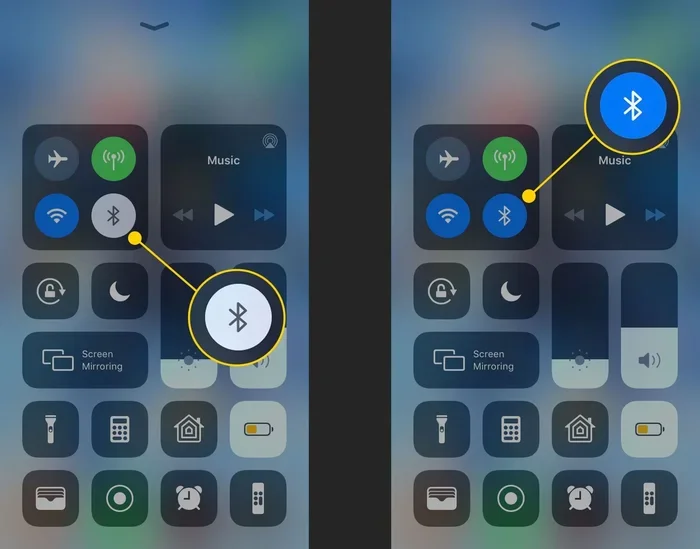
- Tap on Bluetooth. It is usually near the top of the settings menu. You can also swipe down from the top of your screen and tap the Bluetooth icon for quick access.
- Turn Bluetooth on. Tap the switch so it turns blue or green, depending on your phone.
- Check that your phone is visible. On most Android phones, you will see a toggle that says “Visible to all nearby Bluetooth devices.” Make sure this is turned on.
- Wait for your car to appear. Your phone will now search for available devices. This is called device discovery. Your car should show up in a few seconds.
- Tap on your car’s name. If a pairing code appears on both screens, make sure they match. Then tap Pair or Connect.
That is it! Your phone connectivity should be established. You may hear a confirmation sound from your car’s speakers.
For iPhones
iPhone users will find the process just as straightforward:
- Open the Settings app. It is the gray gear icon on your home screen.
- Tap Bluetooth. It is the second option down in the settings menu.
- Toggle Bluetooth on. The switch should turn green.
- Make sure your iPhone is discoverable. iPhones are automatically visible when Bluetooth is on and you have not paired with the device before.
- Look for your car under Other Devices. Tap on your car’s name when it appears.
- Enter the pairing code if prompted. Your car’s screen will show a code. Type it into your iPhone and tap Pair.
Once paired, your iPhone will remember the connection. Future phone sync sessions will happen automatically when you turn on your car.
Quick Tips for Faster Pairing
- Make sure your phone battery is at least 20%. Low battery can sometimes interfere with device connection.
- Turn off other Bluetooth devices nearby. Too many active devices can slow down device discovery.
- Restart your phone before trying to pair. This clears any temporary glitches that might block wireless car kit connections.
- If your car has a touchscreen, try using the physical buttons to access Bluetooth settings. Sometimes the touchscreen is slow to respond.
How to Pair Your Phone with Your Car
Putting your phone in pairing mode is only half the process. You also need to make sure your car is ready to receive the connection. Here is how to set up car Bluetooth setup on both sides.
Step 1: Put Your Car in Pairing Mode
Every car is a little different, but the general steps are similar. Start your car and look for the Bluetooth or Phone button on your dashboard or steering wheel. On some cars, you need to go into the settings menu on the infotainment screen and select Bluetooth. Then choose the option that says “Search for Devices” or “Add New Device.”
Your car’s screen should now show a pairing mode indicator. This might be a flashing Bluetooth symbol or a message that says “Searching for devices.” At this point, your car is actively looking for your phone.
Step 2: Find Your Car on Your Phone
Now go back to your phone. Under the list of available Bluetooth devices, you should see your car’s name. Tap on it to begin the connection. If a pairing code appears on both screens, confirm that they match and tap Pair.
Step 3: Test the Connection
Once paired, try making a test call or playing some music. This confirms that your phone connectivity is working properly. If you hear sound through your car speakers and can answer calls, you are all set.
What If My Car Does Not Show Up on My Phone?
This is one of the most common Bluetooth troubleshooting issues. There are a few reasons this might happen:
- Your car is not in pairing mode. Go back and make sure you followed the car’s steps correctly.
- Your phone’s Bluetooth visibility is turned off. Check your Bluetooth settings and ensure the “Visible” option is on.
- You are too far from the car. Move closer to the vehicle. Bluetooth range is usually about 30 feet.
- The car’s Bluetooth system is full. Some cars can only store a limited number of paired devices. Try deleting old connections you no longer use.
Common Pairing Problems and How to Fix Them
Even when you follow every step correctly, things can go wrong. Bluetooth troubleshooting is a normal part of the process. Here are the most common issues and how to solve them.
Phone Connects But No Sound
If your phone pairs successfully but you cannot hear music or calls through your car speakers, try this:
- Check that your car’s audio source is set to Bluetooth or Aux.
- On your phone, go to Bluetooth settings and make sure the media audio option is turned on for your car.
- Lower the volume on both your phone and your car at the same time, then raise them back up.
Phone Keeps Disconnecting
A Bluetooth connection that drops frequently can be very frustrating. Here are the likely causes:
- Distance: If your phone is in your pocket or backpack, it might be out of Bluetooth range. Keep your phone in the cup holder or center console.
- Interference: Other Bluetooth devices or even Wi-Fi routers can cause interference. Turn off unnecessary devices and try again.
- Outdated software: Check for phone updates. A simple software update often fixes Bluetooth error fix issues.
- Too many paired devices: Clear out old pairings that you no longer use. This frees up memory on both devices.
The Pairing Code Does Not Match
Sometimes the pairing code shown on your phone does not match the one on your car’s screen. Do not force it. Instead, delete the pairing attempt on both devices and start over. This usually resolves the mismatch issue.
My Phone Will Not Turn on Bluetooth
If the Bluetooth toggle is grayed out or will not turn on, try these steps:
- Restart your phone completely.
- Turn Airplane Mode on, wait 10 seconds, then turn it off.
- Go to Settings, find Apps, then find the Bluetooth app. Clear its cache and data.
- If nothing works, check if your phone needs a system update.
Tips for a Smooth Bluetooth Connection Every Time
Once you have successfully connected your phone, you want the experience to stay smooth. Here are some habits that will keep your wireless connection strong and reliable.
Keep Your Phone and Car Software Updated
Software updates often include fixes for phone connectivity issues. Check for updates on your phone at least once a month. Some newer cars also receive over-the-air updates that improve automotive Bluetooth performance.
Delete Old Pairings Regularly
If you use a wireless car kit or borrow someone else’s phone, delete their device from your car’s Bluetooth memory after use. This keeps your connection list clean and prevents confusion.
Restart Both Devices Before Long Trips
A quick restart before a road trip can prevent unexpected issues. It clears the Bluetooth cache and refreshes both systems. This simple habit saves a lot of frustration on the highway.
Use a Phone Mount for Better Range
Placing your phone close to the car’s antenna can improve signal strength. A dashboard or vent mount keeps your phone in the best position for a strong device connection.
Disable Battery Saver Mode During Pairing
Battery saver mode can limit Bluetooth performance on some phones. Turn it off before you try to pair your device. You can turn it back on once the connection is established.
Expert Insights on Phone Pairing for Drivers
We asked a few automotive tech experts for their best advice on mobile device pairing. Here is what they had to say:
First, always read your car’s manual. Every car brand has slightly different steps for entering pairing mode. The manual will give you the exact instructions for your specific model. It is a small effort that saves a lot of time.
Second, be patient during the first connection. The first time you pair a phone with a car can take a little longer than usual. This is normal. Once the initial sync phone to car process is complete, future connections take just seconds.
Third, do not pair too many devices. Most car systems work best with three to five paired phones. Any more than that can slow down device discovery and cause connection issues.
Finally, remember that not all cars support the same features. Older cars might only support hands-free calling, while newer models can stream music and show text messages. Check what your car supports before you expect features it cannot deliver.
Key Takeaways
- Pairing mode makes your phone visible: It lets nearby devices like your car’s infotainment system find and connect to your phone.
- The process is simple on both Android and iPhone: You just need to open your Bluetooth settings and toggle it on.
- Car Bluetooth setup takes a few extra steps: You must also put your car in discovery mode and enter a pairing code if needed.
- Common issues are easy to fix: Restarting both devices usually solves most Bluetooth connection problems.
- Keeping your phone updated helps: Software updates often improve phone connectivity and fix known bugs.
- You can pair multiple devices: Most cars let you save several phones for seamless switching between drivers.
- Wireless car kits work the same way: Any Bluetooth device follows the same basic pairing process.
Conclusion
Knowing how to put your phone in pairing mode is an essential skill for any driver. It opens the door to safer, more convenient driving with hands-free calling and music streaming. The process is quick, easy, and works the same way on almost all phones and cars.
Start by opening your Bluetooth settings, turning on visibility, and finding your car on the list. If you run into issues, do not worry. Most problems have simple fixes. Restart both devices, check for updates, and make sure you are within range.
With a little practice, pairing your phone will become second nature. You will wonder how you ever drove without it. So go ahead, try it out, and enjoy the benefits of a seamless wireless connection every time you get behind the wheel.
Remember, phone connectivity is not just about convenience. It is about staying safe and focused on the road. Take a few minutes today to set up your car Bluetooth setup. Your future self will thank you every time you hit the road.
Frequently Asked Questions
How long does it take to put a phone in pairing mode?
The process takes less than one minute. You just need to open your Bluetooth settings, turn it on, and make your phone visible. The phone will then start searching for nearby devices like your car’s infotainment system.
Why can’t my car find my phone when I try to pair?
This usually happens because your phone is not in visible mode or your car is not actively searching. Make sure Bluetooth is on and visibility is turned on for your phone. Also check that your car is in pairing or discovery mode and that you are within 30 feet of the vehicle.
Can I pair my phone with more than one car?
Yes, most phones can remember multiple car connections. Your phone will automatically connect to the last car it paired with. If you get into a different car, it will ask if you want to pair with that vehicle instead.
Is it safe to pair my phone with a rental car?
Yes, it is safe. However, we recommend deleting the rental car from your phone’s Bluetooth memory after you return it. This protects your privacy and keeps your connection list clean for your next drive.
What should I do if my phone and car keep disconnecting?
Start by restarting both devices. If that does not work, delete the old pairing from both your phone and your car, then try pairing again. Also check that your phone and car software are up to date, as updates often fix Bluetooth error fix issues.
Do I need any special apps to pair my phone with my car?
No, you do not need any special apps. Both Android and iPhone have built-in Bluetooth features that handle automotive Bluetooth pairing. Some car brands offer optional apps for extra features, but the basic pairing process works without any downloads.