Why Wont My Apple CarPlay Turn Off When I Want It To
Apple CarPlay is a great feature, but it can be frustrating when it won’t turn off. Many drivers experience the issue where CarPlay stays active even after they disconnect or turn the car off. This guide covers the real reasons behind the problem and gives you clear, step-by-step solutions to fix it.
This is a comprehensive guide about Why Won’t My Apple CarPlay Turn Off?.
Key Takeaways
- Auto-Launch Settings: Your CarPlay may stay on because the auto-launch feature is enabled on your iPhone or car stereo.
- Wireless Connectivity Issues: Bluetooth and Wi-Fi connections can keep CarPlay active even when you think you’ve turned it off.
- Simple Fixes Work Most of the Time: Restarting your iPhone, toggling CarPlay off in settings, or disconnecting Bluetooth often solves the problem instantly.
- Check Your Car’s Infotainment System: Sometimes the issue isn’t your iPhone — it’s your car’s system holding onto the CarPlay connection.
- Prevent Future Issues: Adjusting a few settings can stop CarPlay from activating when you don’t want it to.
- Reset as a Last Resort: Factory resetting CarPlay or your infotainment system can clear stubborn glitches.
[FEATURED_IMAGE_PLACEHOLDER]
Why Won’t My Apple CarPlay Turn Off When I Want It To?
You’ve probably been there. You park the car, turn off the engine, and walk away. But then you notice it — your Apple CarPlay screen is still glowing on the dashboard. Or maybe you disconnected your iPhone, but the CarPlay interface is still showing on your infotainment system.
This is a common issue that many Apple CarPlay users face. It’s confusing, annoying, and sometimes even a little scary. You might wonder if your iPhone is stuck or if your car’s system has a problem.
The good news? In most cases, the fix is simple. This article walks you through exactly why Apple CarPlay won’t turn off and what you can do about it. Whether you use wireless CarPlay or connect with a cable, we’ve got you covered.
Let’s dive into the reasons behind this issue and find the solutions that work.
What Is Apple CarPlay and How Does It Stay Active?
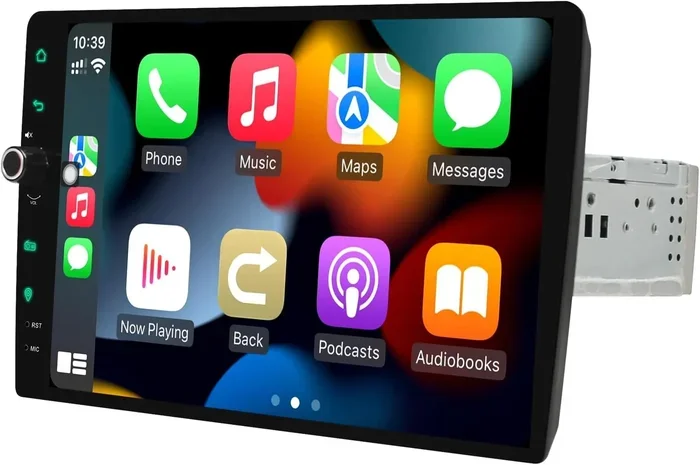
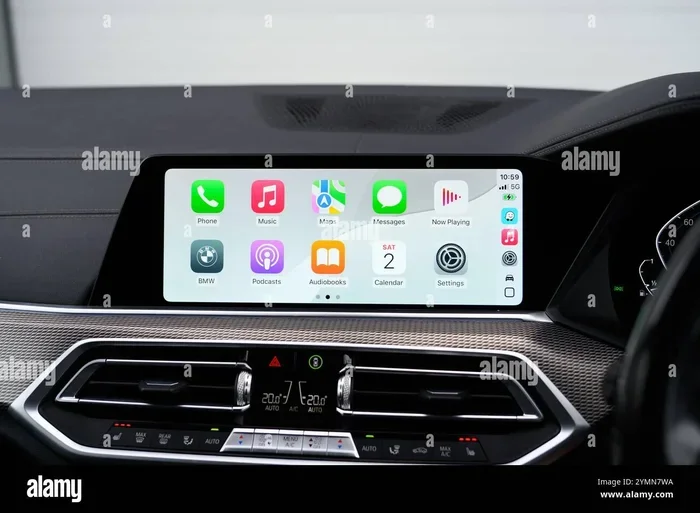
Apple CarPlay is a smart feature that mirrors parts of your iPhone onto your car’s display. It gives you access to maps, music, messages, and phone calls through your car’s screen. It’s designed to keep you safe and connected while driving.
But here’s the thing — CarPlay is built to stay connected as long as it can detect your iPhone. Whether through Bluetooth, Wi-Fi, or a USB cable, your car and your phone are in constant communication. This is great when you want a seamless experience. But it becomes a problem when CarPlay won’t turn off on its own.
Several systems work together to keep CarPlay running:
- Bluetooth — the wireless link between your iPhone and your car
- Wi-Fi — used in wireless CarPlay connections
- USB Connection — the wired option that triggers CarPlay automatically
- Auto-Play Feature — a setting that launches CarPlay the moment your phone connects
When any of these systems stay active, CarPlay stays on. Understanding this helps you see why simply turning off your car might not be enough to shut it down.
Common Reasons Why Apple CarPlay Won’t Turn Off
There are several reasons your CarPlay screen might stay active. Let’s look at the most common ones.
1. Auto-Launch CarPlay Is Enabled
Many cars and iPhones have an auto-launch feature for CarPlay. This means that every time your phone connects — whether through Bluetooth or USB — CarPlay starts automatically. It’s designed for convenience, but it can feel like your CarPlay is stuck on when you don’t want it.
You might have turned off your car, but if your iPhone is still paired and connected, CarPlay can relaunch when you restart the ignition. This is one of the top reasons people search for why won’t my Apple CarPlay turn off.
2. Bluetooth and Wi-Fi Are Still Active
Even after you turn off your car, your iPhone may still be connected to your car’s Bluetooth system. And if you use wireless CarPlay, your Wi-Fi connection keeps the link alive. This means CarPlay stays in a standby mode, ready to activate at any moment.
Some car infotainment systems are designed to keep Bluetooth active for a while after the engine is off. This is intentional — it lets you make calls or stream music for a few minutes after parking. But it also means CarPlay doesn’t fully shut down until the Bluetooth connection drops.
3. Your iPhone Is Still Connected via USB
If you use a USB cable to connect your iPhone, the physical connection keeps CarPlay active. Even if your car is off, the cable maintains a data link between the devices. Some cars continue to power the USB ports for a limited time after the engine is turned off.
This is why simply parking the car doesn’t always stop CarPlay from running. The cable is still doing its job — even when you don’t want it to.
4. A Software Glitch or System Freeze
Sometimes, CarPlay doesn’t turn off because of a simple software bug. Your car’s infotainment system or your iPhone might experience a temporary freeze that prevents CarPlay from closing properly. This is more common after software updates or when too many apps are running in the background.
A CarPlay system glitch like this can be annoying, but it’s usually easy to fix. A quick restart of either your phone or your car’s system often does the trick.
5. Your Car’s Infotainment System Is Holding the Connection
Not all car infotainment systems handle CarPlay disconnections the same way. Some systems are designed to keep CarPlay active until you manually go into the settings and turn it off. Others might need a full system reboot to release the connection.
If you’ve tried everything on your iPhone and CarPlay still won’t turn off, the issue might be on the car’s side. This is especially true for older car models or systems that haven’t been updated in a while.
Step-by-Step Solutions to Turn Off Apple CarPlay
Now that you know why CarPlay won’t turn off, let’s look at how to fix it. Try these solutions in order — most people find relief with the first few steps.
Step 1: Disconnect Your iPhone from the Car
The simplest fix is to physically disconnect your iPhone. If you’re using a USB cable, unplug it from your car’s port. If you’re using wireless CarPlay, turn off Bluetooth on your iPhone.
Here’s how to turn off Bluetooth:
- Open the Control Center by swiping down from the top-right corner of your screen
- Tap the Bluetooth icon to turn it off
- Wait a few seconds and check if CarPlay disappears from your car’s screen
This works for most people. But if your car keeps the connection alive even after you disconnect, move on to the next step.
Step 2: Turn Off Auto-Play for CarPlay
Go to your iPhone Settings and find the CarPlay section. Here’s where to look:
- Open Settings on your iPhone
- Tap General
- Select CarPlay
- Choose your car from the list
- Toggle off Auto-Play or Show CarPlay When Connected
Turning off auto-play means CarPlay won’t launch automatically the next time your phone connects. This is one of the most effective ways to stop CarPlay from turning on by itself.
Step 3: Restart Your iPhone
A quick restart clears temporary bugs and refreshes all connections. Here’s how:
- Press and hold the side button and either volume button
- Slide to power off
- Wait 30 seconds
- Press the side button again to turn your iPhone back on
After the restart, reconnect to your car and check if CarPlay behaves normally. This simple step fixes many CarPlay connection issues.
Step 4: Restart Your Car’s Infotainment System
If the problem is on the car’s side, you need to restart the infotainment system. The method varies by car brand:
- For most cars: Press and hold the power button on the infotainment screen for 10-15 seconds
- For some models: You may need to turn the ignition off, wait a minute, and turn it back on
- For advanced systems: Check your car’s manual for a full system reboot option
This clears the car’s memory of the stuck CarPlay connection and allows it to start fresh.
Step 5: Reset CarPlay Settings on Your iPhone
If none of the above works, you can reset your CarPlay settings:
- Go to Settings > General > CarPlay
- Tap on your car and select Forget This Car
- Reconnect your iPhone and set up CarPlay again
This clears all saved preferences and forces a fresh pairing. It often resolves stubborn CarPlay issues that won’t go away with simpler fixes.
CarPlay Settings You Should Check to Prevent This Issue
Prevention is always better than fixing. Here are the CarPlay settings you should review to stop CarPlay from staying on when you don’t want it to.
Disable Wireless CarPlay When Not Driving
If you use wireless CarPlay, consider turning it off when you’re not driving. You can do this from your car’s infotainment menu or from your iPhone’s CarPlay settings. This prevents the system from maintaining a constant connection.
Turn Off Siri Suggestions for CarPlay
Siri can automatically suggest CarPlay apps based on your routine. Sometimes this causes CarPlay to activate unexpectedly. To turn this off:
- Go to Settings > Siri & Search
- Scroll down to find CarPlay suggestions
- Toggle off Show Suggestions in CarPlay
Check Your Car’s Power Settings
Some cars have settings that control how long USB ports and Bluetooth stay active after the engine is off. Check your car’s manual or settings menu for options like:
- USB Power After Engine Off
- Bluetooth Retention Time
- Infotainment Sleep Timer
Adjusting these can prevent CarPlay from staying connected after you’ve parked the car.
When to Seek Professional Help for CarPlay Issues
Most CarPlay issues can be fixed at home. But there are times when you need professional help.
Consider visiting a mechanic or your car dealer if:
- CarPlay won’t turn off even after trying all the steps above
- Your car’s infotainment system freezes or crashes frequently
- You notice CarPlay draining your car battery when the car is off
- Your iPhone repeatedly disconnects and reconnects to CarPlay
- You’ve tried a factory reset and the problem persists
A professional can check for software updates for your car’s infotainment system. They can also inspect your car’s wiring and USB ports for hardware issues that might be causing the problem.
Don’t ignore persistent issues. A stuck CarPlay connection can drain your iPhone battery and even affect your car’s electrical system over time.
Preventing CarPlay From Staying On in the Future
Once you’ve fixed the issue, you’ll want to make sure it doesn’t happen again. Here are some easy habits that help.
Develop a Quick Parking Routine
Get into the habit of doing a quick check every time you park:
- Turn off the car engine
- Disconnect your iPhone from the USB port (or turn off Bluetooth)
- Check the car screen to confirm CarPlay has closed
- Put your phone in your pocket or bag
This takes just a few seconds and prevents CarPlay from lingering on your dashboard.
Keep Your iPhone and Car Software Updated
Software updates often fix bugs that cause CarPlay connection issues. Make sure you’re running the latest version of iOS on your iPhone and the latest firmware for your car’s infotainment system.
To update your iPhone:
- Go to Settings > General > Software Update
- Download and install any available updates
Use a Quality USB Cable
Cheap or damaged cables can cause CarPlay to behave unpredictably. A reliable cable ensures a clean connection and disconnection every time. Look for MFi-certified (Made for iPhone) cables that are designed to work with Apple CarPlay.
Comparing Wired vs. Wireless CarPlay Connection Behavior
Your connection type can affect how CarPlay behaves when you want it to turn off. Here’s a quick comparison.
| Feature | Wired CarPlay (USB) | Wireless CarPlay (Bluetooth/Wi-Fi) |
|---|---|---|
| Connection stays active after engine off | Yes, if cable is plugged in | Yes, until Bluetooth disconnects |
| Auto-activation when you start the car | Yes, almost always | Yes, if auto-play is enabled |
| Ease of manually disconnecting | Easy — just unplug the cable | Requires going into settings |
| Common reason for CarPlay not turning off | USB port stays powered | Bluetooth stays paired |
| Best for preventing CarPlay from staying on | Unplug after parking | Turn off wireless CarPlay in car settings |
Both connection types have their pros and cons. But understanding how each one works helps you troubleshoot why CarPlay won’t turn off in your specific setup.
Quick Tips to Keep CarPlay Under Control
Here are some fast, practical tips that make a big difference:
- Restart your iPhone weekly — this clears background processes that can interfere with CarPlay
- Turn off Bluetooth when parking — it’s the fastest way to kill the CarPlay connection
- Don’t leave your iPhone plugged in overnight — this can cause CarPlay to reactivate in the morning
- Use Siri commands — say “Hey Siri, turn off CarPlay” to quickly disable it while driving
- Check your car manual — every car handles CarPlay differently, and your manual has specific instructions
Conclusion
Apple CarPlay not turning off is a frustrating problem, but it’s almost always fixable. The most common causes are auto-launch settings, active Bluetooth or Wi-Fi connections, and software glitches. By following the steps in this guide, you can take control of your CarPlay experience and make sure it only activates when you want it to.
Start with the simple fixes — disconnect, restart, and adjust your settings. If those don’t work, dig deeper into your car’s infotainment system or reset CarPlay entirely. And remember, prevention through good habits and regular updates keeps CarPlay running smoothly in the long run.
Now you know exactly what to do when your CarPlay won’t turn off. Try these solutions today and enjoy a smoother, more predictable driving experience.
Why Won’t My Apple CarPlay Turn Off?
CarPlay may stay on because of auto-launch settings, active Bluetooth or Wi-Fi connections, or a software glitch. Check your iPhone and car settings to identify the cause and apply the relevant fix.
How Do I Force CarPlay to Turn Off?
Turn off Bluetooth on your iPhone, disconnect the USB cable, or go to Settings > General > CarPlay and forget the car. Restarting your iPhone or your car’s infotainment system also forces CarPlay to close.
Can a Software Update Fix CarPlay Not Turning Off?
Yes. Software updates often include bug fixes for connectivity issues. Make sure both your iPhone and your car’s infotainment system are running the latest software versions.
Why Does CarPlay Turn On By Itself After I Park?
This usually happens because the auto-launch feature is enabled. Your phone stays connected via Bluetooth or USB, and the car’s system automatically reactivates CarPlay when you restart the engine.
Does Leaving CarPlay On Drain My Car Battery?
It can, especially if your car keeps USB ports powered after the engine is off. Over time, a constant CarPlay connection draws power and may lead to a dead battery.
Should I Factory Reset CarPlay If It Won’t Turn Off?
Factory resetting should be a last resort. Go to Settings > General > CarPlay, forget the car, and reconnect. If the problem persists after a reset, consult a professional mechanic or your car dealer.
Frequently Asked Questions
What is Why Won’t My Apple CarPlay Turn Off??
Why Won’t My Apple CarPlay Turn Off? is an important topic with many practical applications.