How Do I Set My Device to Automatic Time on Any Device
Setting your device to automatic time keeps your clock accurate everywhere you go. Whether you drive a car, use a GPS navigator, or carry a smartphone, automatic time sync saves you from manual adjustments. This guide covers every device you use on the road and at home. You will learn simple steps for phones, car systems, and automotive gadgets. Follow along and never worry about the wrong time again.
Have you ever glanced at your car clock and realized it shows the wrong time? Maybe you just crossed a time zone, or daylight saving time kicked in and your display did not update. It happens to all of us. The good news is that setting your device to automatic time is simple, fast, and works on almost every gadget you own. Once you turn it on, your phone, car infotainment screen, GPS navigator, and even your dash cam will keep the correct time without you lifting a finger.
In this guide, we walk you through how to set your device to automatic time on any device. We cover smartphones, car infotainment systems, GPS units, dash cameras, and more. Each section gives you clear, step-by-step instructions you can follow right now. Whether you are a tech-savvy driver or someone who just wants things to work, this article has you covered. Let us dive in and make sure your clocks are always right.
Key Takeaways
- Automatic time sync works across all devices: phones, car infotainment, GPS units, and dash cams all support it.
- Network time protocol (NTP) is the technology behind automatic clock updates on most modern devices.
- Daylight saving time adjustments happen automatically when your device clock sync is enabled.
- Car infotainment systems often pull time from your connected phone or a GPS satellite signal.
- Troubleshooting is simple: a quick restart or settings check fixes most automatic time issues.
- Traveling across time zones is effortless when your device uses automatic clock sync.
- Dash cams and GPS devices benefit greatly from correct time settings for accurate logging.
📑 Table of Contents
- Why Automatic Time Sync Matters for Your Devices
- How to Set Automatic Time on Your Smartphone
- Setting Automatic Time in Your Car Infotainment System
- Automatic Time for GPS Navigation Devices
- Dash Cams and Other Automotive Devices
- Troubleshooting Common Issues with Automatic Time
- Expert Insights on Device Clock Management
- Key Takeaways
- Conclusion
Why Automatic Time Sync Matters for Your Devices
Many people do not think about their device clock until something goes wrong. But automatic time synchronization plays a bigger role than most realize. Your car navigation system uses time data to log routes. Your dash cam stamps every video clip with a timestamp. Your phone uses time to schedule appointments and remind you about appointments. When any of these clocks drift, things get messy fast.
Here are a few reasons why clock synchronization matters in your daily life:
- Accurate GPS navigation: your car navigation system relies on precise timing signals from satellites. A wrong clock can shift your position slightly.
- Reliable dash cam footage: if you ever need to file an insurance claim, the timestamp on your video matters a lot.
- Seamless travel across time zones: automatic time adjustment means you never have to guess the local time when you cross state lines.
- Connected car features: modern smart car displays sync with your phone and need accurate time to work properly.
- Bluetooth clock sync: when your phone connects to your car stereo, it shares time data automatically if both devices support it.
Turning on automatic time is one of those small settings that makes a huge difference. It removes a whole category of daily frustrations. Let us now look at how to do it on each of your devices.
How to Set Automatic Time on Your Smartphone
Your phone is the easiest device to configure for automatic clock update. Both iPhone and Android offer built-in options that take just a few taps. Once enabled, your phone pulls the correct time from network servers using network time protocol, or NTP. This ensures your mobile device time is always spot-on.
Setting Automatic Time on iPhone
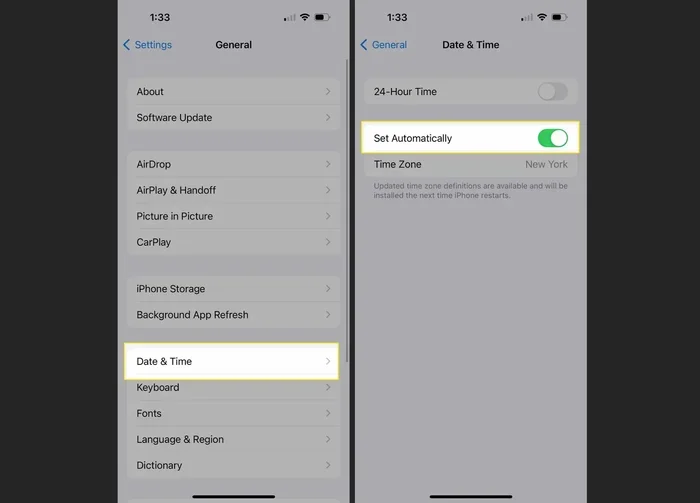
Apple makes it very straightforward to set device to automatic time on an iPhone. Follow these steps:
- Open the Settings app on your iPhone.
- Tap General, then tap Date & Time.
- Toggle on Set Automatically.
- Make sure your time zone is set correctly. Your iPhone will detect this from your network.
Once you turn on the toggle, your iPhone will sync with Apple’s time servers. You will notice the clock adjusts instantly if you travel to a different travel time zone. The daylight saving time update also happens automatically, so you never have to remember to spring forward or fall back.
Setting Automatic Time on Android
Android phones work similarly but with slightly different steps. Here is how to set your device to automatic time on an Android phone:
- Open the Settings app.
- Go to System, then tap Date & Time. (On some phones, this may be under General Management or Connections.)
- Toggle on Use network-provided time.
- Toggle on Use network-provided time zone as well.
Your Android phone will now pull the correct time from your carrier’s network or Wi-Fi connection. This is a form of Wi-Fi time sync that keeps your digital clock sync accurate at all times. If you ever notice the wrong time, a quick toggle off and back on usually fixes it.
Quick Tips for Smartphone Time Settings
- Keep your phone updated: software updates often improve how your phone handles time zone settings and automatic time adjustment.
- Turn on automatic time zone: this is especially helpful if you travel frequently for work or leisure.
- Check your Wi-Fi connection: some phones need Wi-Fi to pull the correct time, especially when cellular data is weak.
- Restart your phone if the clock is wrong: a simple reboot often triggers an immediate clock synchronization with the network.
Setting Automatic Time in Your Car Infotainment System
Modern cars come packed with infotainment systems that do much more than play music. Your car’s display shows the time, navigation maps, and even your phone notifications. But many drivers never check whether their car infotainment clock is set correctly. The good news is that most vehicles made after 2015 support automatic time sync through GPS or Bluetooth.
How Car Infotainment Systems Get the Time
There are three main ways your car’s display gets the correct time:
- GPS signal: the car’s navigation system receives timing data from satellites. This is the most accurate method and works even without a phone connection.
- Bluetooth connection: when your phone pairs with the car, it can share its device clock settings with the infotainment system. This is called Bluetooth clock sync.
- Manual setting: some older vehicles or budget models require you to set the time by hand. You can still enable auto-update if the system supports it.
Steps to Enable Automatic Time in Popular Car Brands
Every car brand has a slightly different menu structure. Here are general steps for some popular vehicle time settings:
Toyota and Lexus: Go to Settings, then Clock, and look for the Auto Clock option. Toggle it on. The system will pull time from the GPS signal.
Honda and Acura: Press the Setup button on your steering wheel, scroll to the Clock menu, and select Auto Time Zone. This enables both automatic time and time zone settings.
Ford and Lincoln: Navigate to Settings, then Clock, and turn on the Sync with Navigation option. Your car’s clock will match the GPS time at all times.
Chevrolet and GMC: Go to Settings, tap Display, then Clock. Enable the Automatic Time feature. The system will also adjust for daylight saving time automatically.
BMW and Mercedes-Benz: These luxury brands often sync time through the connected drive or Mercedes me app. Make sure your connected services are active, and the car will pull the correct time from the cloud.
Quick Tips for Car Clock Accuracy
- Keep your GPS antenna clear: if your car has a roof-mounted GPS antenna, make sure nothing blocks it. A weak signal can cause time drift.
- Pair your phone if the car supports Bluetooth time sync: this is a reliable backup method for getting accurate car navigation time.
- Check your time zone after a factory reset: if your car’s system was reset, you may need to re-enable automatic time settings.
- Update your car’s firmware: manufacturers occasionally release updates that improve automatic clock update reliability.
Automatic Time for GPS Navigation Devices
Standalone GPS devices are still popular among drivers, especially those who prefer a dedicated car navigation system over using their phone. Garmin, TomTom, and Magellan all offer portable and dash-mounted navigators that support automatic time synchronization. These devices use satellite signals to get the exact time, which also helps improve GPS device settings accuracy for your route calculations.
How GPS Devices Sync Time
GPS receivers do not just tell you where you are. They also receive precise timing signals from the satellite constellation. Each satellite carries an atomic clock, and your GPS device uses these signals to calculate the exact time. This means your dash cam clock or any device that uses GPS for time will be incredibly accurate.
Here is how to ensure your GPS navigator keeps the right time:
- Enable auto time in the settings menu: look for a Clock or Time option in the main settings. Toggle on automatic sync.
- Let the device acquire a satellite signal before driving: this gives the unit time to lock onto satellites and pull the correct time zone settings.
- Update your device’s map software regularly: map updates often include time zone database improvements, which helps with travel time zone accuracy.
- Keep the device charged and powered on: some GPS units lose their time settings if they sit unused for a long period.
Common GPS Time Issues and Fixes
If your GPS navigator shows the wrong time, do not panic. Here are the most common causes and how to fix them:
Wrong time zone after a reset: go to Settings, then Time Zone, and set it to Auto Detect. The device will determine your location and adjust accordingly.
Time drifts slightly over weeks: this can happen if the device has not connected to satellites recently. Take it outside and let it sit for a few minutes to re-acquire a signal.
Daylight saving time did not update: make sure your device firmware is up to date. Manufacturers push automatic time adjustment updates for daylight saving changes regularly.
Dash Cams and Other Automotive Devices
Dash cams have become essential tools for drivers who want to protect themselves on the road. A dash cam records everything, and each clip gets a timestamp that can be crucial in an accident or insurance dispute. If your dash cam clock is wrong, those timestamps lose their value. Setting your dash cam to automatic time ensures your footage is always accurately logged.
How to Set Automatic Time on Your Dash Cam
Most modern dash cams connect to your phone via an app, and that app handles the time synchronization. Here is the general process:
- Download the dash cam manufacturer’s app on your phone.
- Make sure your phone has automatic time enabled (follow the smartphone steps above).
- Connect your phone to the dash cam via Wi-Fi or Bluetooth.
- Open the app and look for a Time or Clock settings option.
- Enable auto sync or network time. The dash cam will pull the correct time from your phone.
Some higher-end dash cams connect directly to your car’s power system and use GPS to get the time. If your dash cam has a GPS module, it will usually sync automatically. Just make sure the GPS antenna is not blocked by your windshield tint or a phone mount.
Other Automotive Devices That Use Automatic Time
It is not just dash cams and GPS units. Several other devices in your car benefit from clock synchronization:
- Rearview camera systems: many systems with recording features use timestamps that need to be accurate.
- OBD-II diagnostic scanners: these tools log data with timestamps, and correct time helps when diagnosing issues with your mechanic.
- Smart car displays: vehicles with connected features often pull time from the cloud or your paired phone.
- Teen driver monitoring systems: these devices track driving behavior and rely on accurate time to log events correctly.
- Fleet tracking devices: if you manage a fleet of vehicles, automatic time sync across all devices is essential for accurate reporting.
Troubleshooting Common Issues with Automatic Time
Even with the best devices, sometimes automatic time sync does not work as expected. This section covers the most common problems and how to fix them quickly.
Device Clock Shows the Wrong Time After Traveling
This usually happens when your device cannot detect the new time zone. First, make sure your time zone settings are set to automatic. On your phone, check that Location Services are enabled, as they help your device determine the correct zone. In your car, make sure the GPS antenna has a clear view of the sky. A few minutes after arriving in a new zone, the clock should update on its own.
Automatic Time Toggle Is Grayed Out
If you cannot turn on automatic time, it is often because of a restricted setting. On Android phones, check if a battery saver or data restriction is preventing the device from accessing network time. On iPhones, make sure you are not in a restricted profile or managed by a company that limits these settings. Restarting the device often resolves this issue.
Time Keeps Drifting Even with Auto Sync On
A clock that drifts over time may have a weak signal. For GPS devices, make sure the antenna is not obstructed. For phones and car systems, check that your Wi-Fi or cellular connection is stable. If you use a dash cam with a weak Wi-Fi signal, the time sync may fail intermittently. Consider moving the dash cam’s Wi-Fi hotspot closer to your phone when syncing.
Daylight Saving Time Did Not Update
This is rare on modern devices but does happen on older GPS units or car systems. The fix is usually a firmware update. Check the manufacturer’s website for the latest software. For phones, simply updating your operating system to the latest version will include the most recent daylight saving time rules.
Expert Insights on Device Clock Management
Managing your device clocks properly is a small habit that pays off in big ways. Automotive experts and tech professionals recommend a few best practices for keeping your automatic time reliable across all your devices.
Expert Insight 1: Sync all your devices at the same time. If your phone, car, and dash cam all sync to the same network time source, you avoid discrepancies. This is especially important when you need to match dash cam footage with phone records after an incident.
Expert Insight 2: Do not rely solely on manual time setting. Manual settings are easy to forget or get wrong, especially when you travel. Automatic time adjustment removes human error from the equation entirely.
Expert Insight 3: Check your car’s time settings after a battery replacement. Disconnecting your car battery resets many settings, including the clock. Always verify that automatic time is enabled again after a battery change.
Expert Insight 4: Use a Wi-Fi connection when possible. Wi-Fi time sync is often faster and more reliable than cellular data for getting the correct time, especially in areas with weak cell coverage.
Key Takeaways
- Automatic time sync works across all devices: phones, car infotainment, GPS units, and dash cams all support it.
- Network time protocol (NTP) is the technology behind automatic clock updates on most modern devices.
- Daylight saving time adjustments happen automatically when your device clock sync is enabled.
- Car infotainment systems often pull time from your connected phone or a GPS satellite signal.
- Troubleshooting is simple: a quick restart or settings check fixes most automatic time issues.
- Traveling across time zones is effortless when your device uses automatic clock sync.
- Dash cams and GPS devices benefit greatly from correct time settings for accurate logging.
Conclusion
Setting your device to automatic time is one of the simplest yet most impactful things you can do for your daily driving experience. From your smartphone to your car’s infotainment screen, your GPS navigator to your dash cam, every device works better when the clock is right. You save time, avoid confusion, and ensure that your records and logs are accurate when you need them most.
The steps we covered in this guide make it easy to set your device to automatic time on any device. Whether you use an iPhone, an Android phone, a Garmin navigator, or a dash cam with GPS, the process is straightforward. Enable automatic sync, check your time zone settings, and let your devices handle the rest.
Take a few minutes today to go through your devices and make sure automatic time is turned on everywhere. It is a five-minute task that saves you hours of confusion down the road. Your car, your phone, and your dash cam will all thank you for it. Stay accurate, stay safe, and enjoy the peace of mind that comes with knowing your clocks are always right.
Frequently Asked Questions
What is automatic time sync and how does it work?
Automatic time sync is a feature that connects your device to a time server or satellite signal to keep your clock accurate. Your phone uses network time protocol to pull the correct time from your carrier or Wi-Fi network. GPS devices receive timing signals directly from satellites. Car infotainment systems can sync through GPS, Bluetooth, or your connected phone. This ensures your device clock settings stay accurate without any manual effort.
Why does my car clock show the wrong time even with auto sync on?
This usually happens when your car’s GPS antenna has a weak signal or when the time zone settings are not set correctly. Try restarting your car’s infotainment system and letting it sit for a few minutes to re-acquire the GPS signal. Also check that your phone is connected properly if your car uses Bluetooth clock sync to get the time.
Do I need an internet connection for automatic time to work?
Not always. GPS devices and car navigation systems get their time directly from satellites, so they do not need the internet. However, phones and some smart car displays use Wi-Fi or cellular data to sync with network time protocol servers. If you are in an area with no signal, your device may rely on its internal clock, which can drift over time.
How do I fix daylight saving time issues on my car clock?
If your car clock did not update for daylight saving time, first check if your infotainment system has the latest firmware. Manufacturers release updates that include the correct daylight saving time rules. You can also try toggling the auto time setting off and back on. If the issue persists, a factory reset of the car’s clock settings may be needed.
Can I set automatic time on a dash cam that does not have GPS?
Yes, most dash cams without built-in GPS can still sync time through their companion phone app. Download the app, make sure your phone has automatic time enabled, and connect to the dash cam via Wi-Fi. The app will transfer the correct time to the dash cam. This is a simple way to ensure your dash cam clock is always accurate.
Is it safe to rely on automatic time for insurance claims?
Yes, it is very safe. Devices with automatic clock update provide reliable timestamps that insurance companies accept. Dash cams and GPS devices that use satellite or network time are considered accurate records. To strengthen your claim, make sure your devices are synced correctly and the timestamps match the date and time of the incident.